Basic Interface
Discover the basic screen layout of LG CreateBoard Lab and learn How to use gestures for effective interaction.
UI layout
Explore the basic UI configuration of LG CreateBoard Lab.
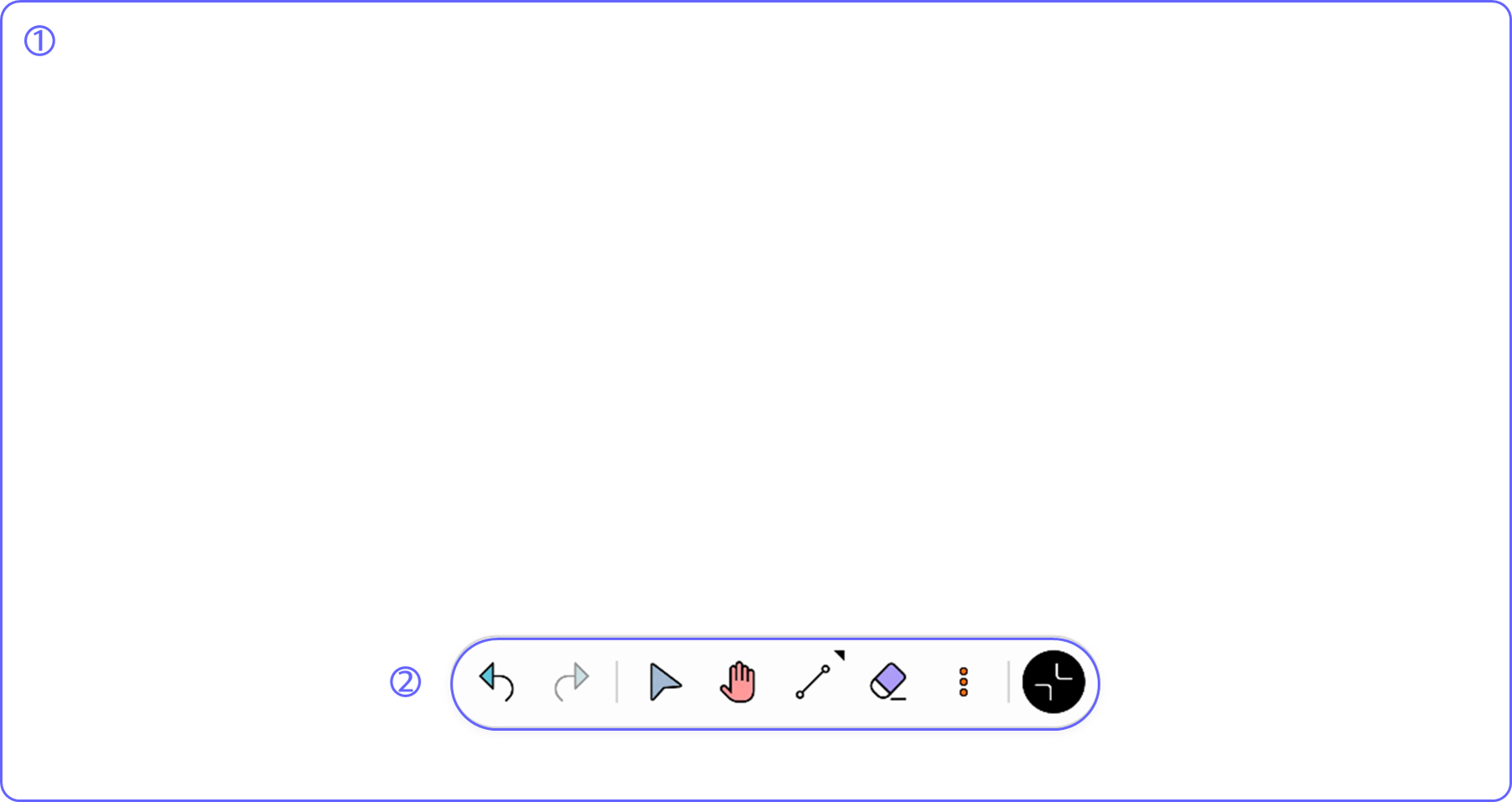
| No | Name / Feature | Description |
|---|---|---|
| ① | Drawing area | The area where you can write text and create objects based on user input. |
| ② | Tool bar | A menu collection that gathers the functions necessary to use a smart board, such as tools for writing and drawing, collaboration, board management, and settings. You can access every feature of the app from the Tool bar and customize the Tool bar with frequently used tools of your own. See also Tool bar. |
Gestures
Learn about the gestures available in LG CreateBoard Lab and How to use them.
Tool bar > More > Settings and turn off Multi-finger drawing. If gestures are not working properly, check this setting.
Drawing
| Action | Gesture | Description |
|---|---|---|
| Select | 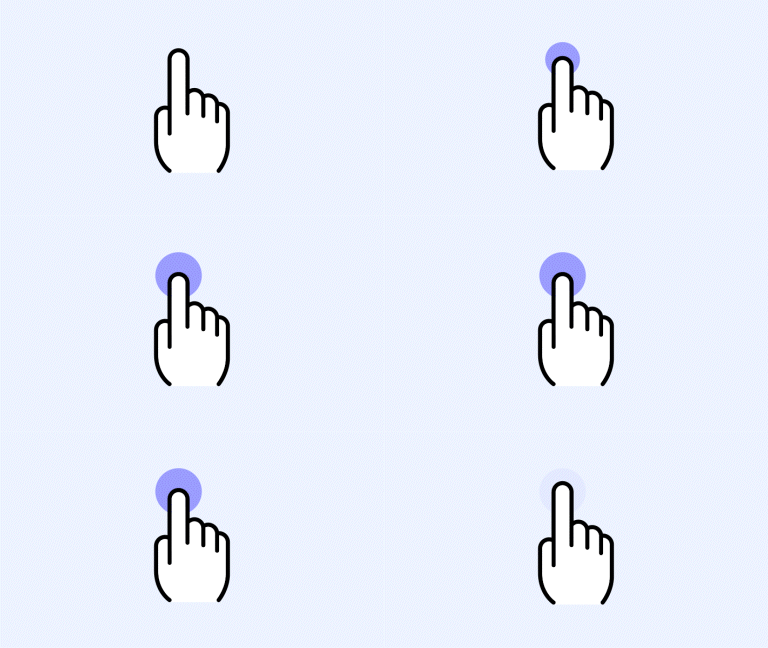
|
Long Press |
| Undo | 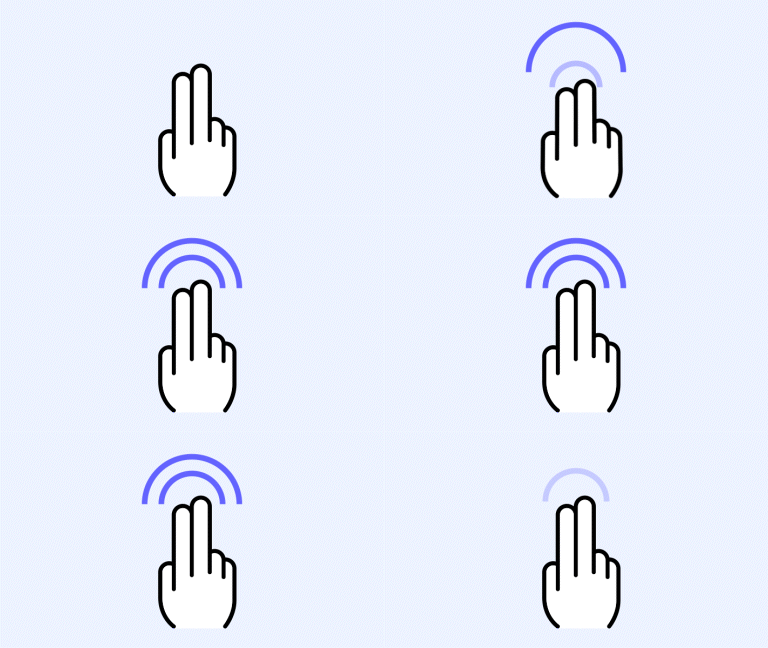
|
2 Finger Double Tap |
| Eraser | 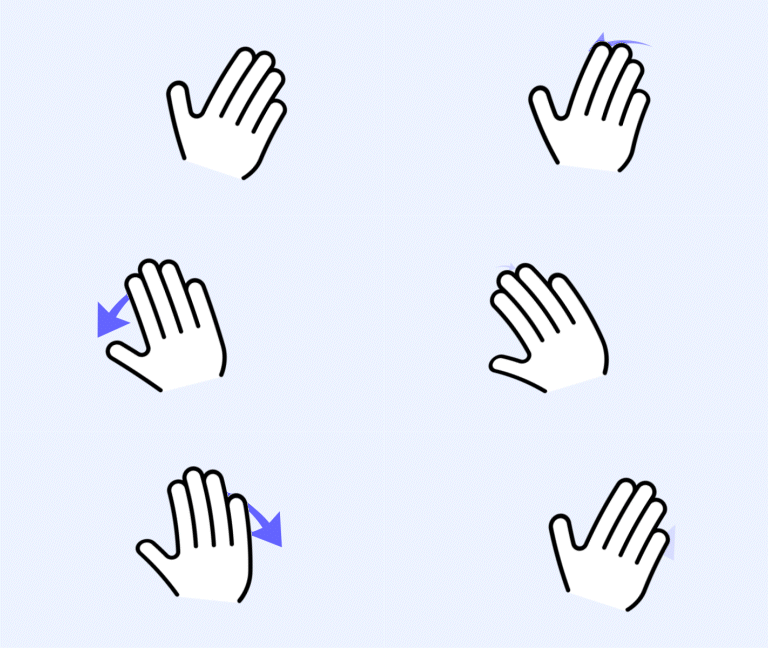
|
Palm |
| Select/Pen Mode Change | 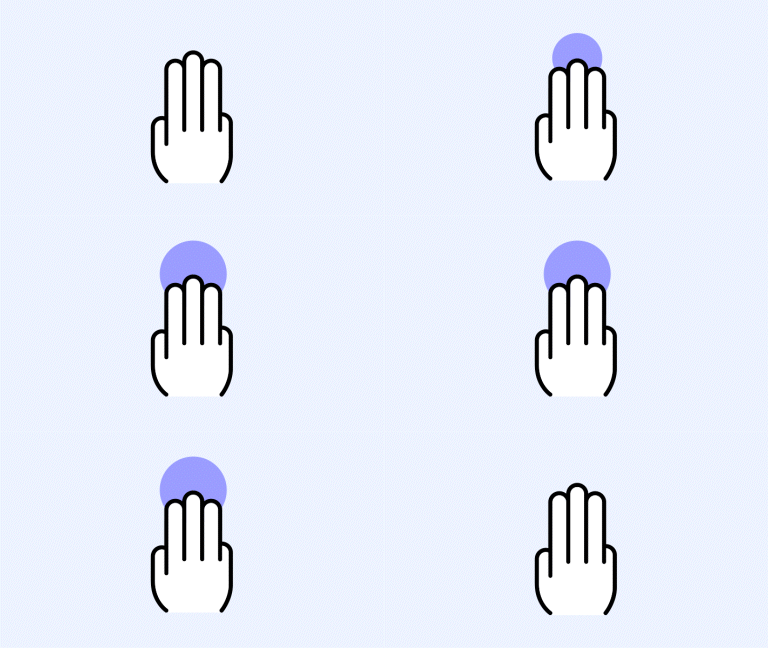
|
3 Finger Long Tap |
Board
| Action | Gesture | Description |
|---|---|---|
| Move Board | 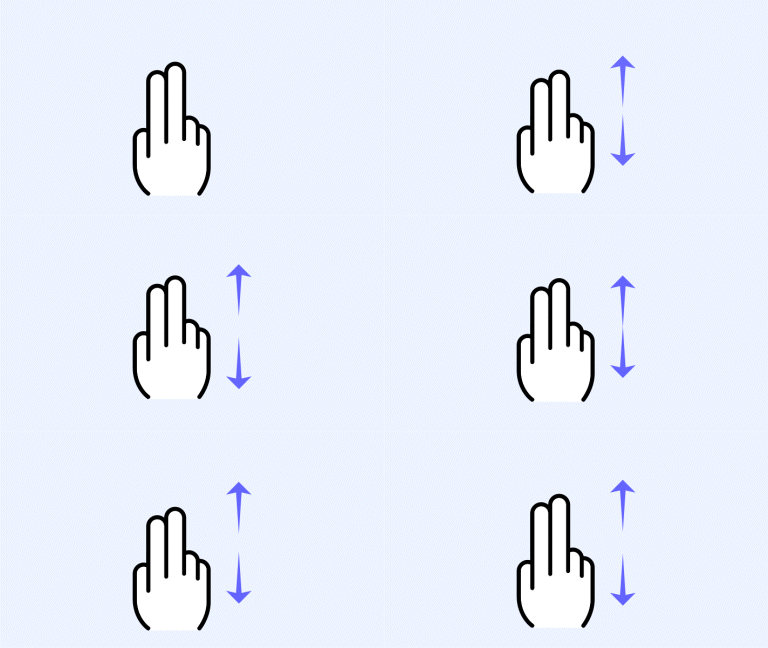
|
2 Finger Drag |
| Zoom In | 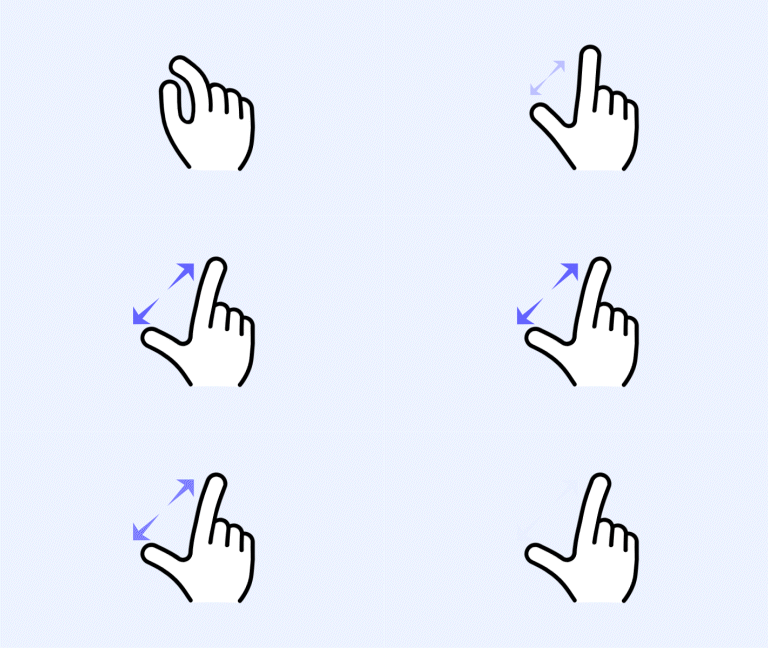
|
Pinch In |
| Zoom Out | 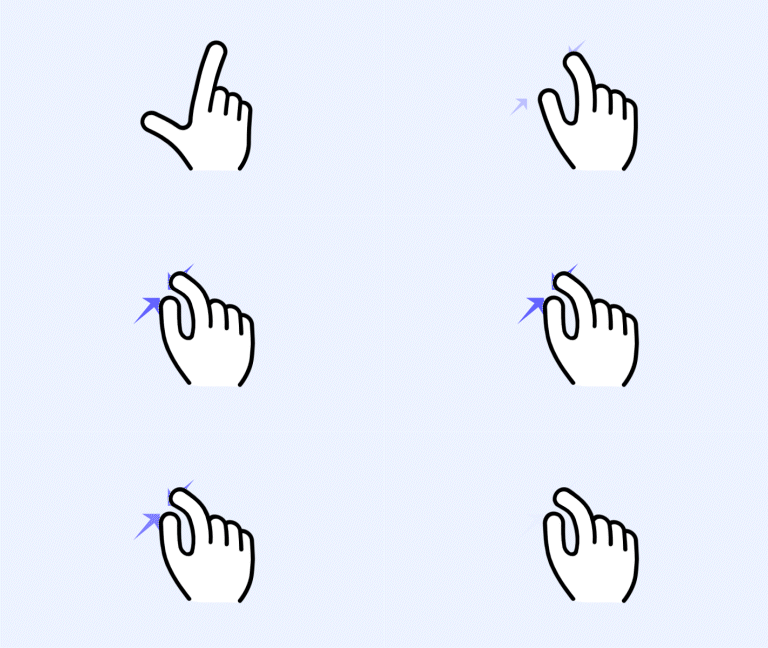
|
Pinch Out |
Page
| Action | Gesture | Description |
|---|---|---|
| Next Page | 
|
3 Finger Swipe (If your scroll direction is set to vertical, swipe down. If your scroll direction is set to horizontal, swipe right.) |
| Previous Page | 
|
3 Finger Swipe (If your scroll direction is set to vertical, swipe up. If your scroll direction is set to horizontal, swipe left.) |
Etc.
| Action | Gesture | Description |
|---|---|---|
| Play Image Slide | 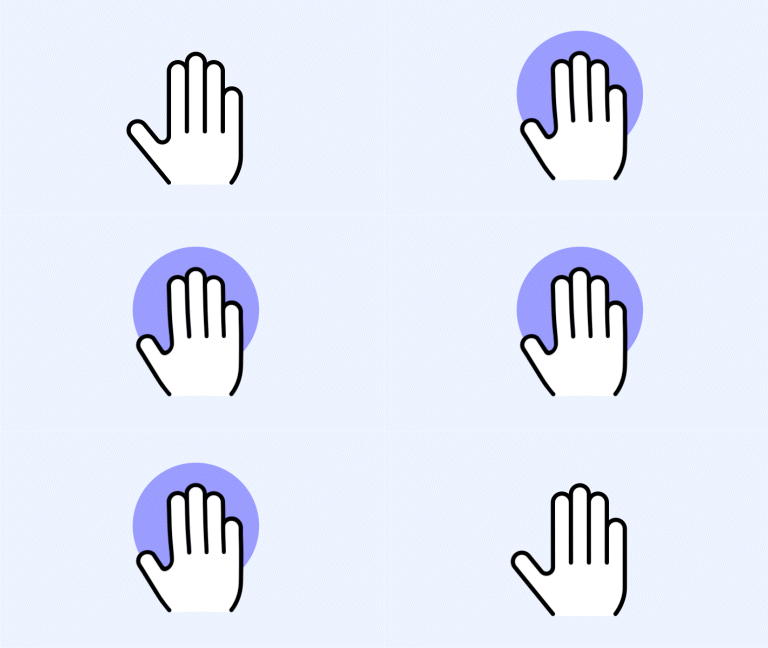
|
5 Finger Long Press for 3 Seconds |
| Attention Effect | 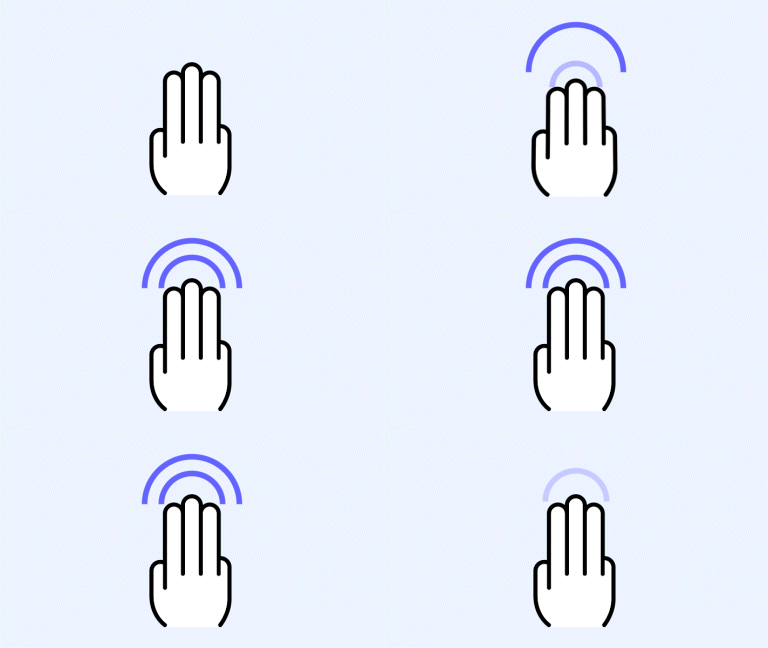
|
4-5 Finger Double Tap |
Tool bar
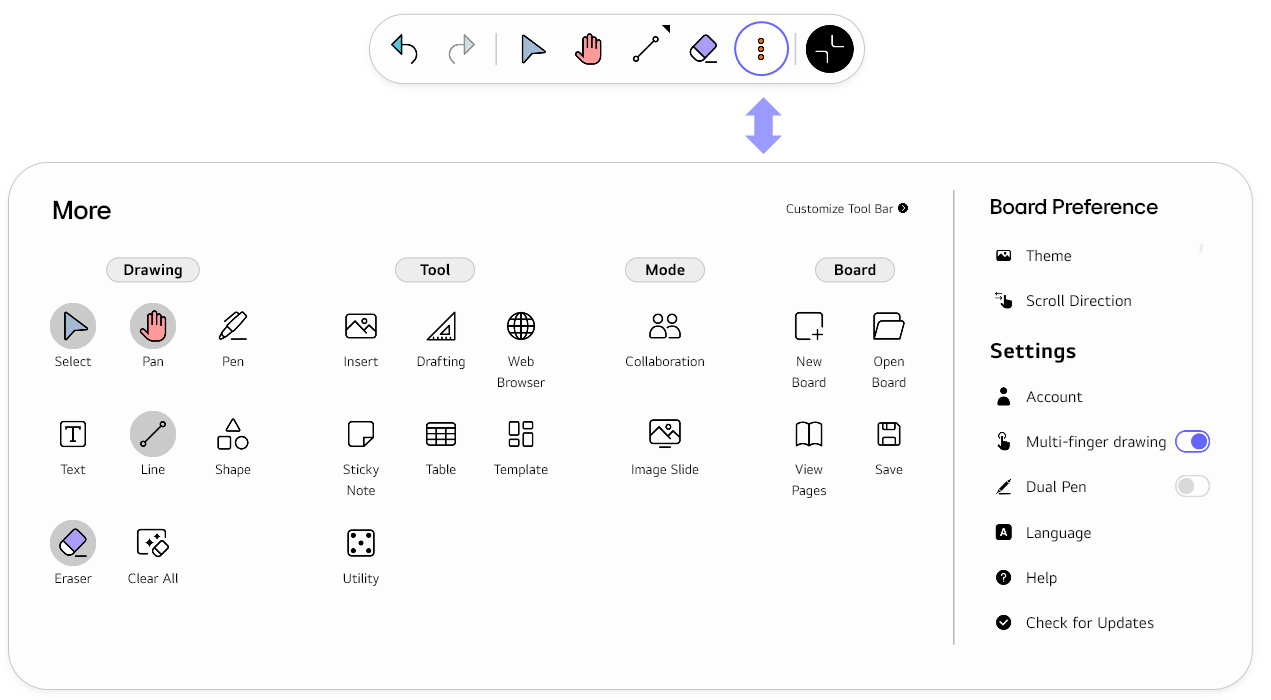
The Tool bar, which is displayed at the bottom of the screen by default, is a collection of various functions for use within the app. You can access all the features of the app by expanding it and customize it by sorting out frequently used features.

Expand the Tool bar
Tap the More button to expand the Tool bar and explore what we offer. All features are accessible from the Tool bar.
Customize the Tool bar
Tools can be added to or removed from the Tool bar as follows.
-
Tab the
Morebutton on theTool bar.
-
Tab the
Customize Tool bar.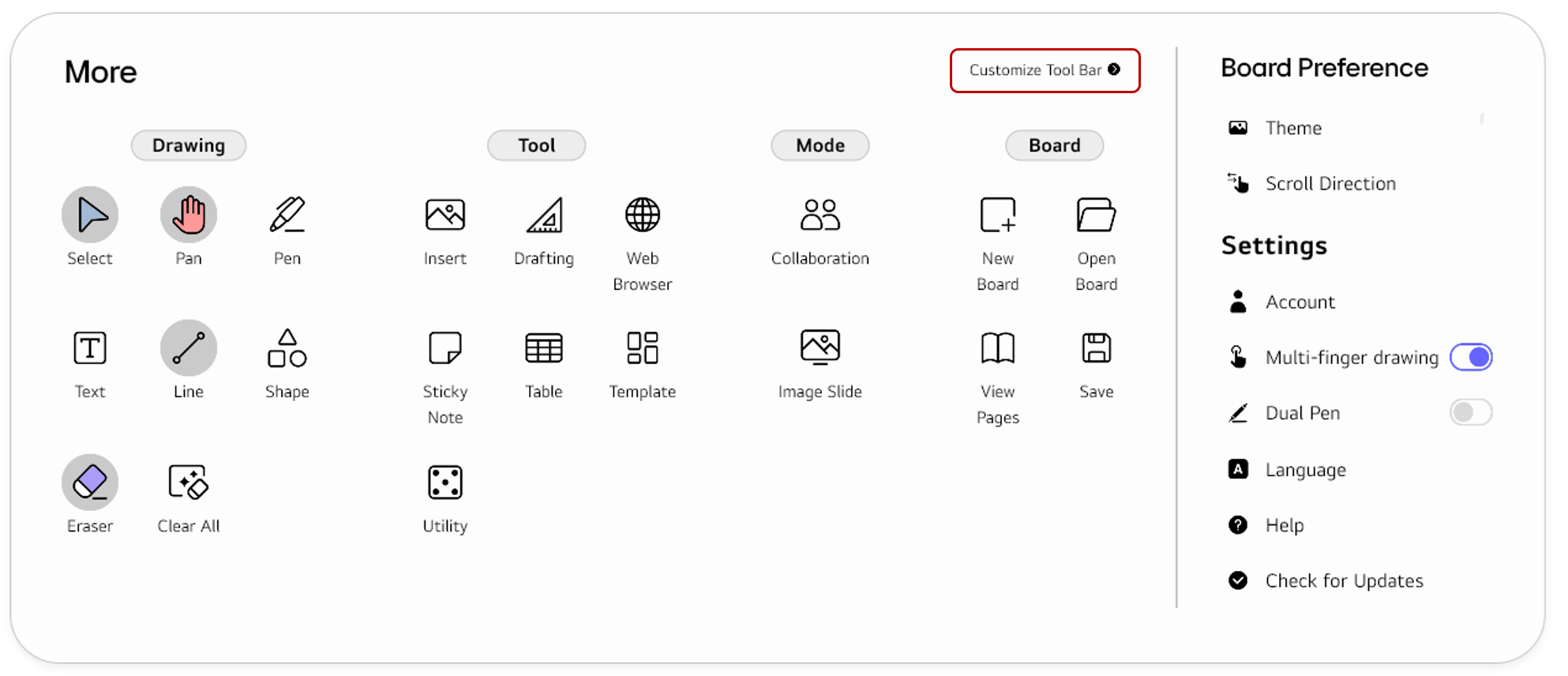
-
Find the tools you want to add to the
Tool barand select them. You can also rearrange the order of the tools on theTool barby dragging and dropping them.
- Tap
Done.
Collapse the Tool bar
You can collapse the Tool bar as follows. In the collapsed state, drag it along the edge of the board and place it where you want so that you can efficiently utilize the space of the board.