Board
The Board section provides access to the functions required for board management, such as creating, saving, and opening a board, and moving between pages.
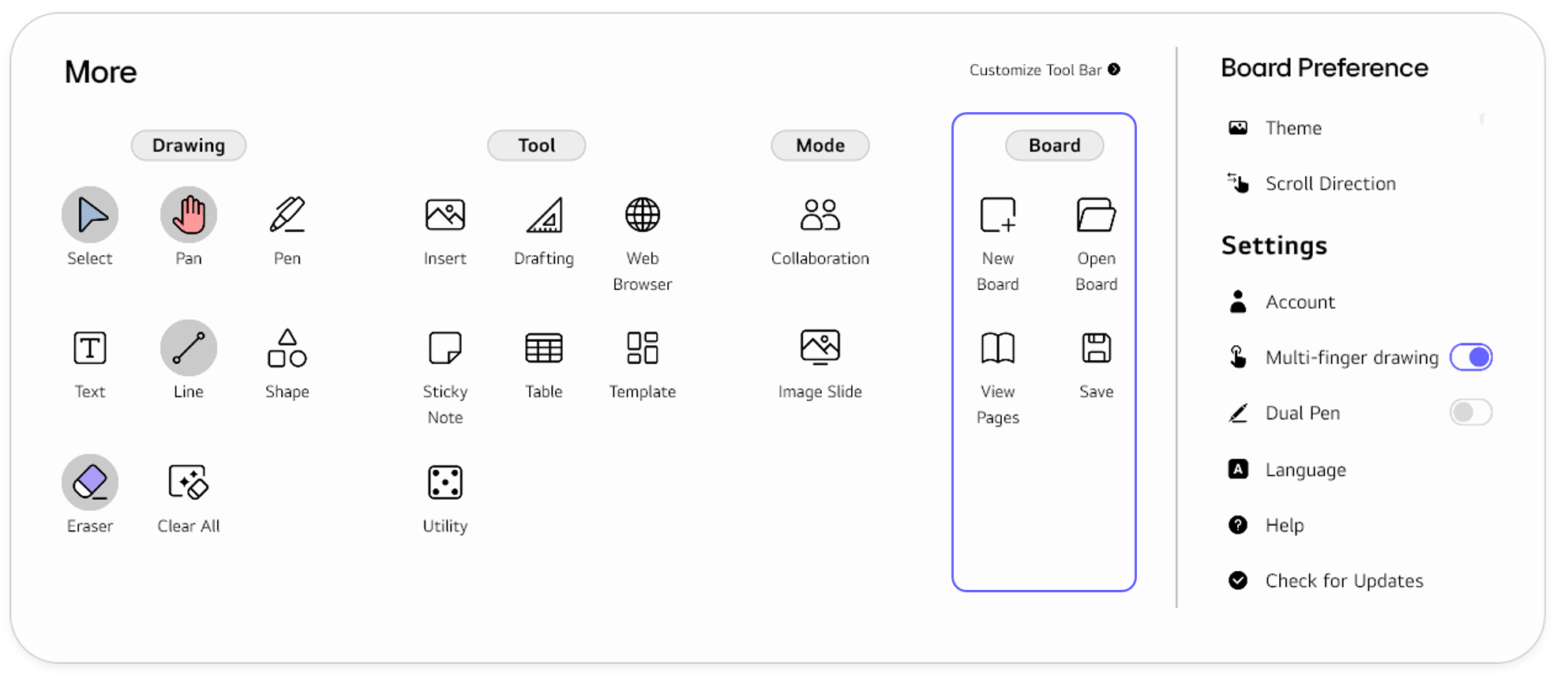
New Board
When you select New Board from the Tool bar, you can create and open a new board.
Open Board
You can open a board file stored in local or cloud storage to continuously use the existing board.
- When you select
Open Boardfrom the Tool bar, a menu will appear that allows you to choose whether to open the board file fromLocal StorageorCloud Storage.
-
Select the desired storage.
-
When the file explorer opens, choose the desired board file.
-
Select the
Openbutton.
View Pages
When you select View Page from the Tool bar, you can navigate and move between pages on the board.
Save
You can save the current board content as a file in local or cloud storage to reuse or share it with others. When you select Save from the Tool bar, a menu will appear that allows you to choose whether to save the file into Local Storage or Cloud Storage.
Local storage
To save into local storage, follow these steps.
-
Select
Local Storage. -
For Local Storage, you can choose to save the file in either
.pdfor.lab(board file) format. Choose the desired format and then selectSave.
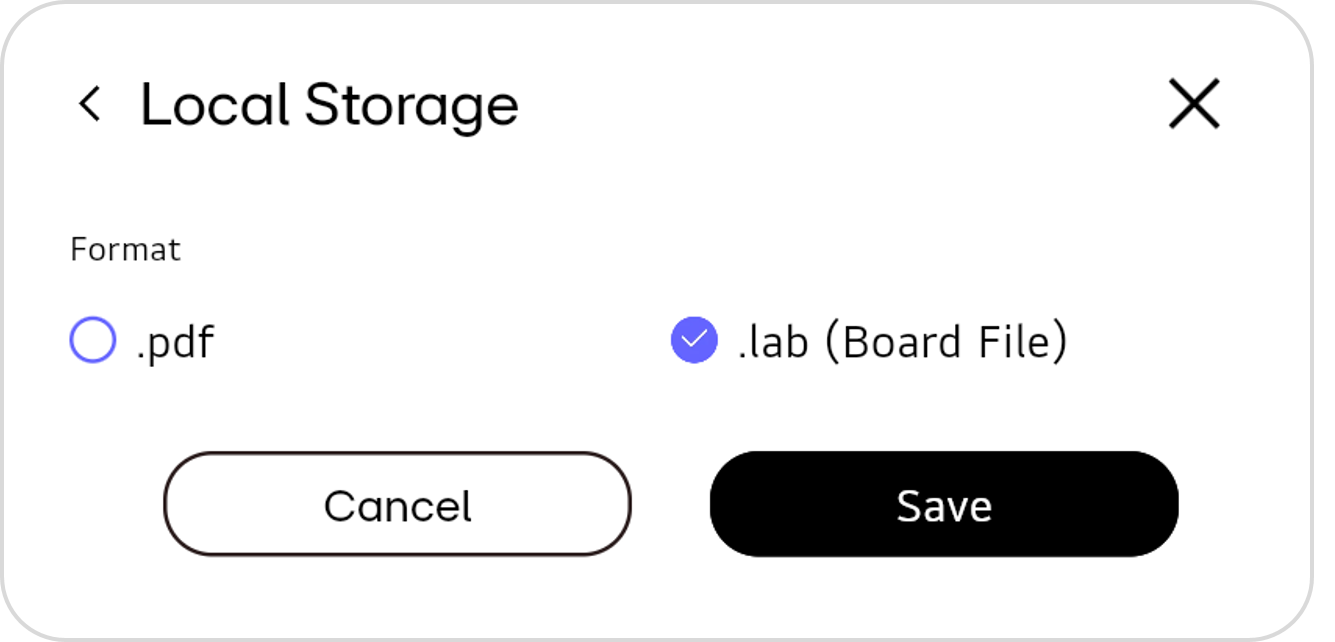
- When the file explorer opens, save the file with the desired name in the desired path.
.lab file format is used by LG CreateBoard Lab to save board files.
Cloud storage
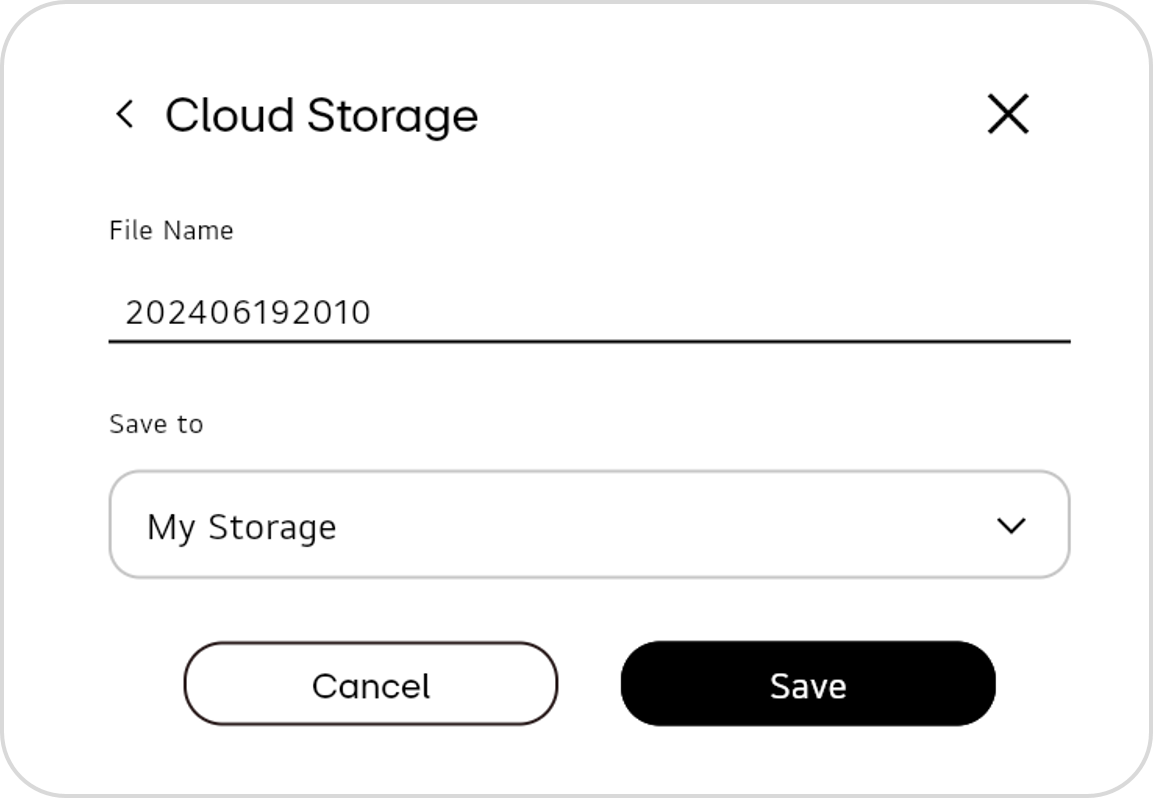
To save into cloud storage, follow these steps.
-
Select
Cloud Storage. -
Edit the file name. If you do not edit it, the default file name will be set to the current year, date, and time, such as 202406192010.
-
Choose the path where the file will be saved and then select
Save.