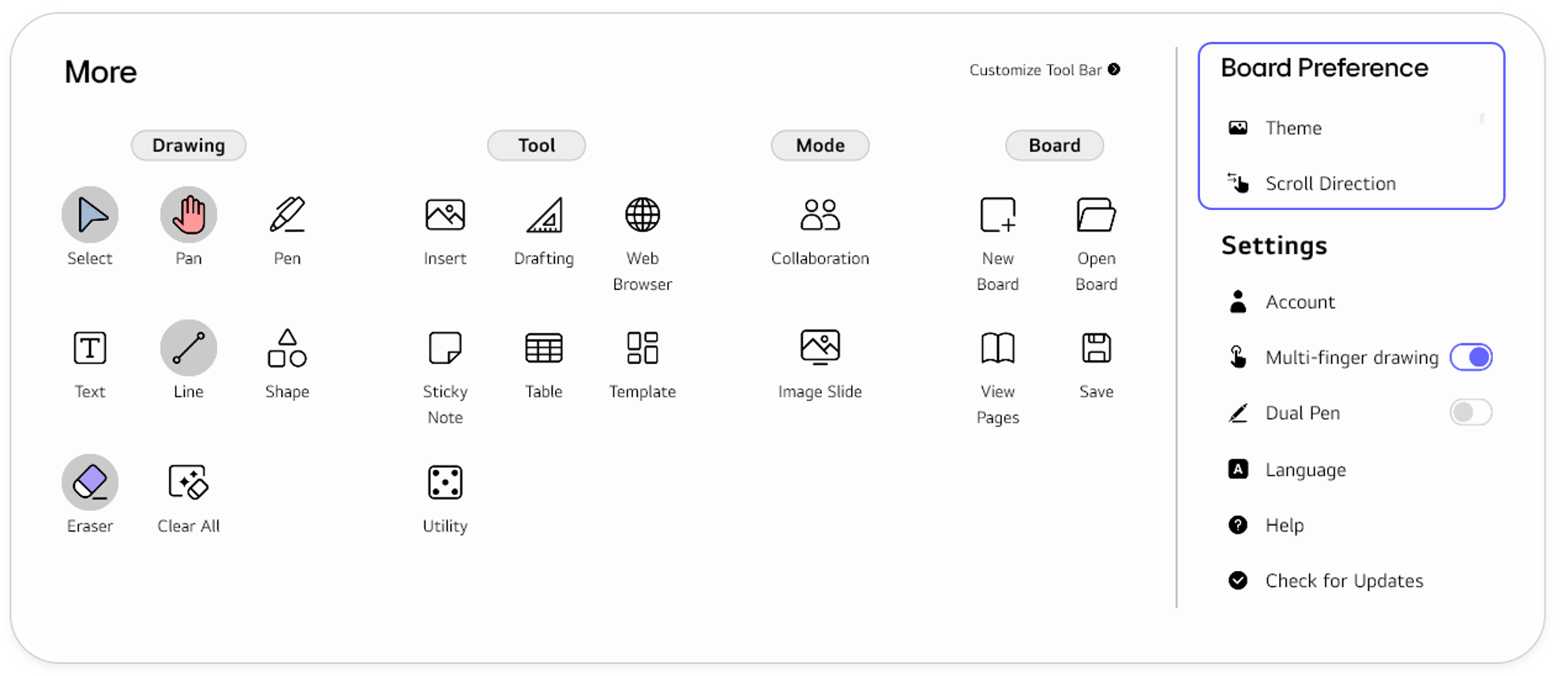
Board Preference
In Board Preference, you can change the board’s background color or set the scroll direction.
Theme
To change the board’s background color, follow these steps.
-
Tab the
Morebutton in the Tool bar to open the full menu. -
In the
Board Preferencesection, selectTheme. -
Select the desired background.
Theme Description Light 
The board's background color is set to white. Dark 
The board’s background color is set to black. Chalkboard 
The board’s background color is set to green like a traditional chalkboard.
Scroll direction
You can set the scrolling direction on the board to either vertical (up/down) or horizontal (left/right). This setting also influences the direction in which pages are added. When set to Vertical, pages are added downward, and when set to Horizontal, pages are added to rightward.
Vertical
To set the scroll direction to vertical, follow these steps.
-
Tap the
Morebutton in the Tool bar to open the full menu. -
In the
Board Preferencesection, selectScroll direction. ChooseVertical.
Now, select Pan in the Tool bar and you can scroll the board left and right. New pages will be added rightward.
Horizontal
To set the scroll direction to horizontal, follow these steps.
-
Tap the
Morebutton on the Tool bar to open the full menu. -
In the
Board Preferencesection, select theScroll direction. ChooseHorizontal.
Now, select Pan on the Tool bar and you can scroll the board left and right. New pages will be added to the right.