Pen
How to execute
If the Tool bar already displays the Pen button, you can simply tap it to execute. Otherwise, tap the More button to display the entire menu and then choose Pen.
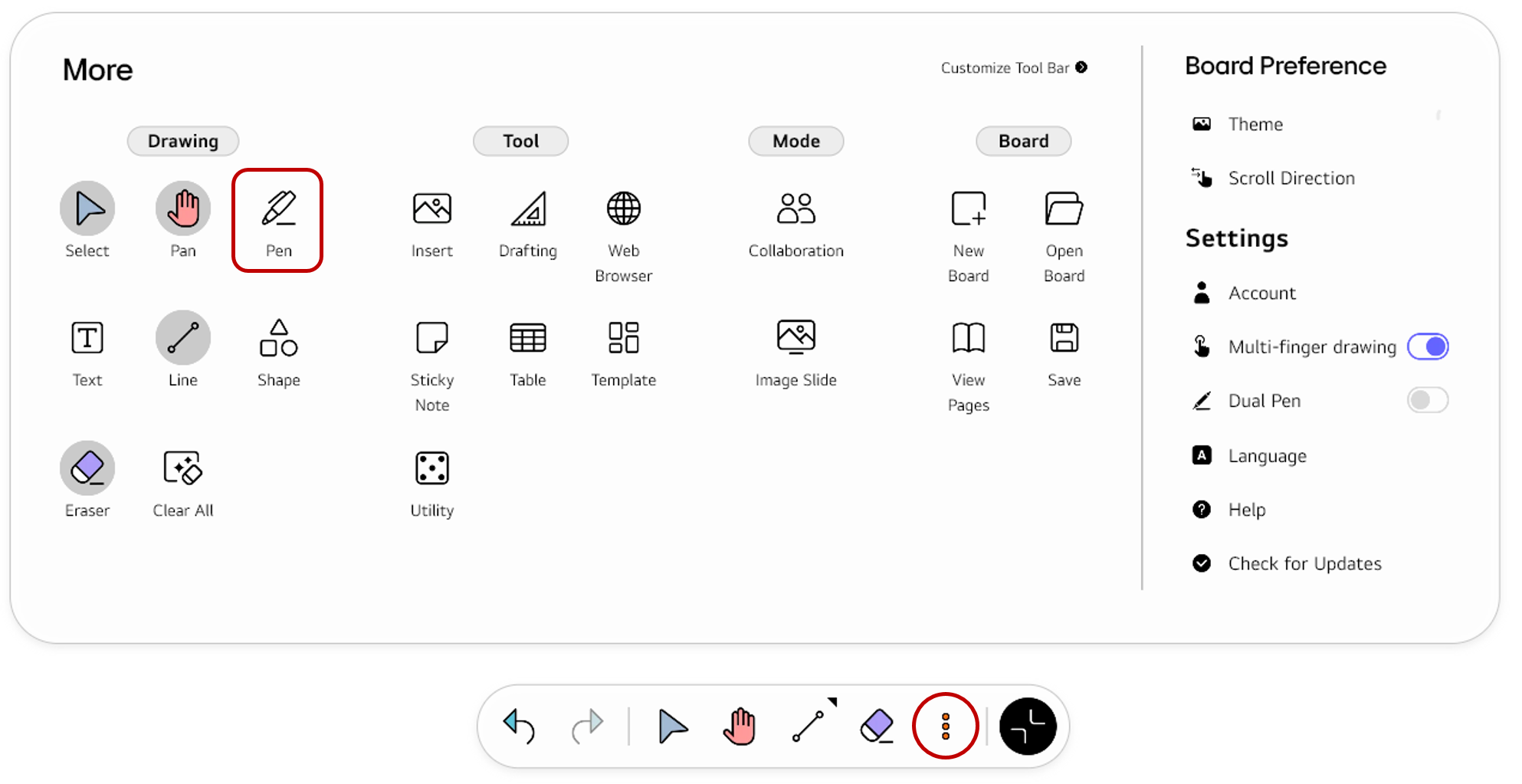
If you frequently use this item, refer to Customize Tool bar to pin it to the Tool bar for easy access.
Usage & tips
Pen mode allows you to draw or write directly on the board with a pen. You can freely create an object of which the outline follows the pen tip.
Create an object with the pen
You can write on the board with a pen. Each time the pen tip touches the board and is dragged away, one object is created. When you lift the pen and then touch it again, a new object is created.
To modify an object that you have created, tap on it in the Select mode. The Options menu for the object will appear, enabling you to change its properties.
Set the pen
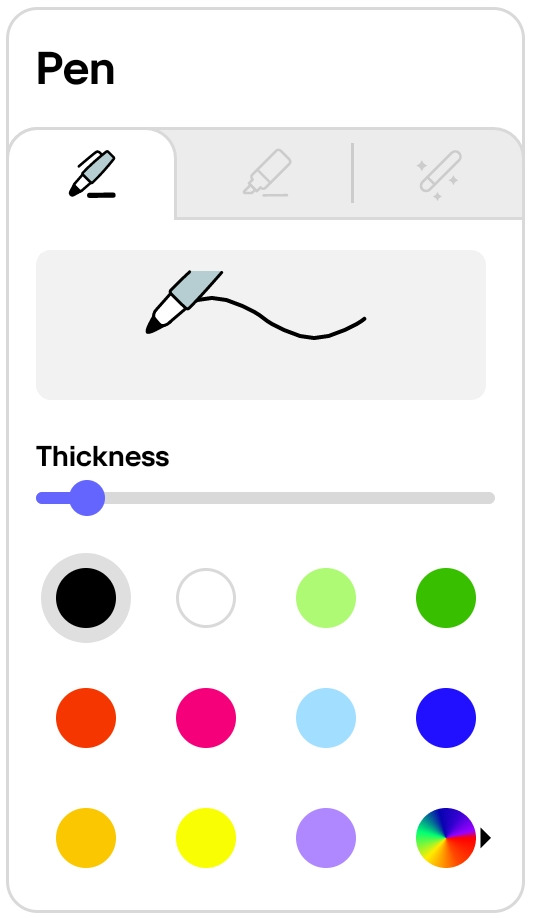
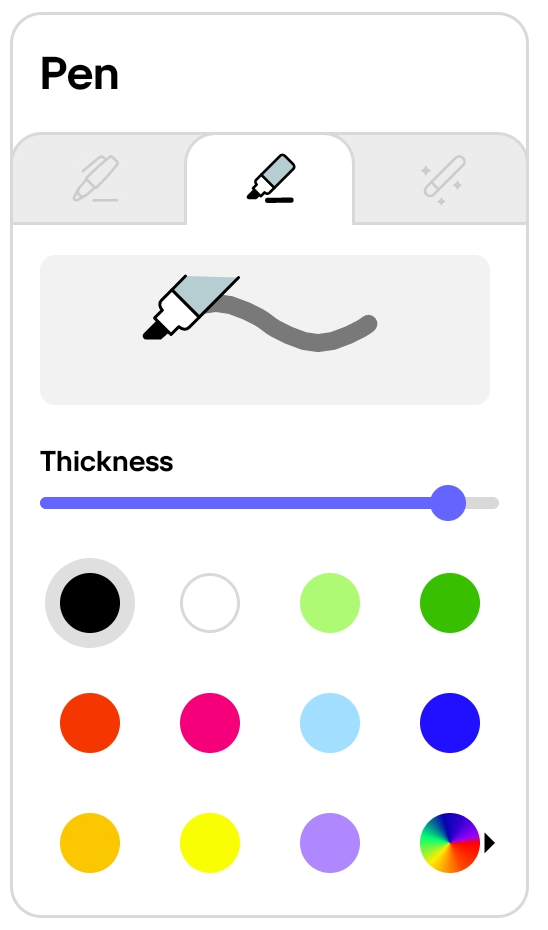
Select the type of the pen to use and set the pen’s properties.
Regular pen/marker
| Pen | Marker |
|---|---|
|
|
|
A regular pen. You can adjust the thickness and color of the pen. |
A highlighter pen. You can adjust the thickness and color of the pen. |
Magic pen
When you draw an object with this pen, this feature searches its database for a similar object (i.e. text, picture, and shape) and converts your drawing into that object.
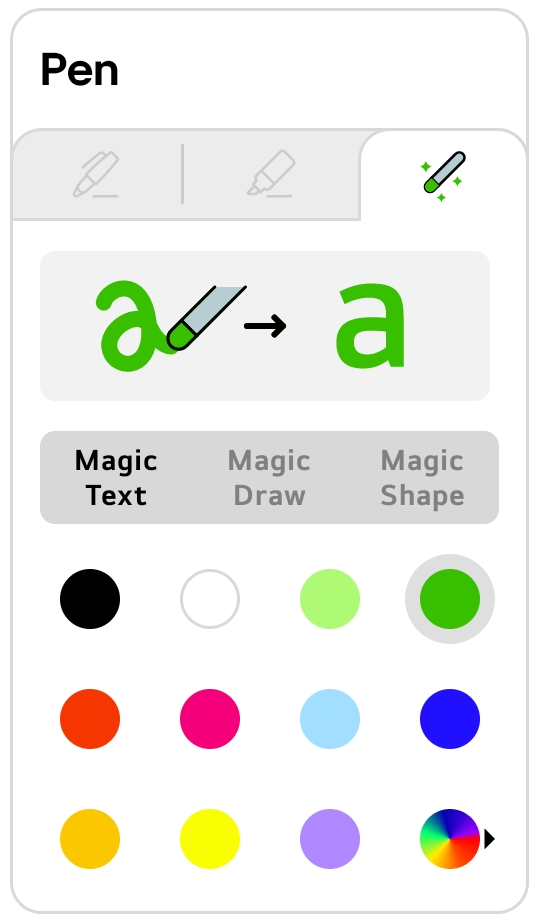
You can choose one of the following sub-modes when using Magic Pen.
-
Magic Text: Provides a list of recommendations for text similar in shape to your input and converts the input into the selected text. -
Magic Draw: Provides a list of recommendations for a picture similar in shape to your input and converts the input to the selected picture. -
Magic Shape: Instantly converts your input to the corresponding shape when a shape similar to the input is detected.
Use the dual pen
You can activate or deactivate Dual Pen for use. To enable Dual Pen, tap the More button to open the full menu on the Tool bar, and then activate the Settings > Dual Pen button.
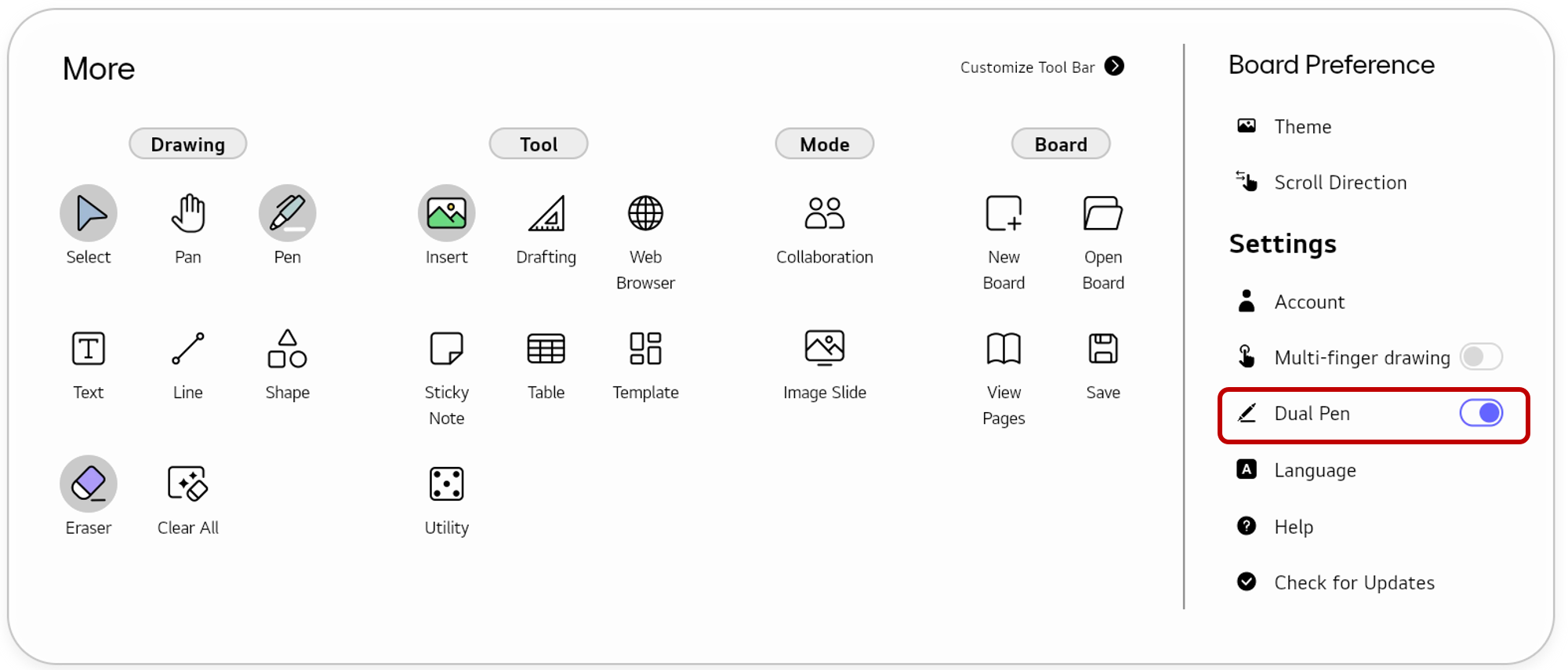
When Dual Pen is activated, you can set each of the two pen tips separately as follows.
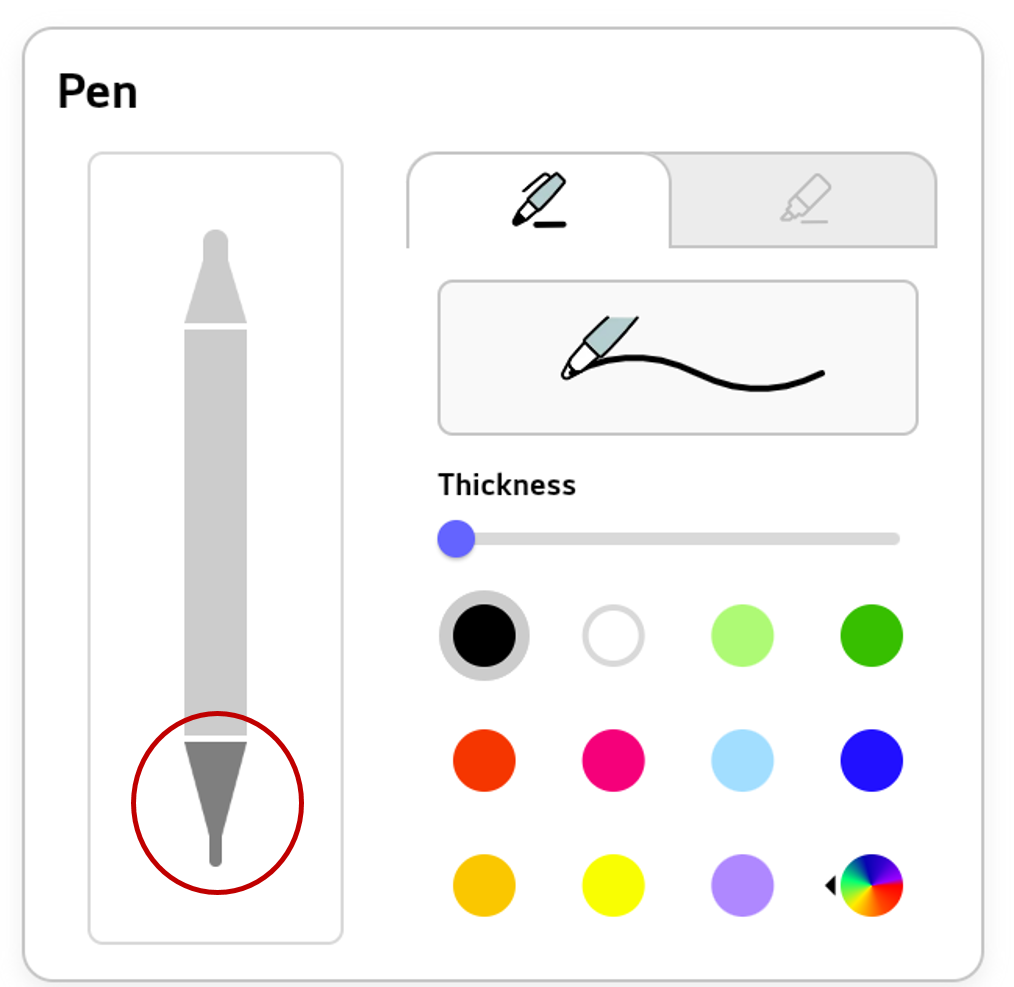
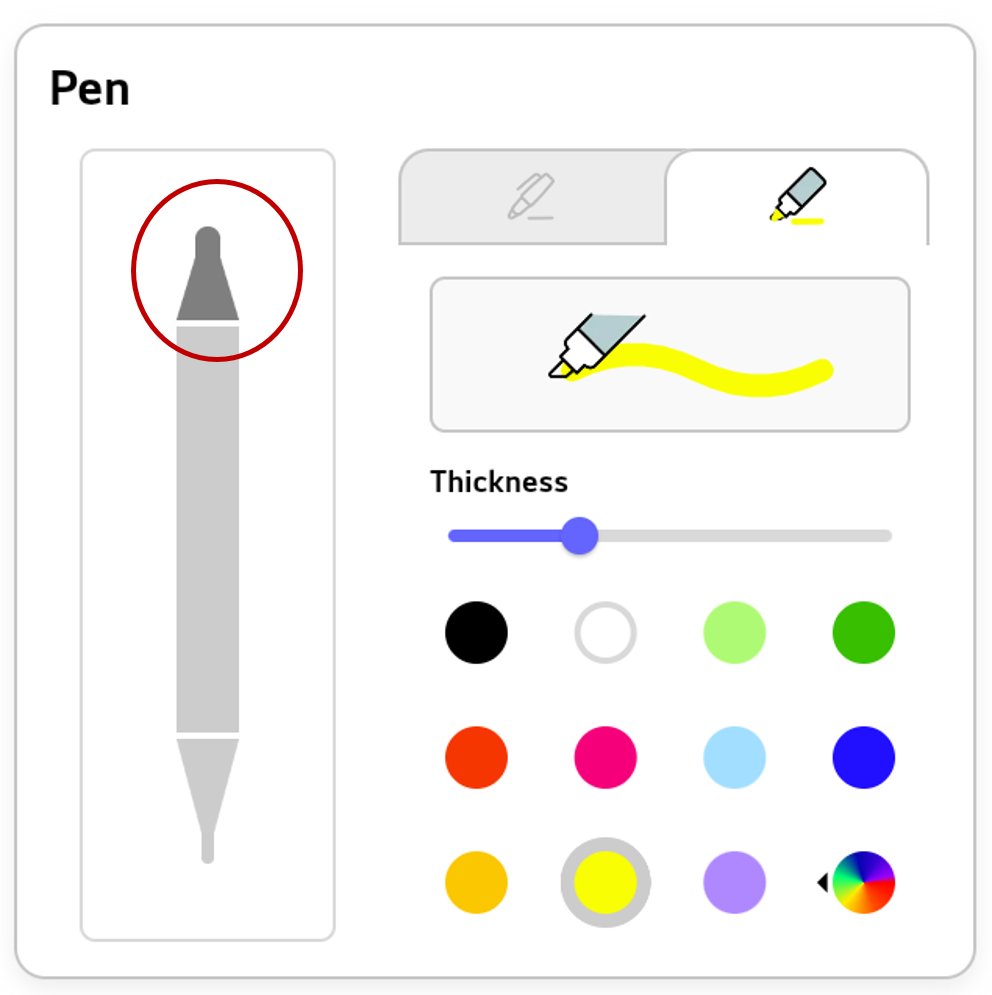
Switch quickly between the Select/Pen modes
You can quickly switch between the Select/Pen modes using the 3 Finger Long Tap gesture.

Modify the object options
You can open the Options menu for an object and edit its properties.
-
Make sure that
Selectis chosen in the Tool bar. -
Tap an object. The Options menu will appear.
-
Modify the object’s properties as desired.
For the object created with Pen, the following Options menu appears.
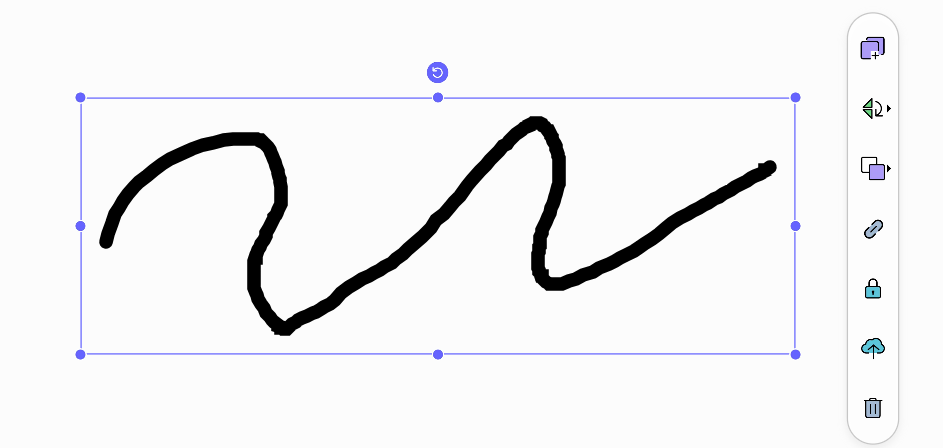
Refer to the Options menu for descriptions of each option.