Settings
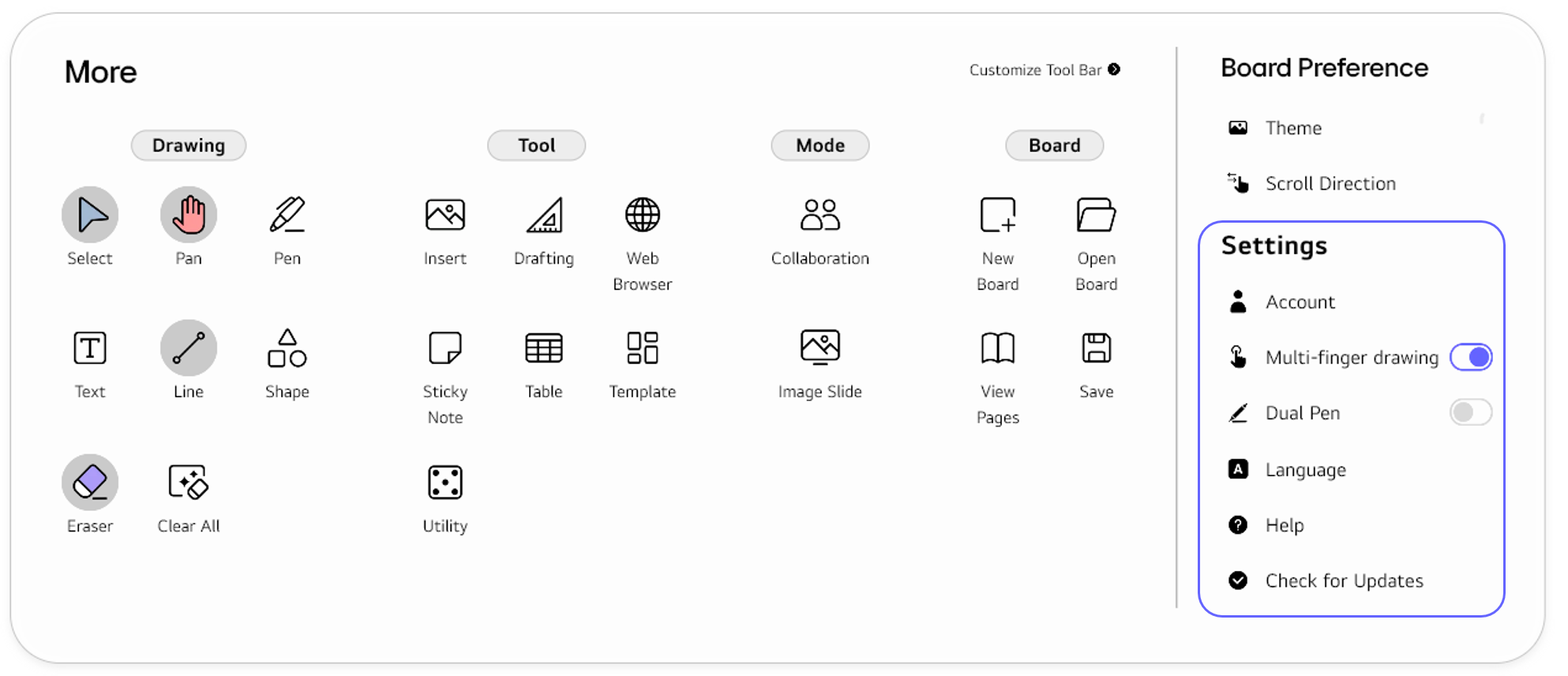
In settings, you can manage sign-in accounts and adjust basic app settings such as multi-finger drawing, dual pen, and language. You can also find help and check for software updates.
Account
To sign in or out of LG CreateBoard Lab, select Account.
LG CreateBoard Lab can be used either in the Guest mode or while signed in with Google Account. See Launch the App for more details.
Multi-finger drawing
You can enable or disable multi-finger drawing. When multi-finger drawing is enabled, the board can recognize multiple touch inputs simultaneously.
Multi-finger drawing is only supported in Pen and Marker. It is NOT supported in Magic Pen.
Enable the Multi-finger drawing
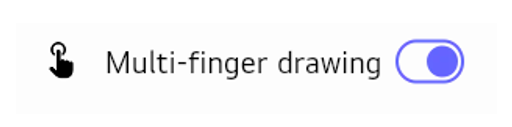
Slide the button to the right to turn on Multi-finger drawing.
Disable the Multi-finger drawing
Slide the button to the left to turn off Multi-finger drawing.

Dual Pen
You can enable or disable Dual Pen. If you are using the dual pen as an input tool, enable this feature. You can apply different pen settings to each pen tip.
Enable the Dual Pen
Slide the button to the right to turn on Dual Pen.
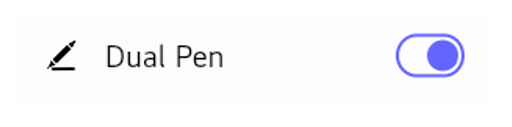
When Dual Pen is enabled, you can set different pen settings (pen type, color, thickness, etc.) for each pen tip. See Pen | Using the Dual Pen for more details.
Disable the Dual Pen
Slide the button to the left to turn off Dual Pen.

Language
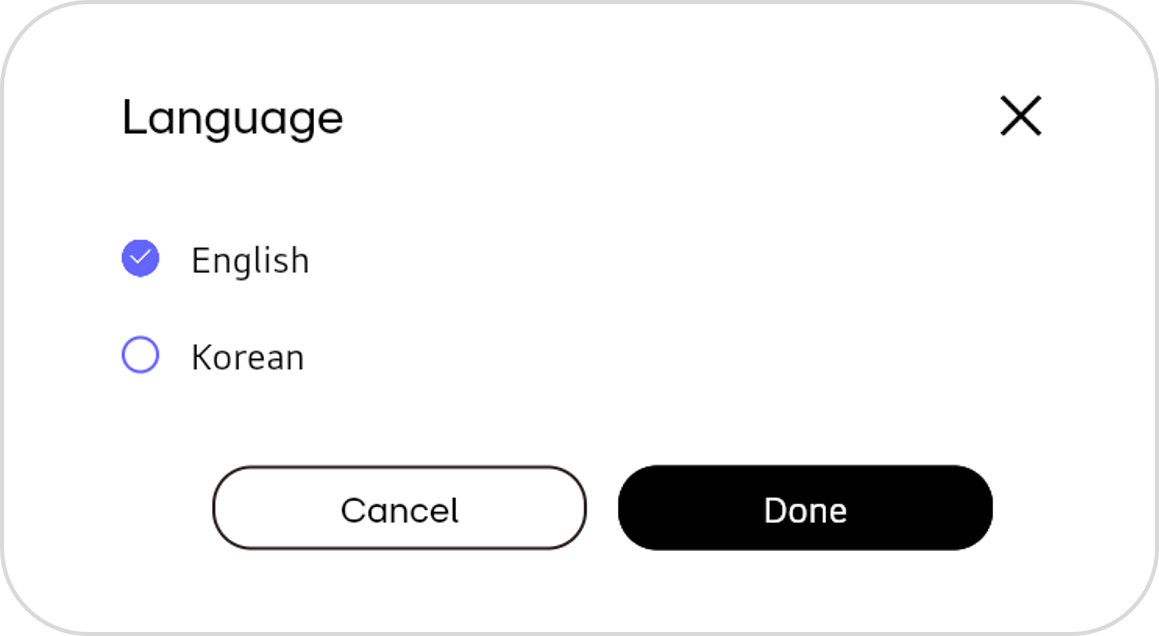
To change the language displayed in the app, select Language.
Help
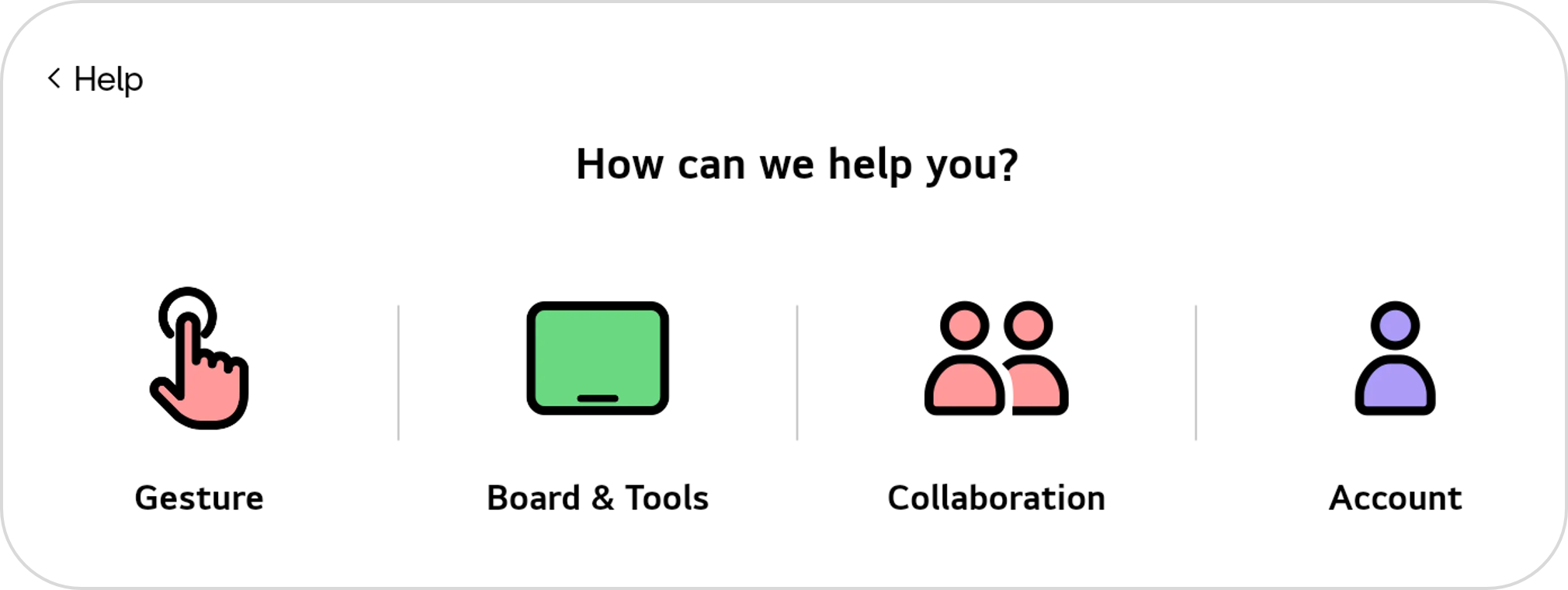
To get useful information on using the app, select Help.
Check for Updates
To check the current version of the app and update it if a new version is available, select Check for Updates.