Line
How to execute
If the Tool bar already displays the Line button, you can simply tap it to execute. Otherwise, tap the More button to display the entire menu and then choose Line.
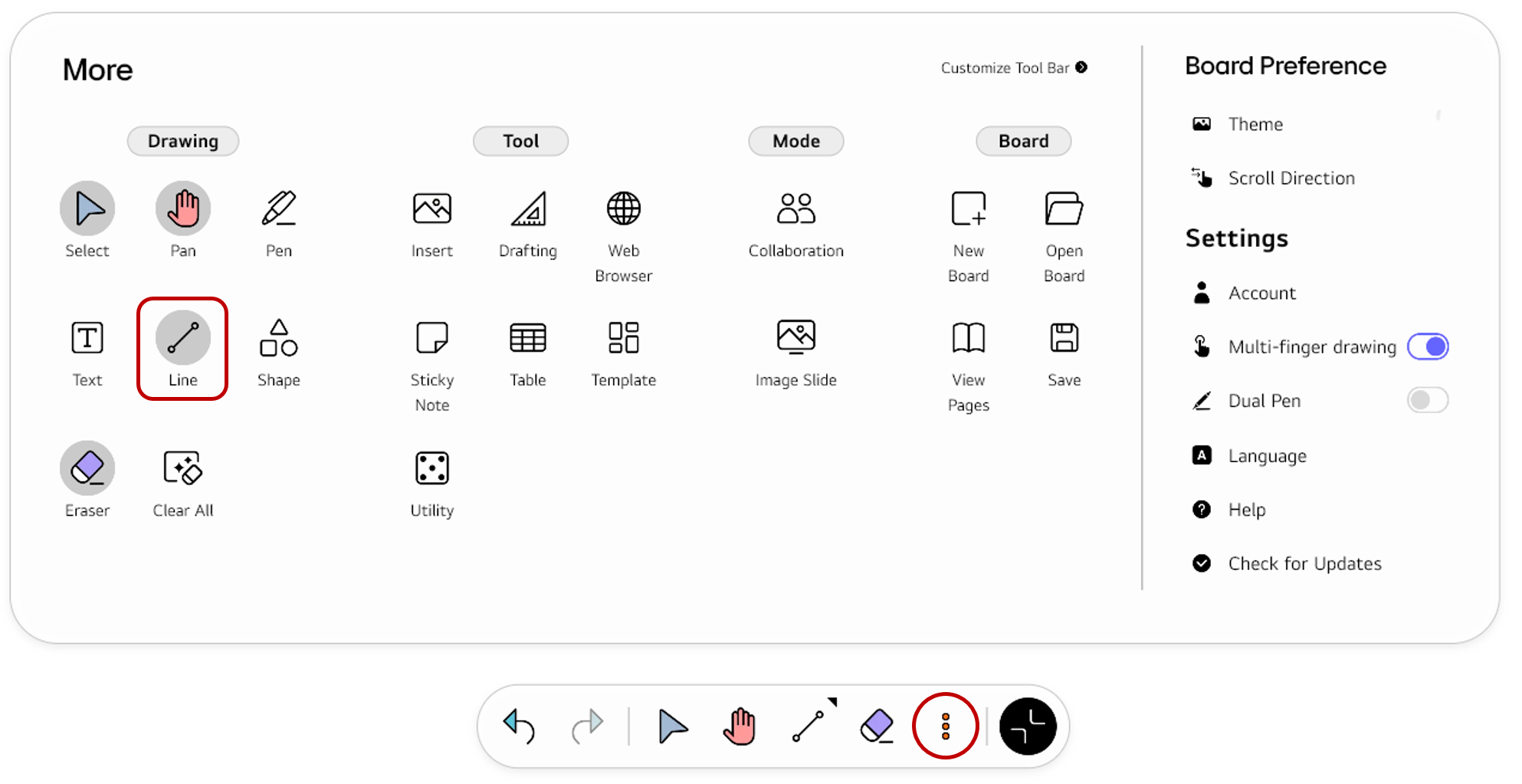
If you frequently use this item, refer to Customize Tool bar to pin it to the Tool bar for easy access.
Usage & tips
The Line mode offers the option to insert various types of lines, including straight, dashed, and more.
Drawing lines
- Choose the type and width of the line.
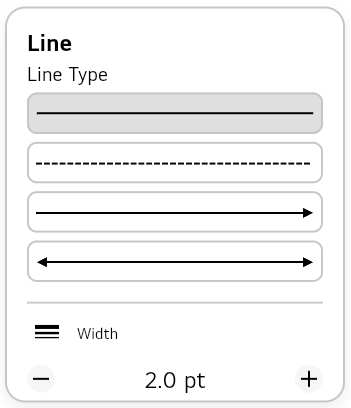
- Drag without pause from one point on the board to another. The line object will be created on the board.
Modify the object options
You can open the Options menu for an object and edit its properties.
-
Make sure that
Selectis chosen in the Tool bar. -
Tap an object. The Options menu will appear.
-
Modify the object’s properties as desired.
For the object created with the Line mode, the following Options menu appears.
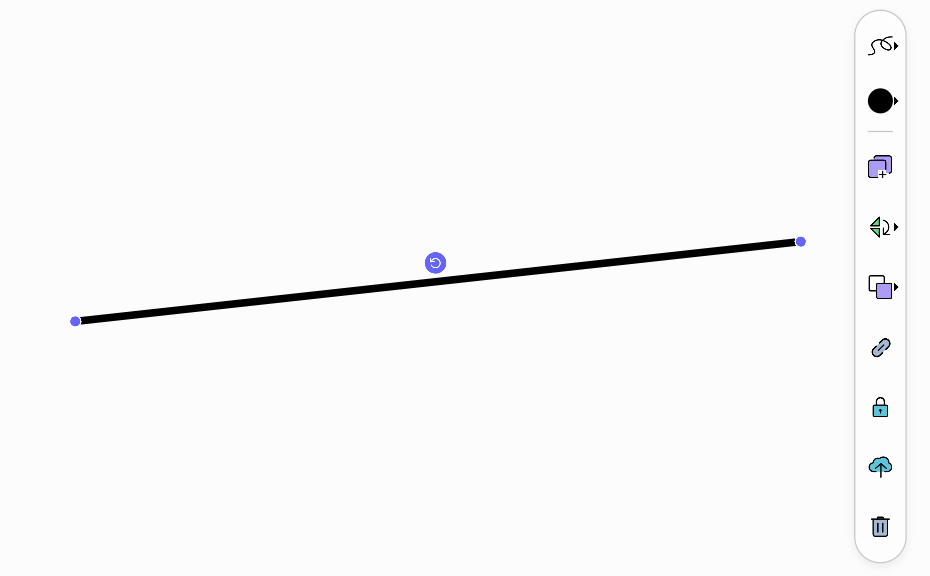
Line object options
The options only for line objects are as follows.
| Icon | Options | Description |
|---|---|---|

|
Line Type |
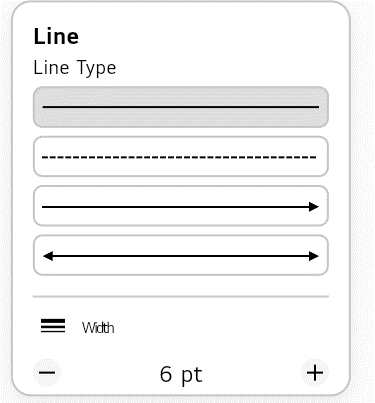
Select Line Type and adjust the thickness of the line.
|

|
Line Color |
Set the color of the line. |
Common options
For descriptions of the other options, refer to the Options menu.