Table
Usage & tips
The Table mode allows you to insert a table onto the board.
How to use
Choose Table in the Tool bar.
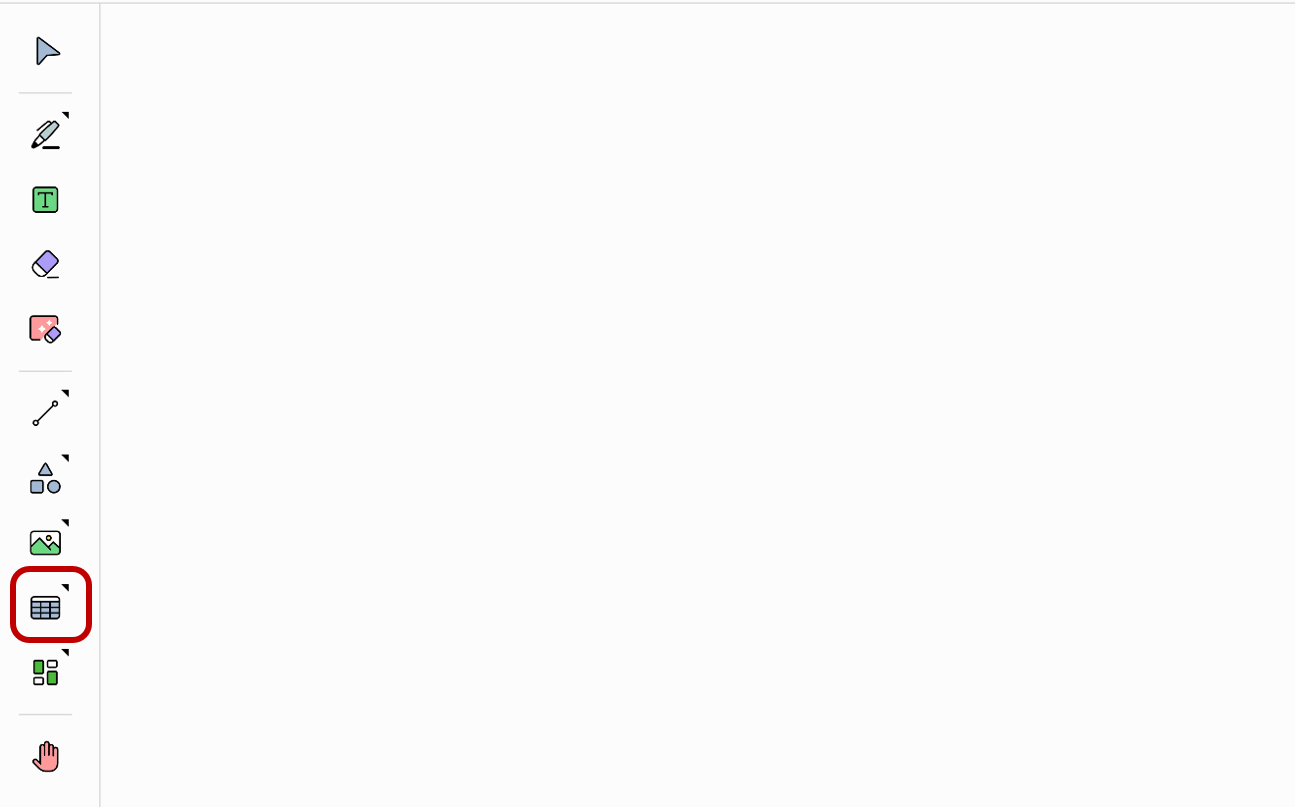
Touch and drag without pause from one point to another on the board. A table object will be created of which the size is determined by the diagonal between the two points.
To enter a value into each cell of the table, switch to the Pen mode to write by hand, or switch to the Text mode to type with the keyboard.
Modify the object options
You can open the Options menu for an object and edit its properties.
-
Make sure that
Selectis chosen in the Tool bar. -
Tap an object. The Options menu will appear.
-
Modify the object’s properties as desired.
For the object created with the Table mode, the following Options menu appears.
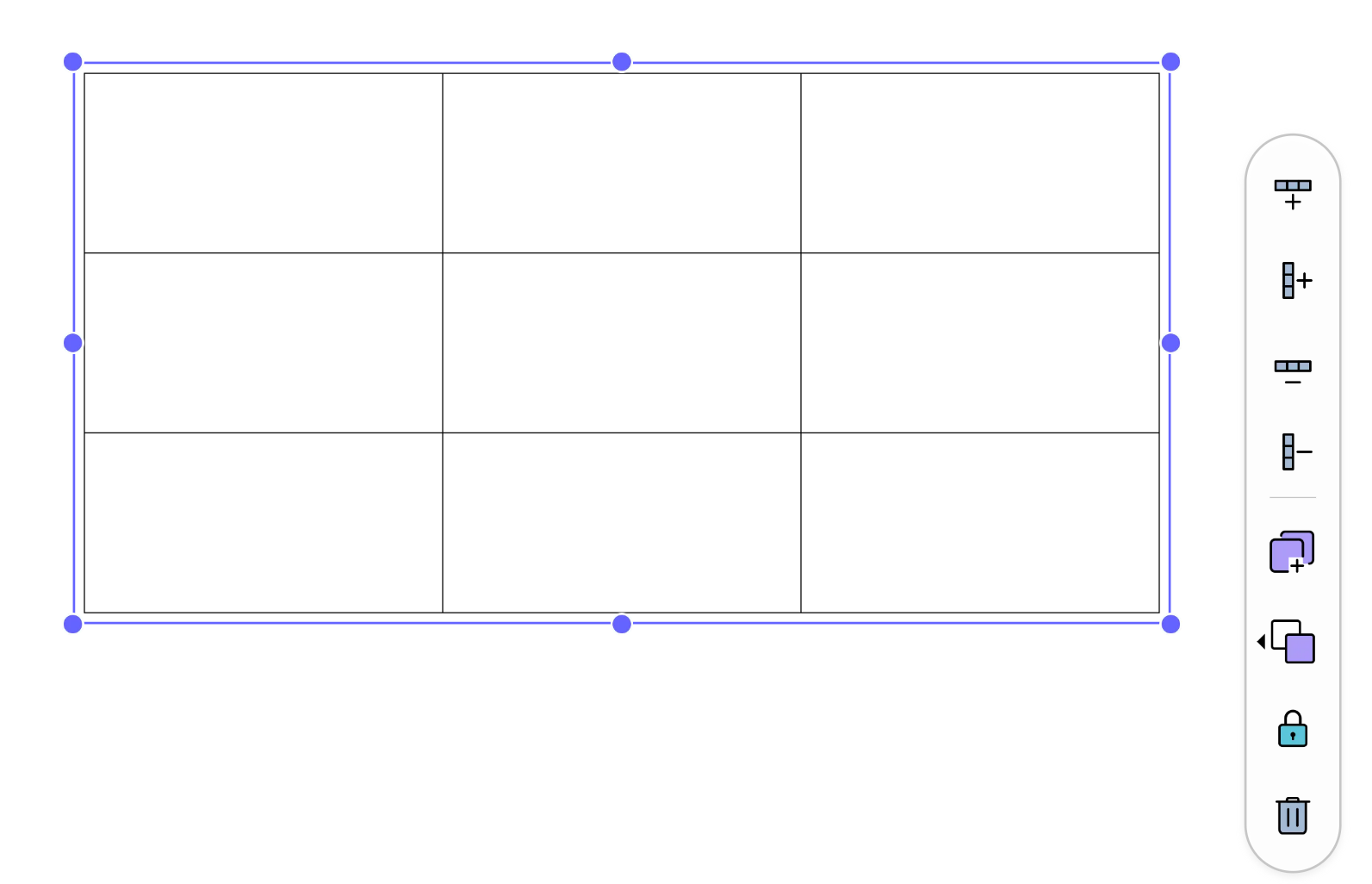
Table object options
| Icon | Options | Description |
|---|---|---|

|
Add Row | Add a row to the table. |

|
Add Column | Add a column to the table. |

|
Delete Row | Delete a row from the table. |

|
Delete Column | Delete a column from the table. |
Common options
For descriptions of the other options, refer to the Options menu.
🚫
The content of this document may differ from the actual operation of LG CreateBoard Lab and is subject to change without notice.