My Board
How to access
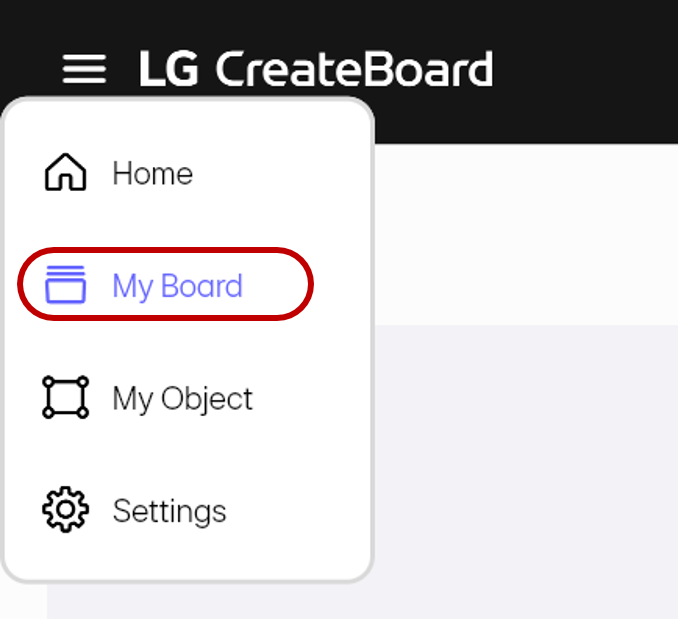
To access the My Board page, open the sidebar by tapping the hamburger button in the top left corner of the screen and then select My Board.
Usage & tips
My Board consists of the following sub-menus.
Favorites
In Favorites, you can find boards that can be marked with stars. A frequently used board can be easily accessed here by marking it with a star as shown below.
My storage
In My Storage, you can manage files and folders for boards saved in your cloud storage.
Manage folders
You can create, rename, and delete folders as follows.
Create a new board
You can create a new board. When you select new board, a new board is created and saved in the storage. Its name is set by default to the current year, date, and time such as 202406051929, and can be renamed. You are automatically redirected to the page where you can edit the board.
Manage boards
You can manage saved board files in the storage. You can perform the following actions on each board.
-
Open: Tap a board to open it in the Board Editor.
-
Move: Mark the board with the
checkbutton, and then selectMovefrom the menu that appears at the top. Specify the desired folder. -
Add to Favorites: Select the
starbutton on the board. The board will be added to theMy Board>Favoritesmenu for easy access. Refer to Favorites. -
Rename: Tap the
morebutton on the board, and then selectEdit Name. When a window for editing opens, enter the desired name.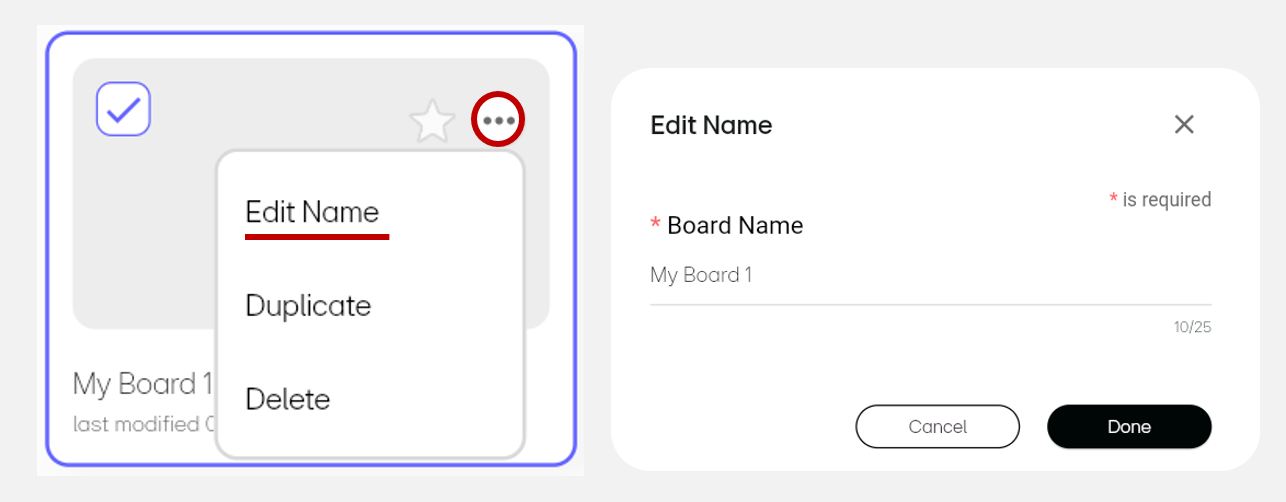
-
Duplicate : Tap the
morebutton on the board, and then selectDuplicate. A new board is created by duplicating the selected board. -
Delete: Tap the
morebutton on the board, and then selectDelete, or check the board and selectDelete.