Basic Interface
Discover the basic menu structure, screen layout, and available gestures of the LG CreateBoard web app for effective interactions.
Main menus
When you tap the hamburger button at the top left corner of the screen, a navigation bar opens that allows you to navigate through the menus. It provides the following menus.
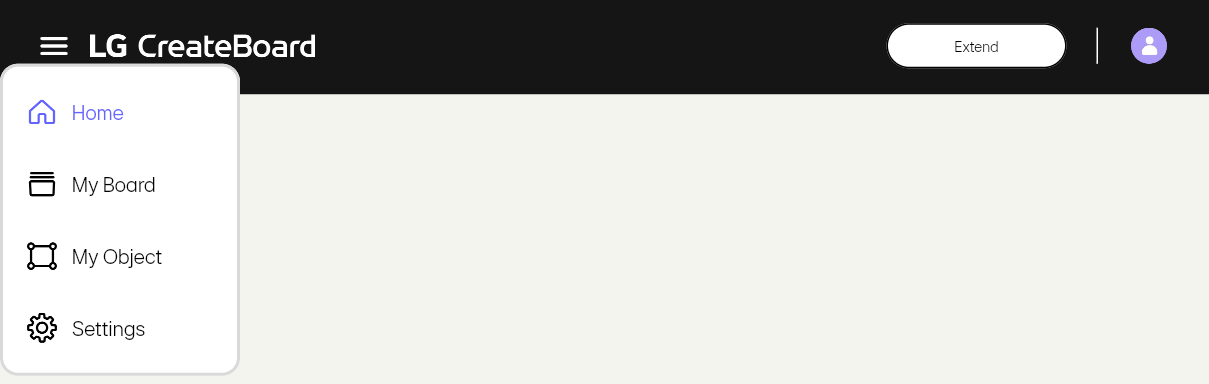
| Main Menu | Description |
|---|---|
| Home |
Consists of the following two sub-menus.
|
| My Board |
You can create a board, load a board stored in cloud storage, and manage boards. Refer to My Board. |
| My Object |
You can manage objects stored in cloud storage. Refer to My Object. |
| Settings |
You can configure your account and preference settings. Refer to Settings. |
Board editor
When you load a board or create a new one in My Board, a board editor will open that allows you to edit the board.
UI layout
The basic UI configuration is as follows.
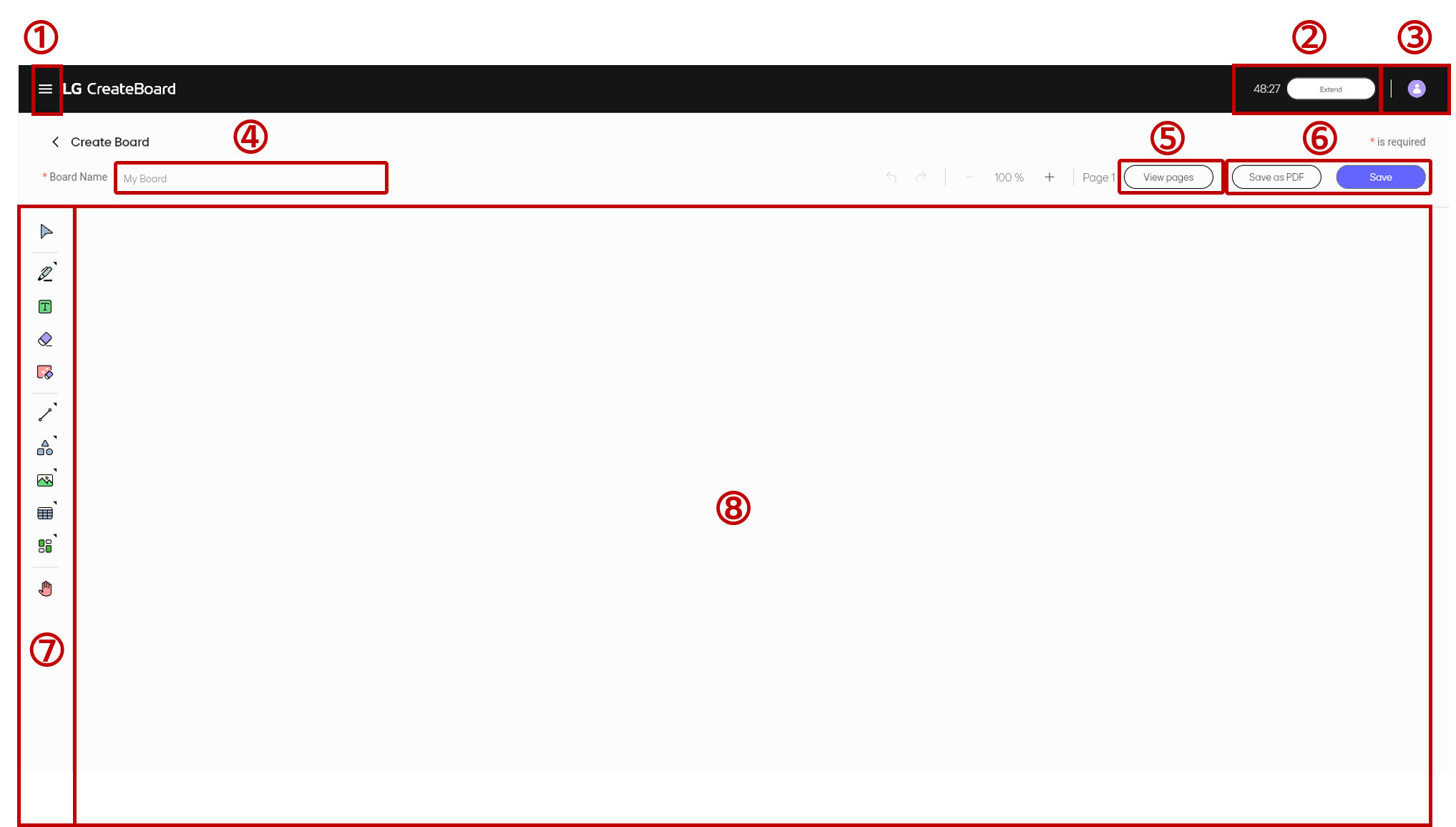
| No | Item | Description |
|---|---|---|
| ① | Side Navigation Bar (hamburger button) |
It opens a pop-up window for navigating through the menus. |
| ②-1 | Remaining time |
It displays the time that remains until the session expires. You will be automatically signed out when the session expires. |
| ②-2 | Extend | It extends the remaining time of the current session. |
| ③ | My Account | It manages account settings and login/logout status. |
| ④ | Board Name | It edits the board name. |
| ⑤ | View Pages | It provides a page navigation menu. |
| ⑥ | Save | It saves a board as a PDF file(.pdf) or as a board file (.lab). |
| ⑦ | Tool bar | It provides tools necessary to edit a board. |
| ⑧ | Drawing Area | It is an area where you can write or draw on the board. |
Tool bar, refer to Board Editor.
Gestures
Learn about the gestures available in LG CreateBoard Lab and How to use them.
Drawing
Action |
Gesture |
Description |
|---|---|---|
Select |
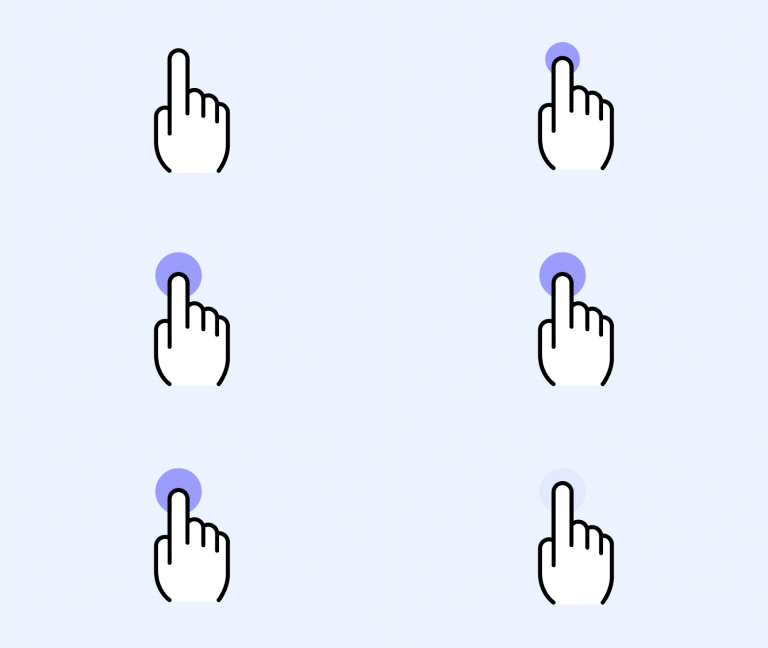
|
Long Press |
Undo |
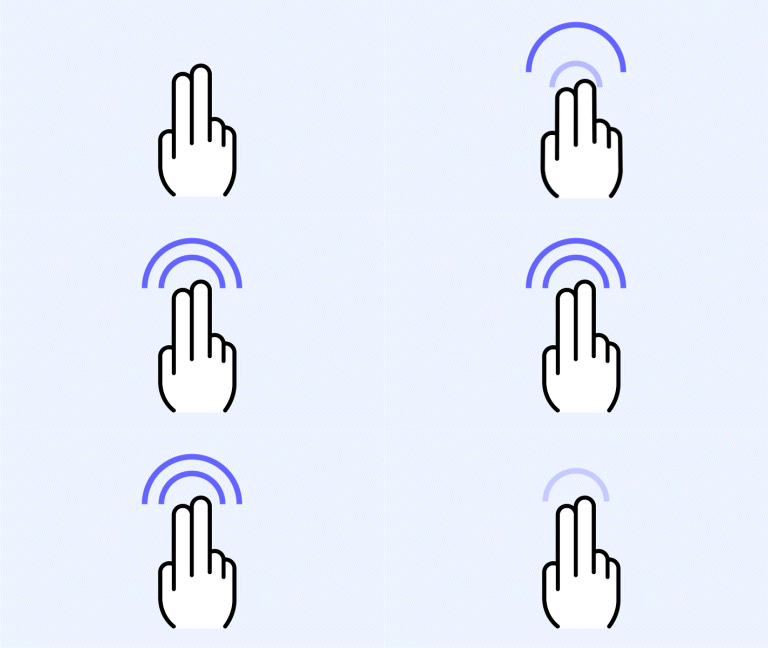
|
2 Finger Double Tap |
Eraser |
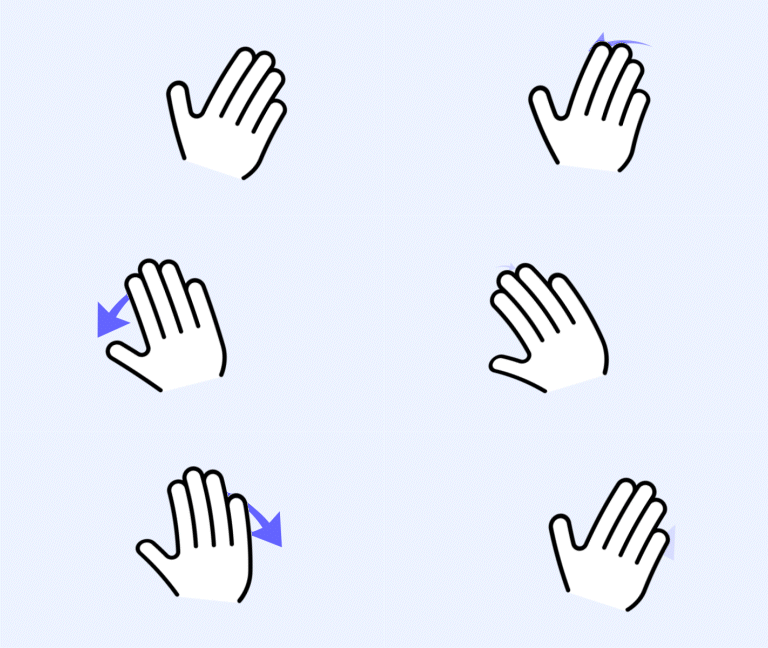
|
Palm |
Select/Pen Mode Change |
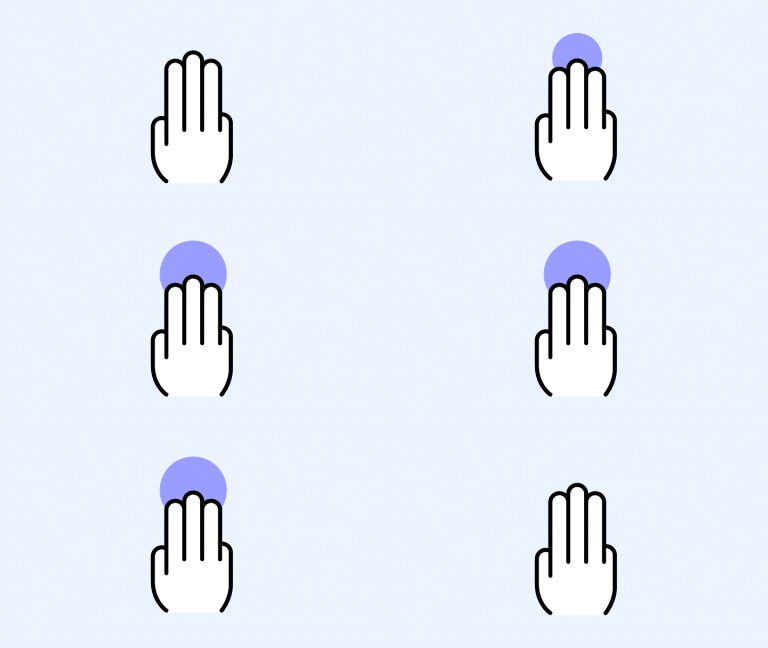
|
3 Finger Long Tap |
Board
| Action | Gesture | Description |
|---|---|---|
| Move Board | 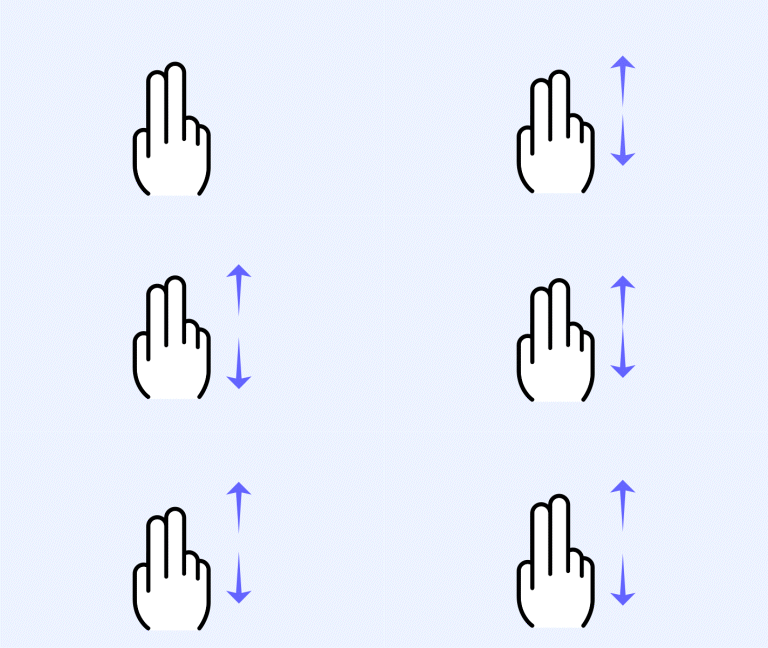
|
2 Finger Drag |
| Zoom In | 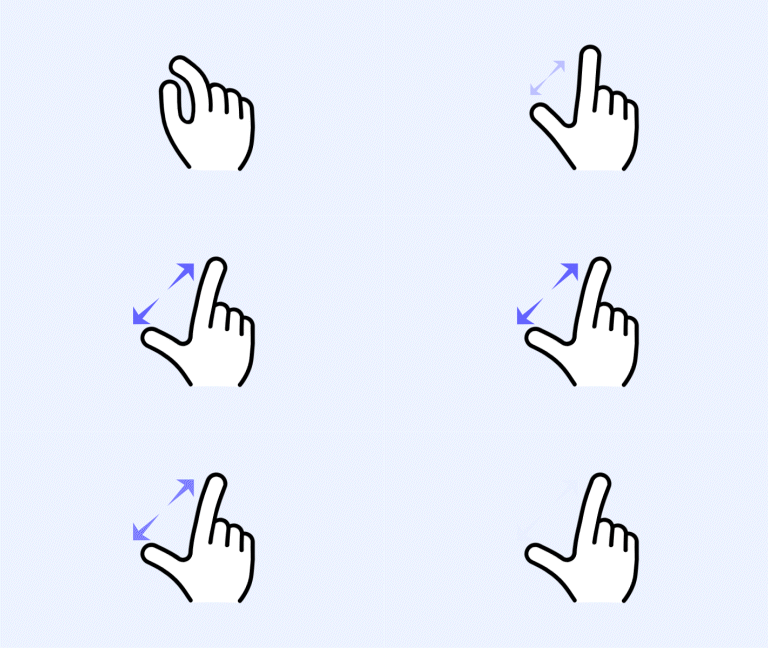
|
Pinch In |
| Zoom Out | 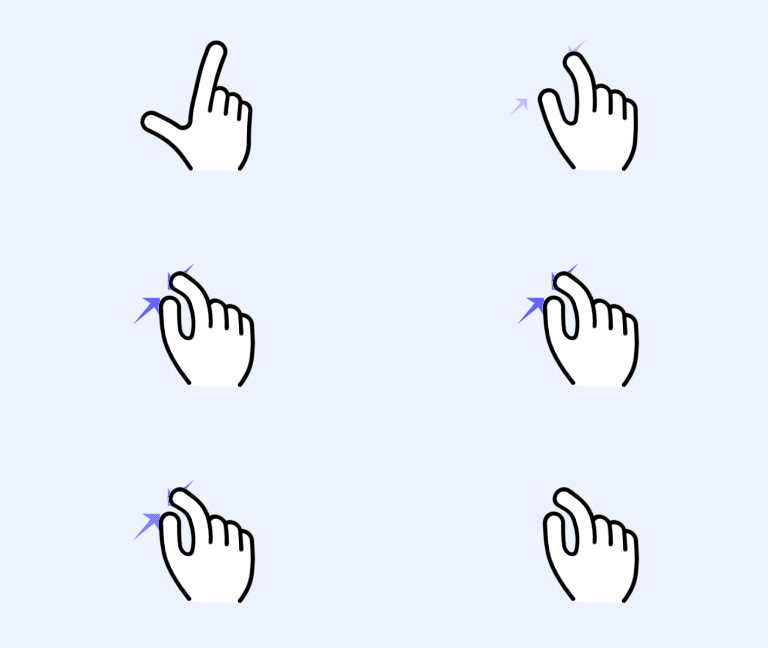
|
Pinch Out |
Page
| Action | Gesture | Description |
|---|---|---|
| Next Page | 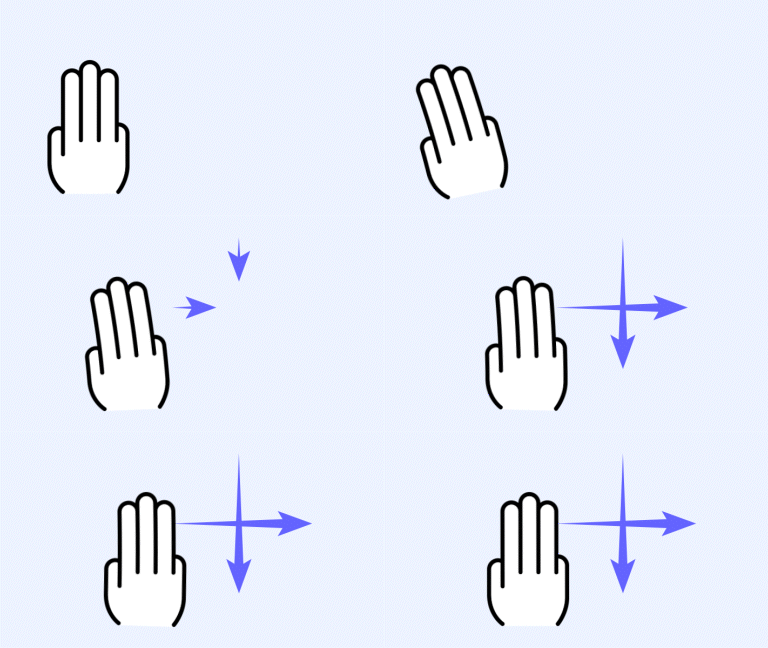
|
3 Finger Swipe (If your scroll direction is set to vertical, swipe down. If your scroll direction is set to horizontal, swipe right.) |
| Previous Page | 
|
3 Finger Swipe (If your scroll direction is set to vertical, swipe up. If your scroll direction is set to horizontal, swipe left.) |
Etc.
| Action | Gesture | Description |
|---|---|---|
| Play Image Slide | 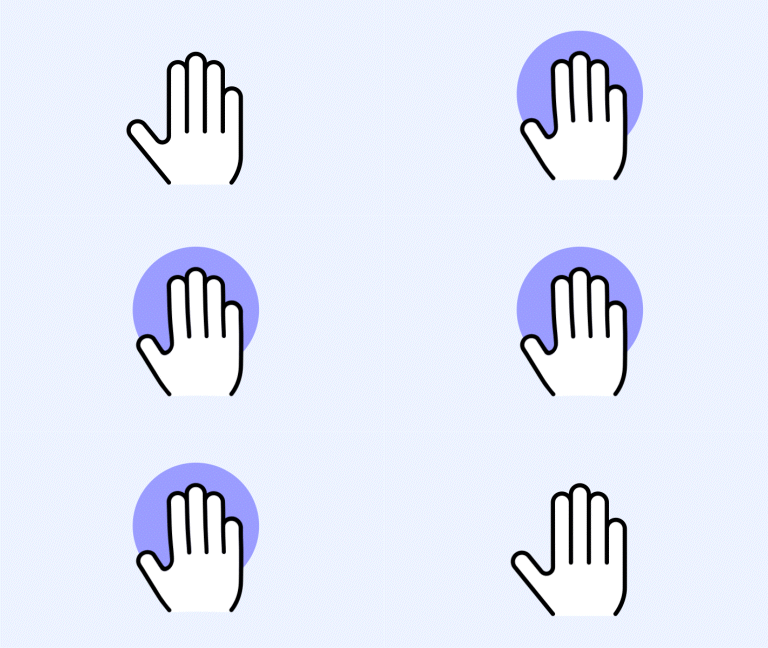
|
5 Finger Long Press for 3 Seconds |
| Attention Effect | 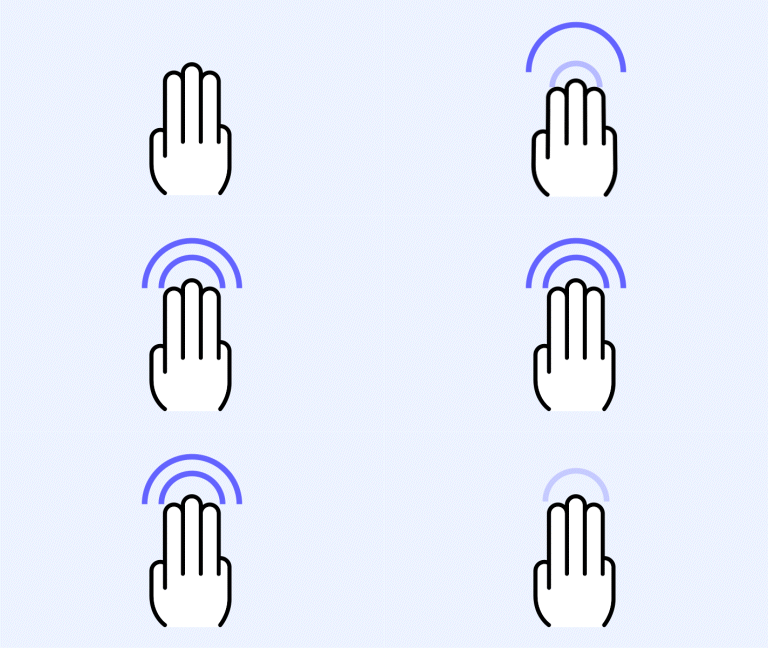
|
4-5 Finger Double Tap |