Pen
Usage & tips
The Pen mode allows you to draw or write directly on the board with a pen. You can freely create an object of which the outline follows the pen tip.
How to use
Choose Pen in the Tool bar and set the pen as desired.
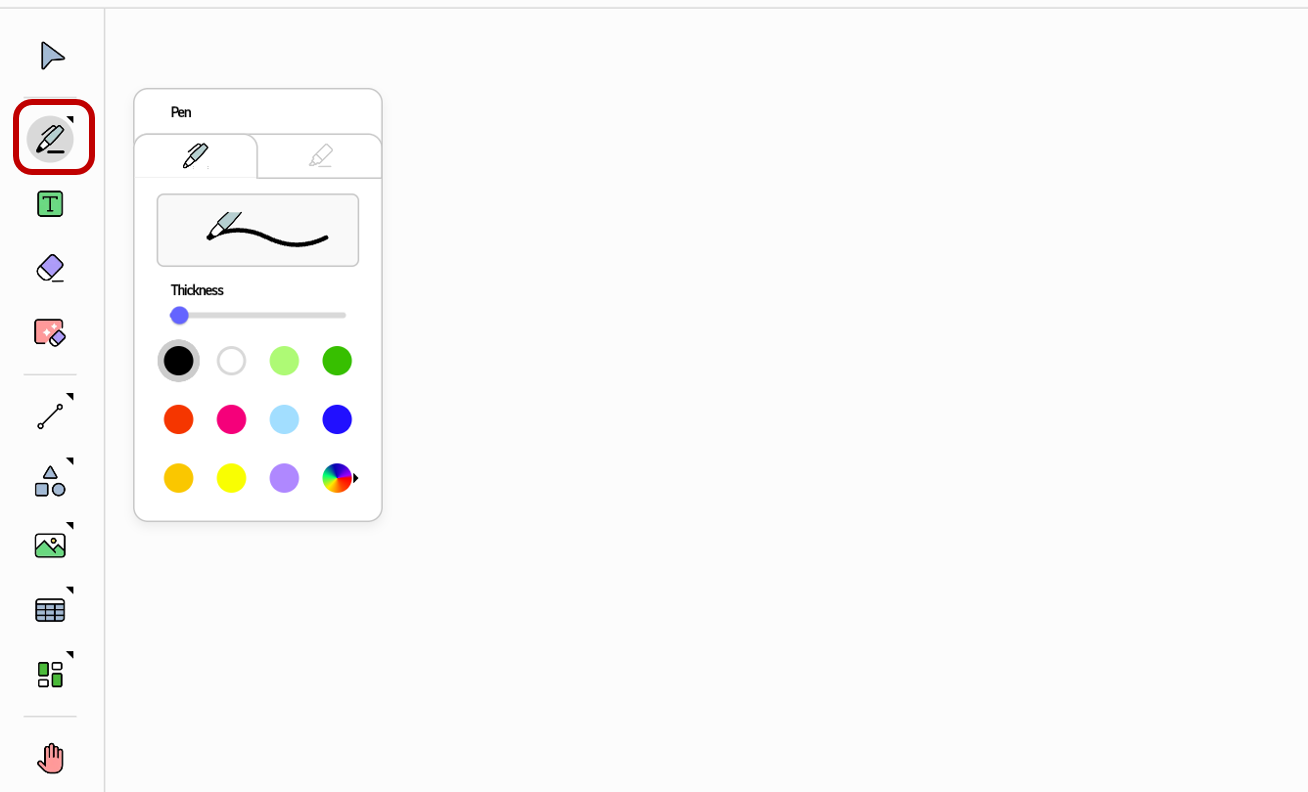
When you write on the board with a pen, multiple objects can be created for a single character. An object is created each time you press the pen tip to the board, drag, and then lift it. A new object is created when you lift the pen and touch it again.
Therefore, if you want to move or delete character or word as a whole, you can select multiple objects by dragging an area in the Select mode to include all the desired objects in that area.
Set the pen
You can choose the type of the pen you want to use and adjust its color and thickness.
Pen |
Marker |
|---|---|
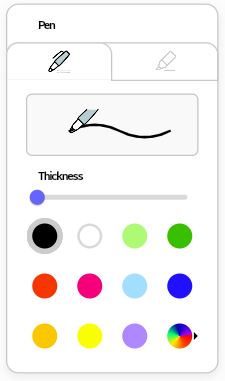
|
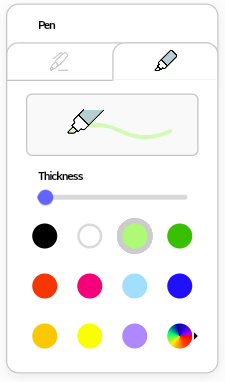
|
|
A regular pen |
A highlighter pen |
Modify the object options
You can open the Options menu for an object and edit its properties.
-
Make sure that
Selectis chosen in the Tool bar. -
Tap an object. The Options menu will appear.
-
Modify the object’s properties as desired.
For the object created with the Pen mode, the following Options menu appears.
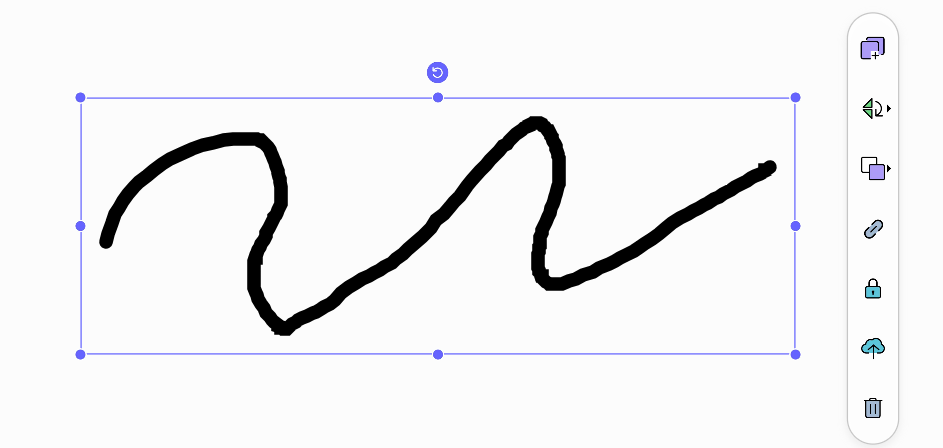
Refer to the Options menu for descriptions of each option.