Image Slide
Image Slide is a feature that allows you to play a screensaver on the board.
How to execute
If the Tool bar already displays the Image Slide button, you can simply tap it to execute. Otherwise, tap the More button to display the entire menu and then choose Image Slide.
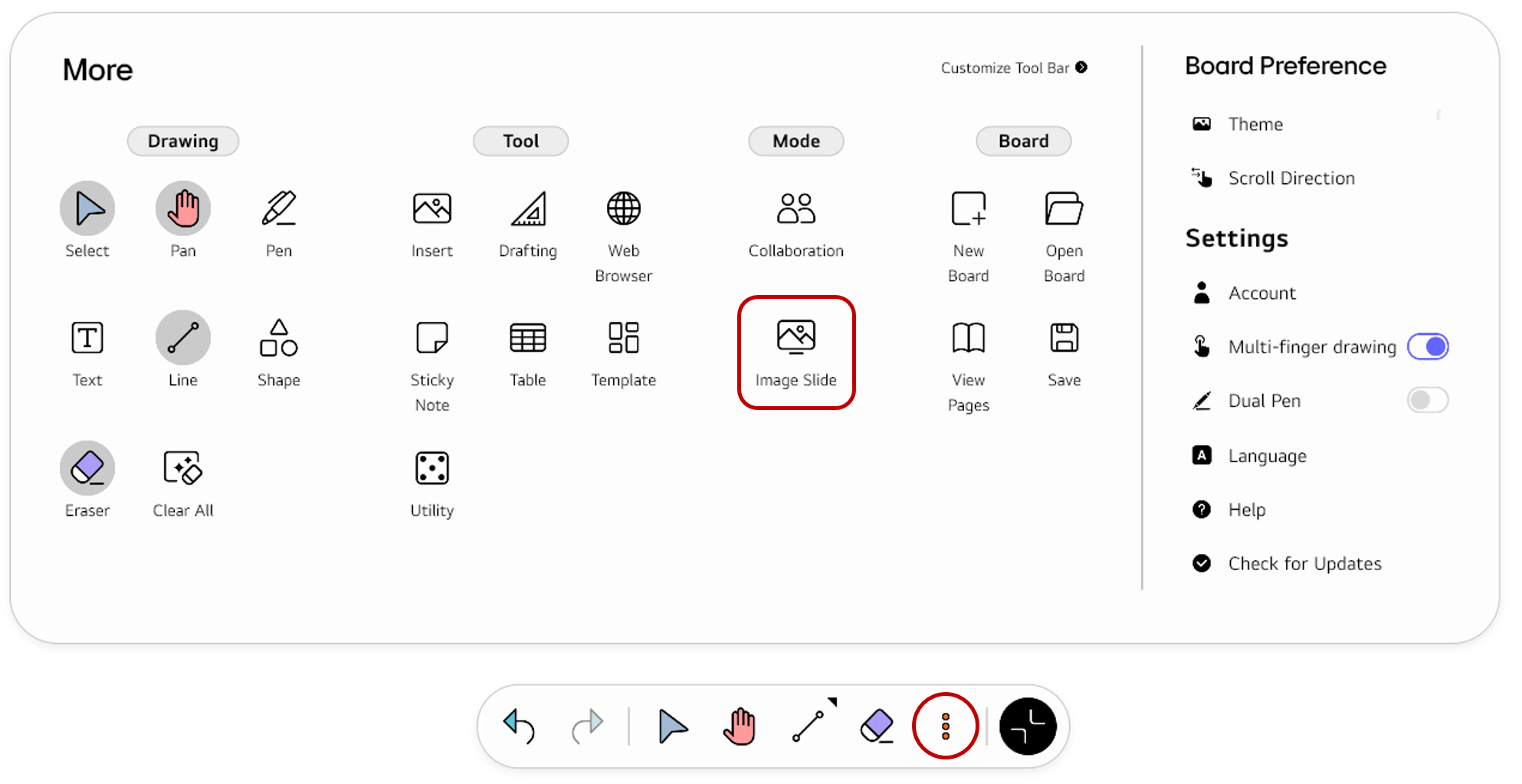
If you frequently use this item, refer to Customize Tool bar to pin it to the Tool bar for easy access.
To quickly execute the Image Slide mode, use the 5 Finger Long Press for 3 Seconds gesture.

Usage & tips
The Image Slide mode changes the board screen to a screensaver. If you need to hide the screen or have a break during the class or meeting, you can use this mode to easily switch to a screensaver.
Exit the Image Slide
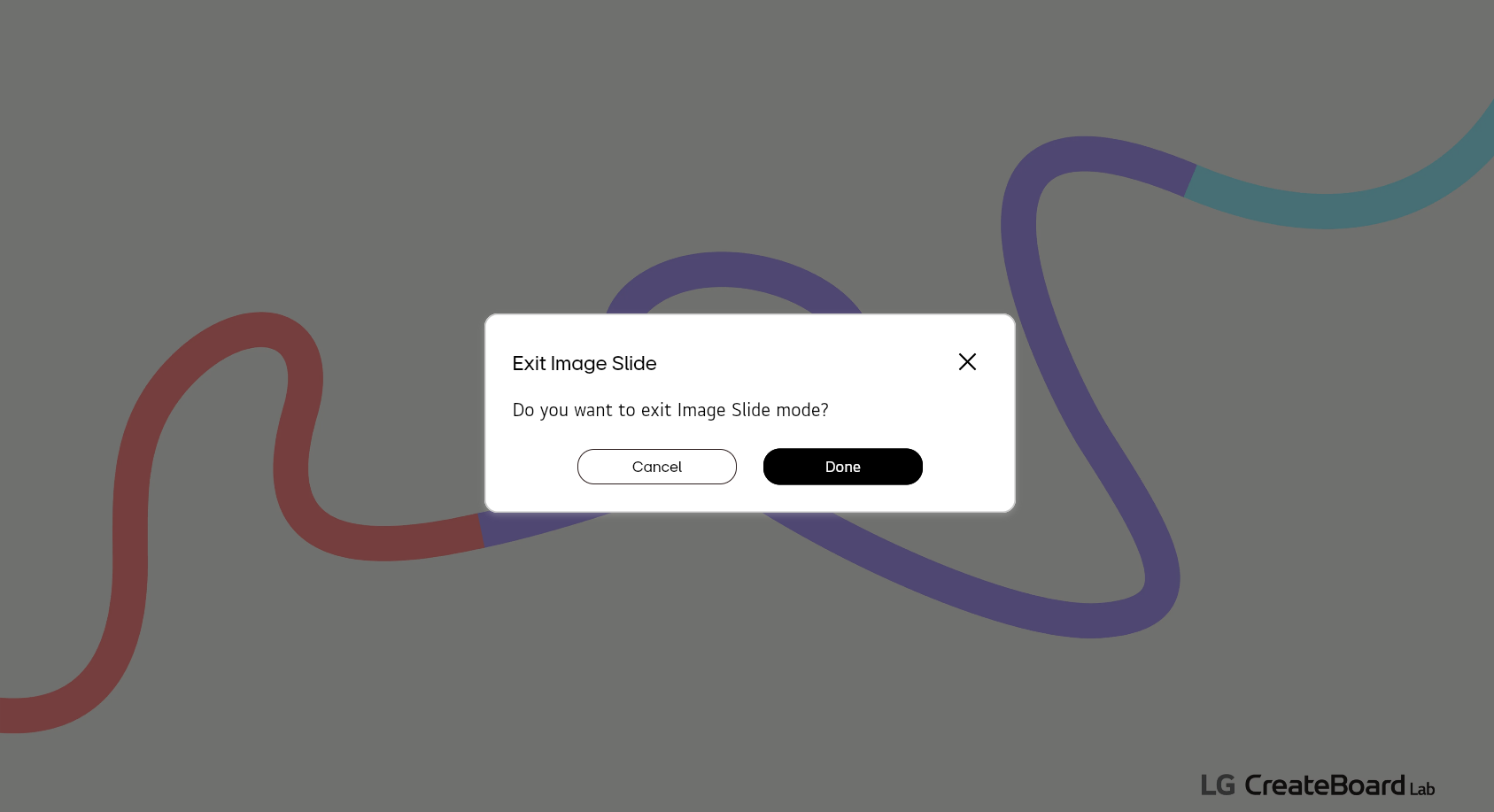
To exit the Image Slide mode, tap the screen. The pop-up window shown below will appear, allowing you to exit the Image Slide mode.
Customize the Image Slide
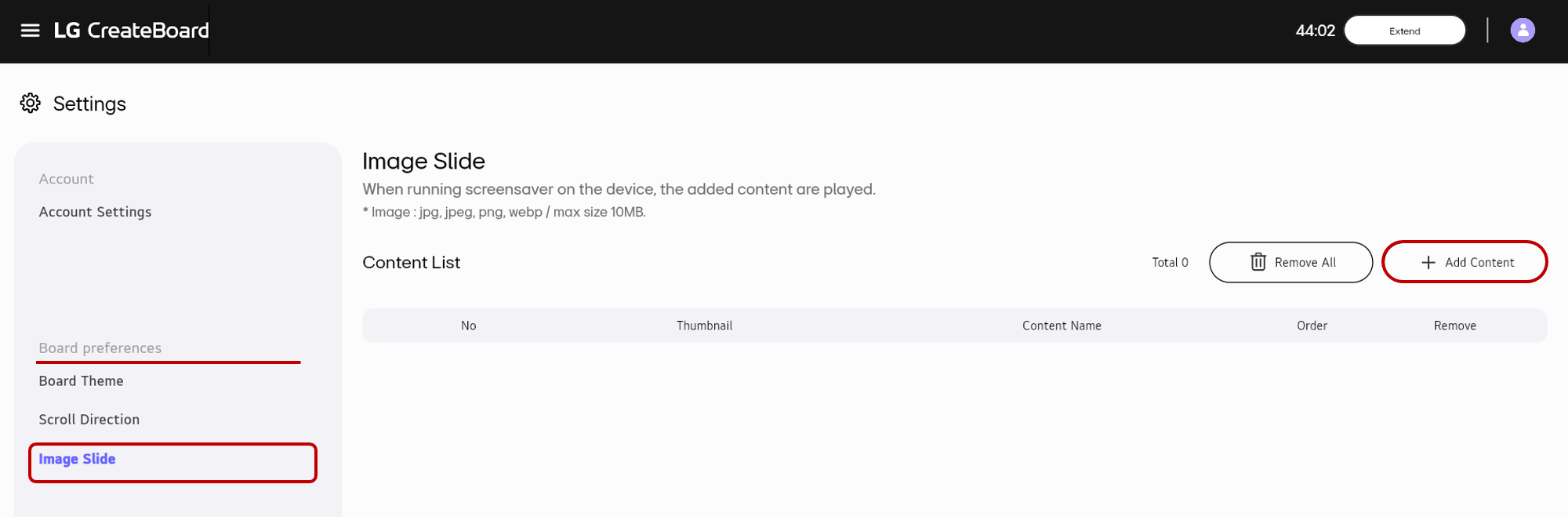
If you want to change the image slide to your desired images, follow these steps.
-
Access https://lab.lgcreateboard.com and sign in.
-
Go to
Settings.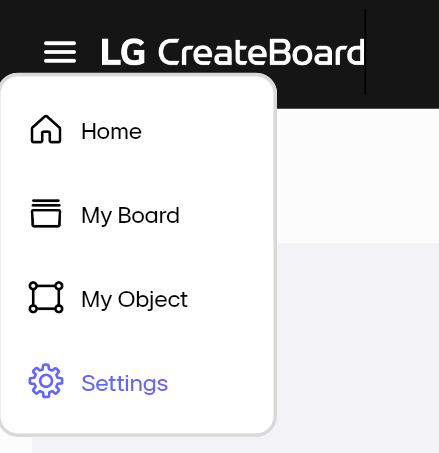
-
From the left side menu, select
Board Preferences>Image Slide. Then, select theAdd Contentbutton to upload your desired images.