Shape
Usage & tips
The Shape mode allows you to insert a variety of shapes, including circles, triangles, rectangles, and other polygons.
How to use
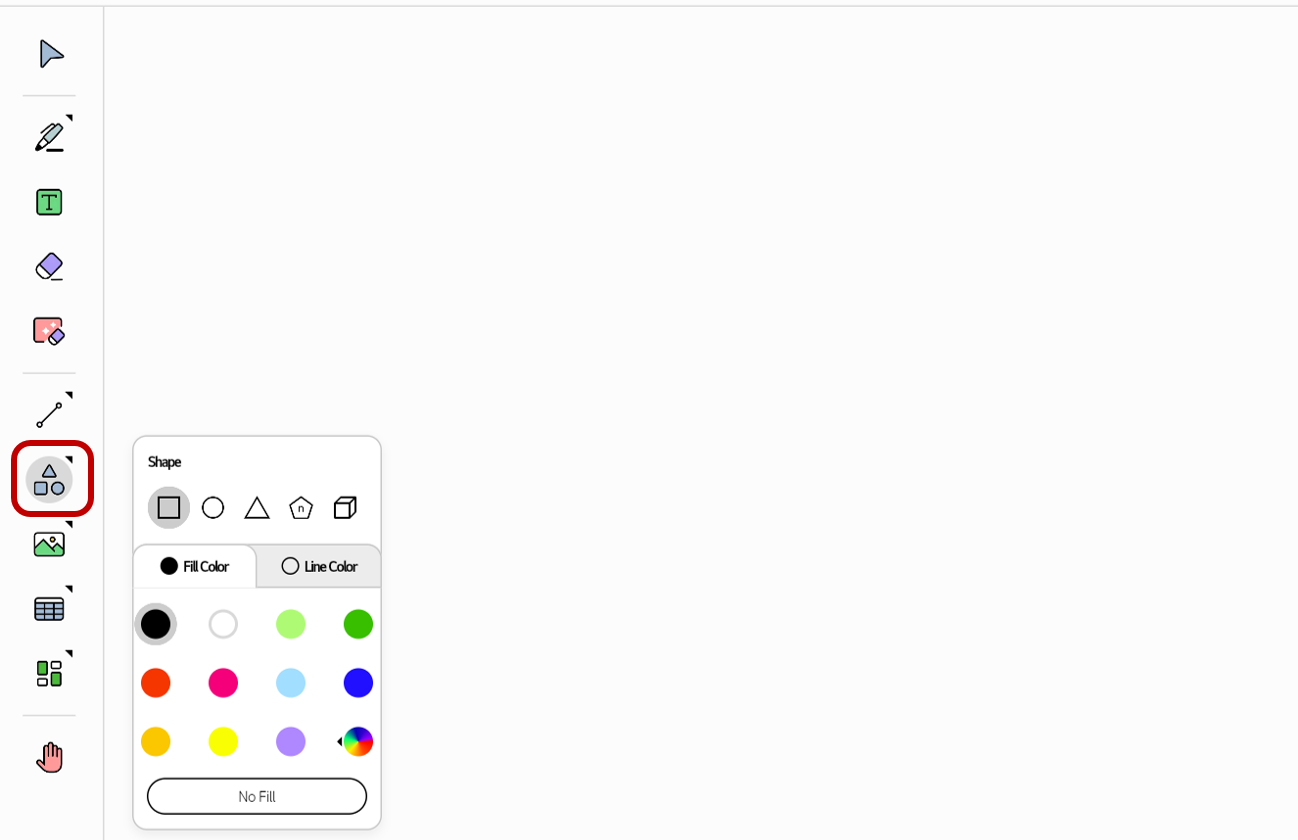
Choose Shape in the Tool bar. A menu appears where you can set the type and color of the shape. Select its type and color as you want.
Drag without pause from one point on the board to another. A shape object will be created in the rectangular area made by the two points.
Modify the object options
You can open the Options menu for an object and edit its properties.
-
Make sure that
Selectis chosen in the Tool bar. -
Tap an object. The Options menu will appear.
-
Modify the object’s properties as desired.
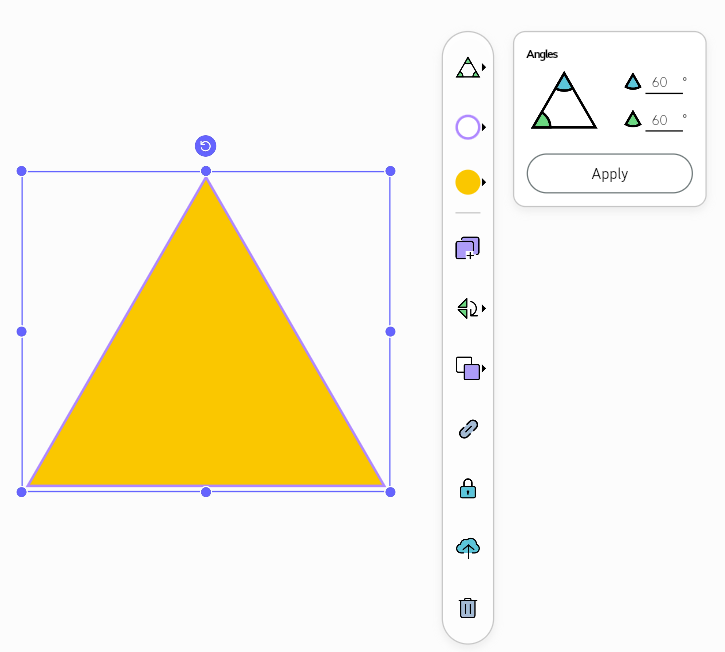
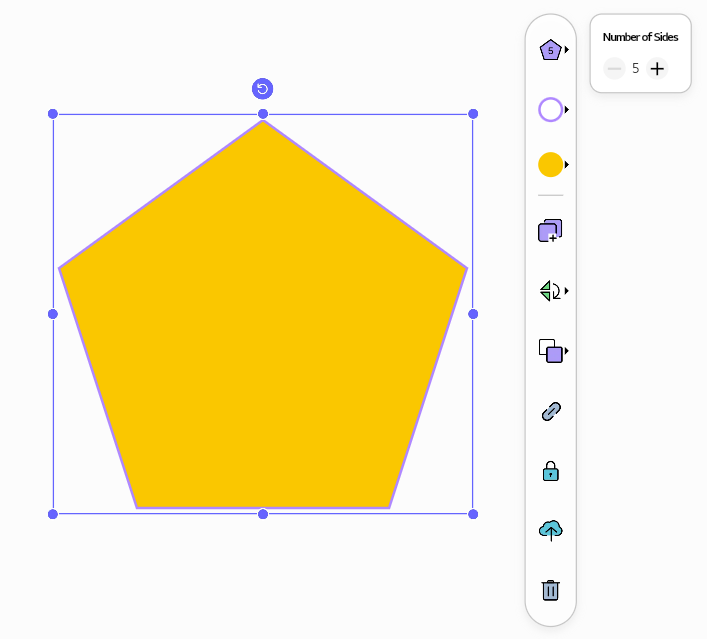
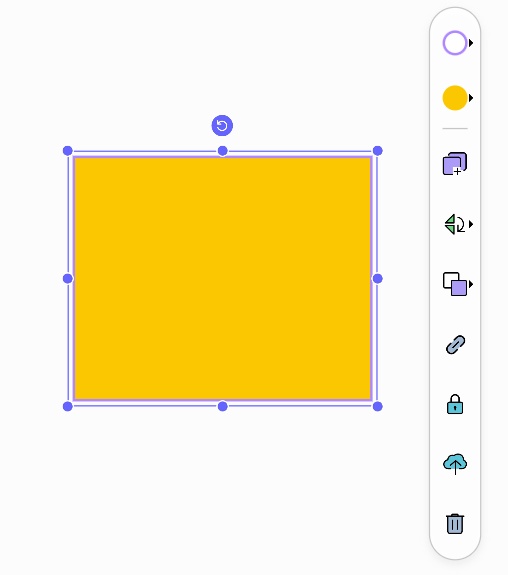
For the object created with the Shape mode, the following Options menu appears.
Color options for shapes
| Icon | Options | Description |
|---|---|---|

|
Line Color |
Set the outline color of the shape. |

|
Fill Color |
Set the fill color of the shape. |
Triangle options
The following options are available for Triangles.
| Icon | Options | Description |
|---|---|---|

|
Angles |
Enter the two angles of the triangle. 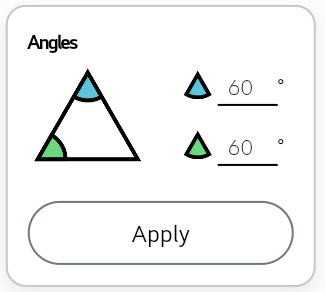
|
Polygon options
The following options are available for Polygons.
| Icon | Options | Description |
|---|---|---|

|
Number of Sides |
Enter the number of the sides that the polygon has. 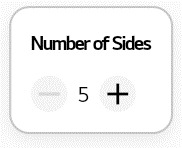
|
Common options
For descriptions of the other options, refer to the Options menu.