Utility
How to execute
If the Tool bar already displays the Utility button, you can simply tap it to execute. Otherwise, tap the More button to display the entire menu and then choose Utility.
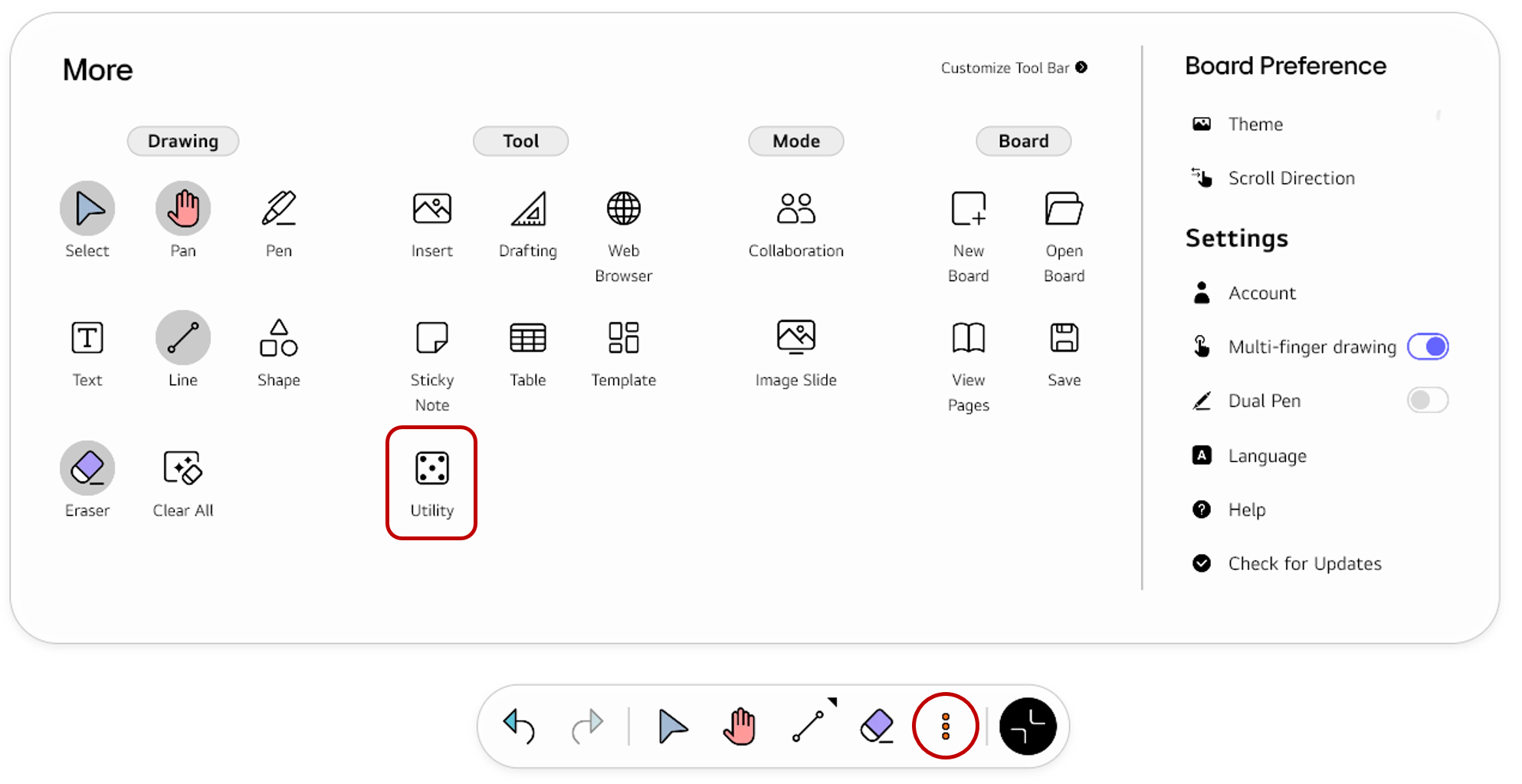
If you frequently use this item, refer to Customize Tool bar to pin it to the Tool bar for easy access.
Usage & tips
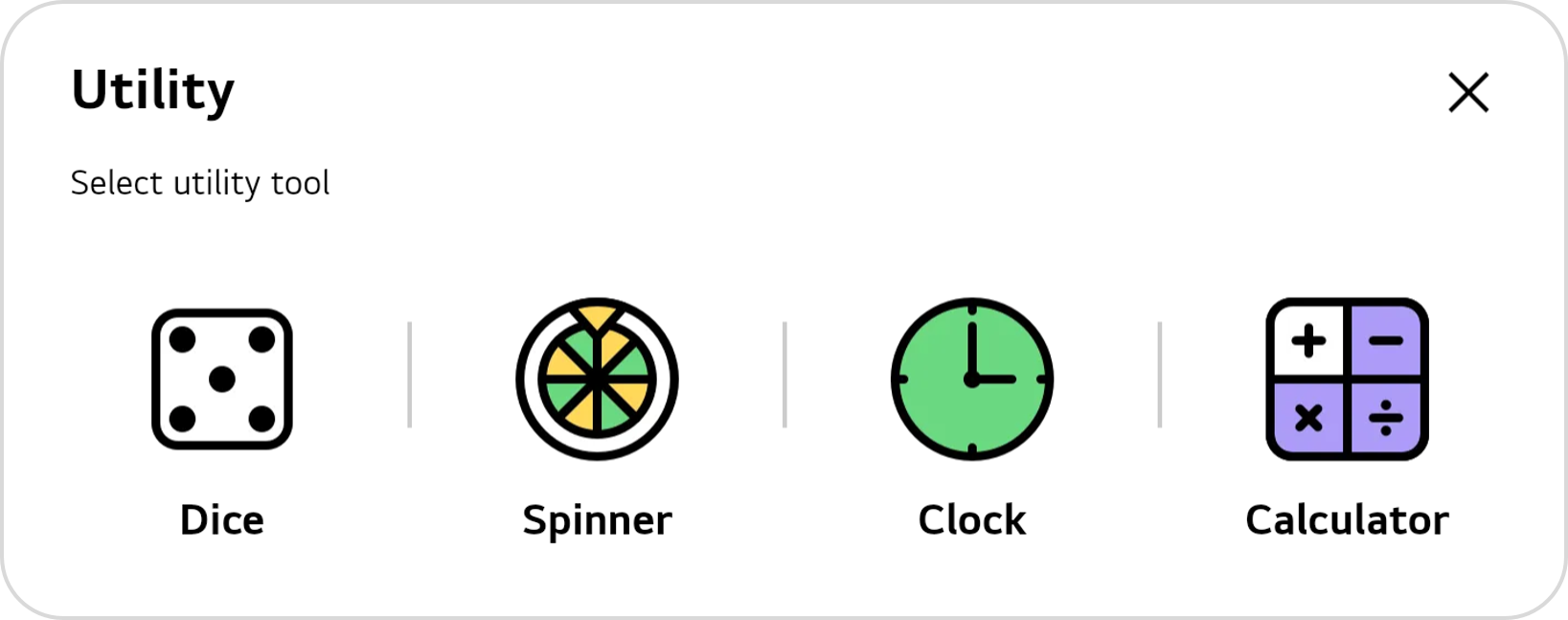
When you tap on Utility in the Tool bar, a menu will appear that allows you to select a utility for use on the board.
Use the dice
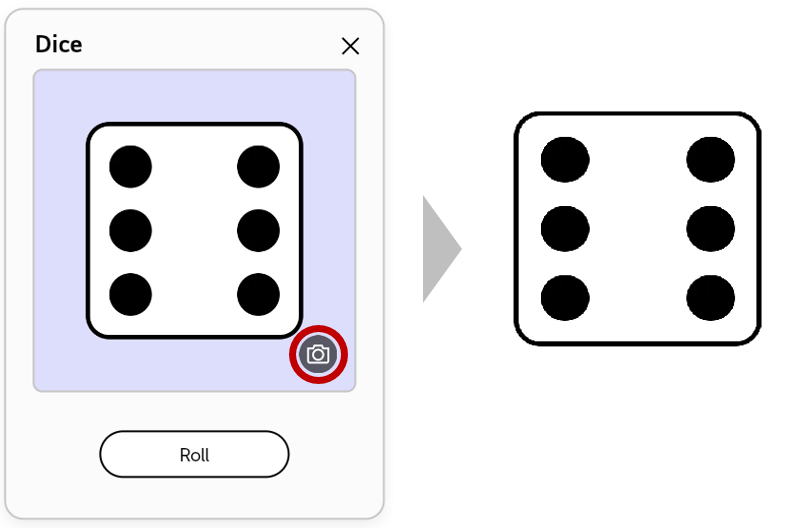
Places a dice on the board that you can roll.
By tapping the camera icon as shown in the example below, you can capture an image of the result and then insert that image onto the board.
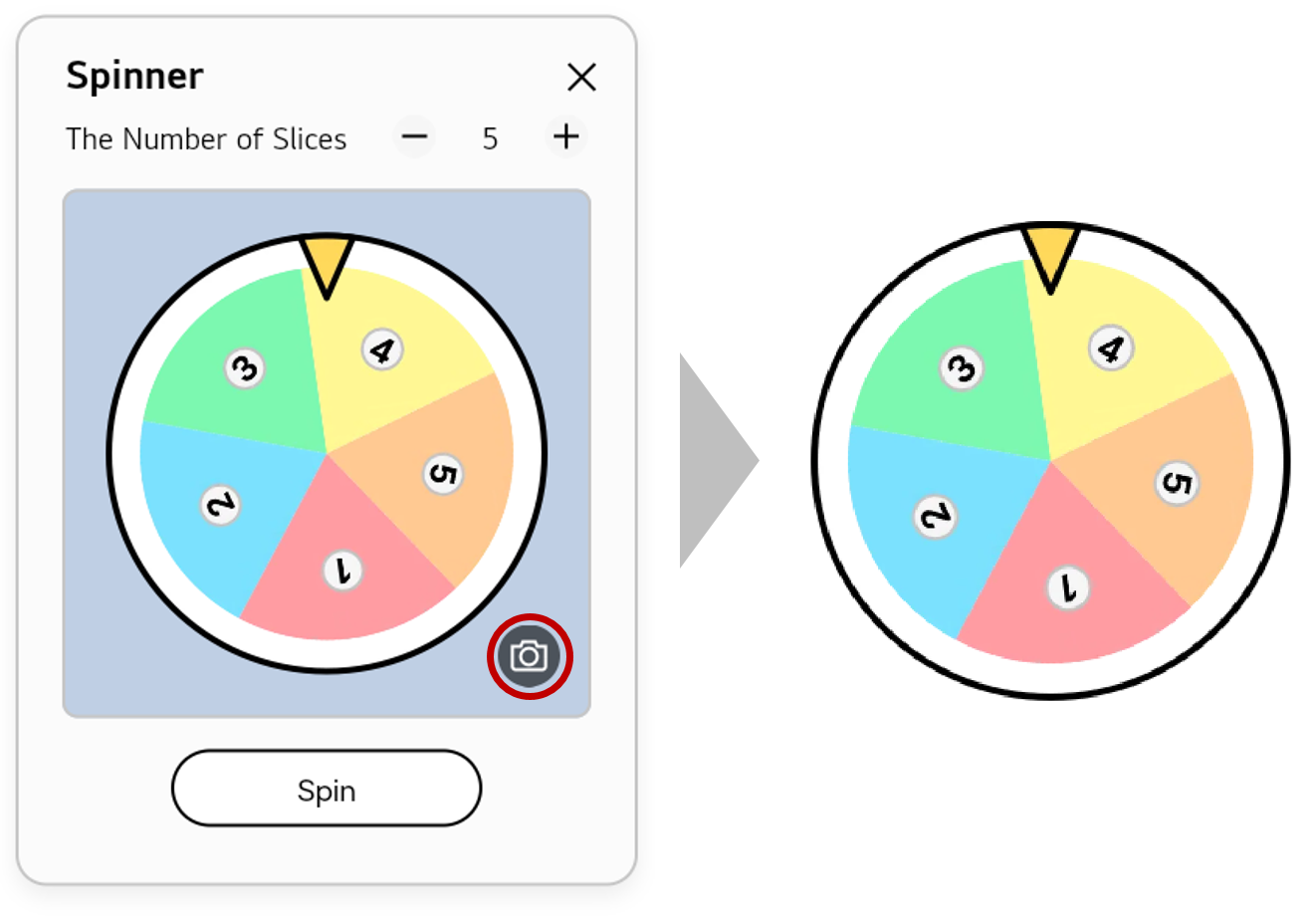
Use the spinner
Places a spinner on the board that you can spin after setting the number of slices.
By tapping the camera icon as shown in the example below, you can capture an image of the result and then insert that image onto the board.
Use the clock
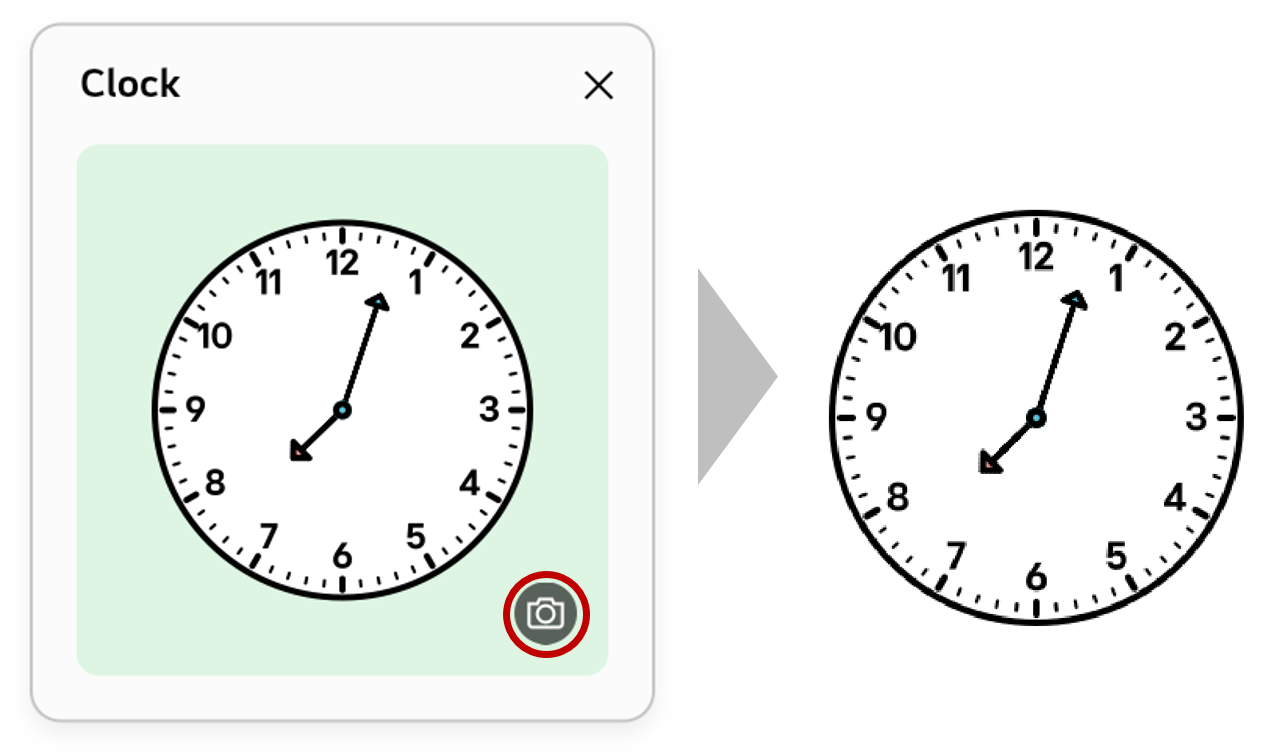
Places a clock on the board that you can adjust to show a specific time.
By tapping the camera icon as shown in the example below, you can capture an image of the result and then insert that image onto the board.
Use the calculator
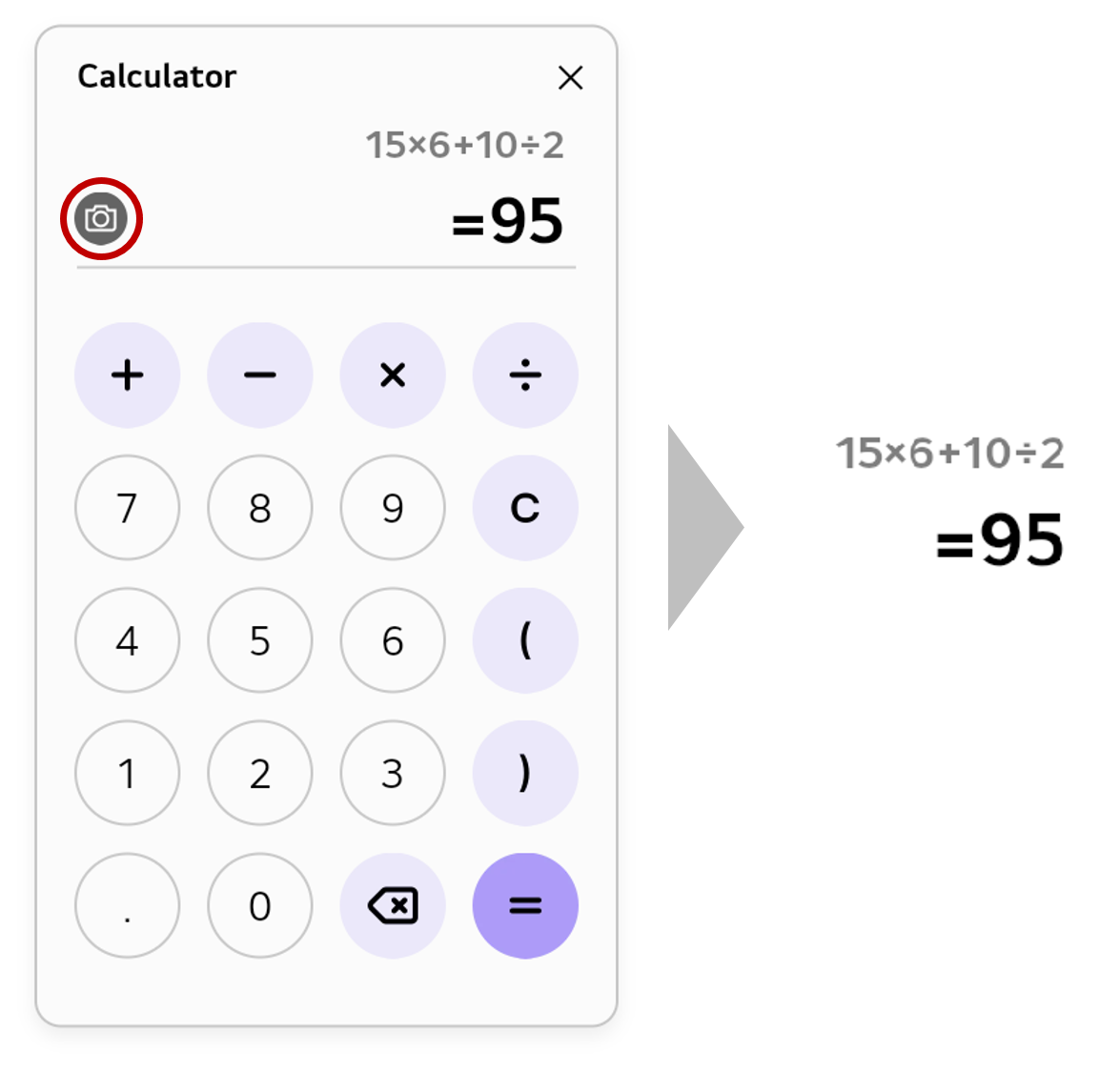
Places a calculator on the board that you can use to perform basic arithmetic operations.
By tapping the camera icon as shown in the example below, you can capture an image of the result and then insert that image onto the board.