Board Editor
How to access
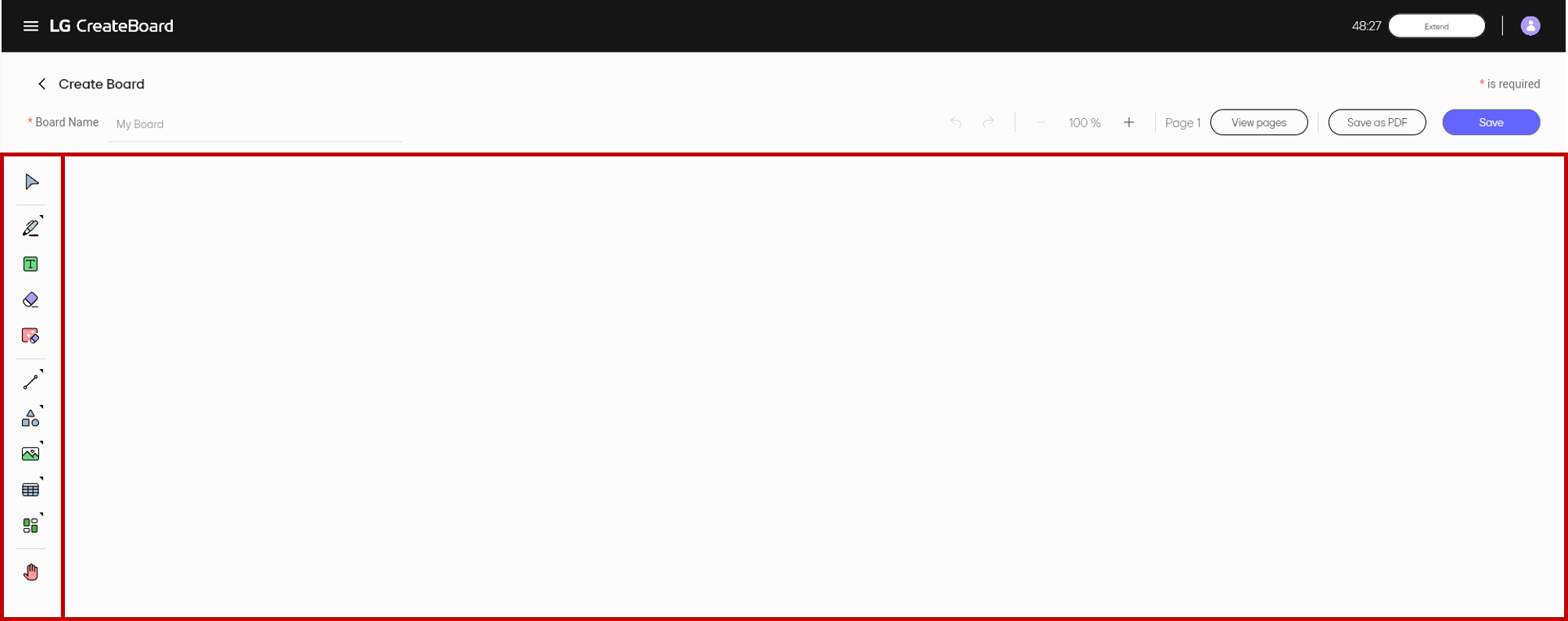
To access the board editor page, you can either create a new board or open an existing board from the Home or My Board page. You can edit a board as desired by selecting an appropriate tool from the Tool bar on the left side of the screen.
| Functions | Description |
|---|---|

|
In Select, you can choose an object to move, delete, or modify.
For details, refer to Select.
|
|
In Pen, you can write or draw directly on the board with a pen.
For the details, refer to Pen.
|

|
In Text, you can enter and edit text using a keyboard.
For details, refer to Text.
|

|
In Eraser, you can remove objects drawn in Pen mode.
For details, refer to Erase.
|

|
In Clear All, you can delete all objects on the board except for sticky notes.
For details, refer to Clear All.
|

|
In Line, you can draw various types of lines.
For details, refer to Line.
|
|
In Shape, you can insert shapes such as circles, triangles, squares, and other polygons.
For details, refer to Shape.
|
|
In Insert, you can insert images, videos, audio files, and saved objects onto the board.
For details, refer to Insert.
|
|
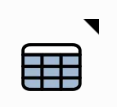
In Table, you can insert a table onto the board.
For details, refer to Table.
|
|
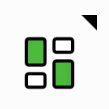
In Template, you can change the background image of the board by using provided template files or uploading an image file of your choice.
For details, refer to Template.
|

|
In Pan, you can scroll horizontally or vertically along the page.
For details, refer to Pan.
|
🚫
The content of this document may differ from the actual operation of LG CreateBoard Lab and is subject to change without notice.