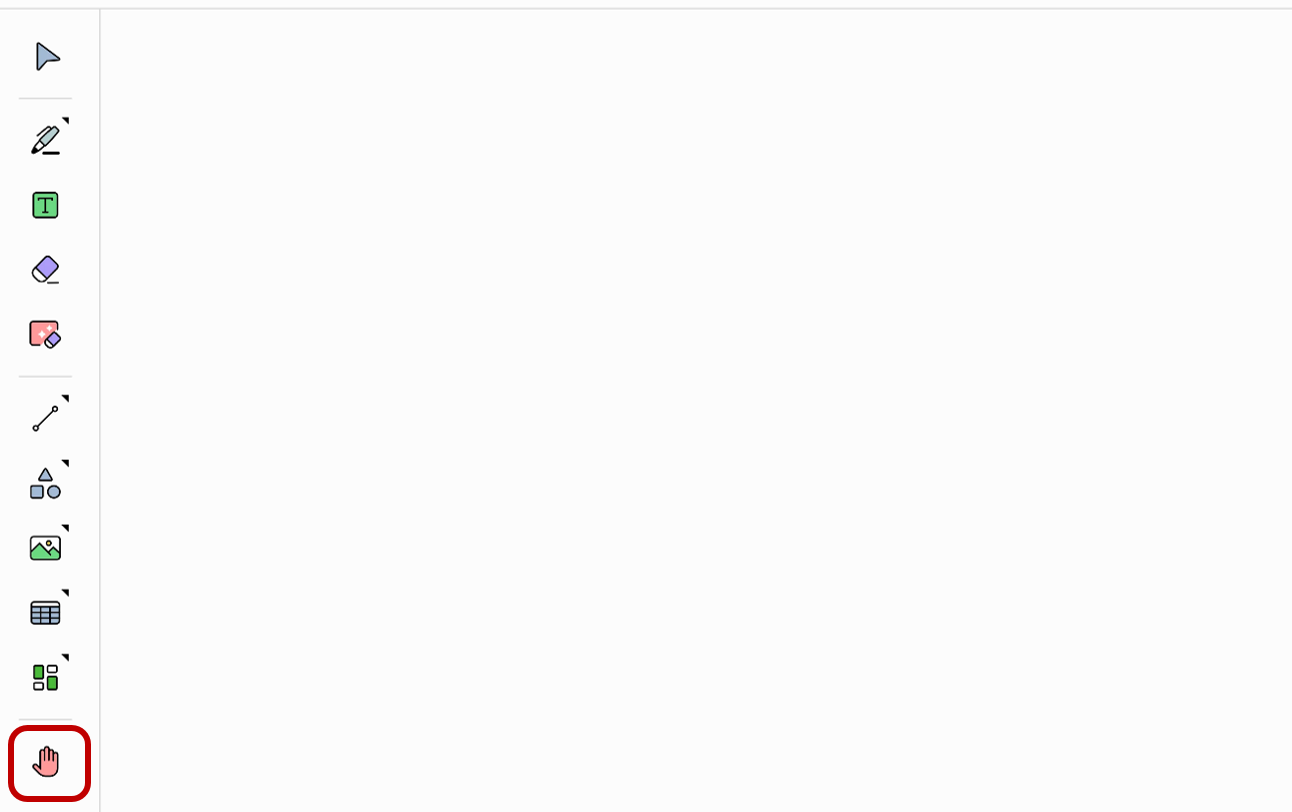
Pan
Usage & tips
The Pan mode allows you to scroll horizontally or vertically to move a page. If the scroll direction is set to horizontal, you can scroll left and right to move a page. If the scroll direction is set to vertical, you can scroll up and down to move a page.
How to use
Choose Pan in the Tool bar. Touch the board and scroll in the scroll direction you have set.
When the scroll direction is set to Vertical, you can scroll up and down to move a page. If the current page is the last one, you can scroll down to add a new one below.
When the scroll direction is set to Horizontal, you scroll left and right to move a page. If the current page is the last one, you can scroll right to add a new one to the right.
Set the scroll direction
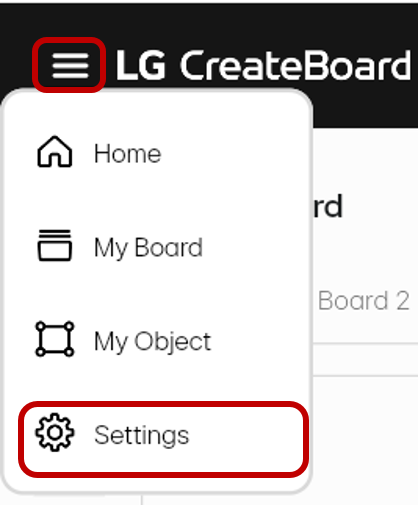
Tap the hamburger menu in the top left corner of the screen to open the side navigation bar and then select Settings.
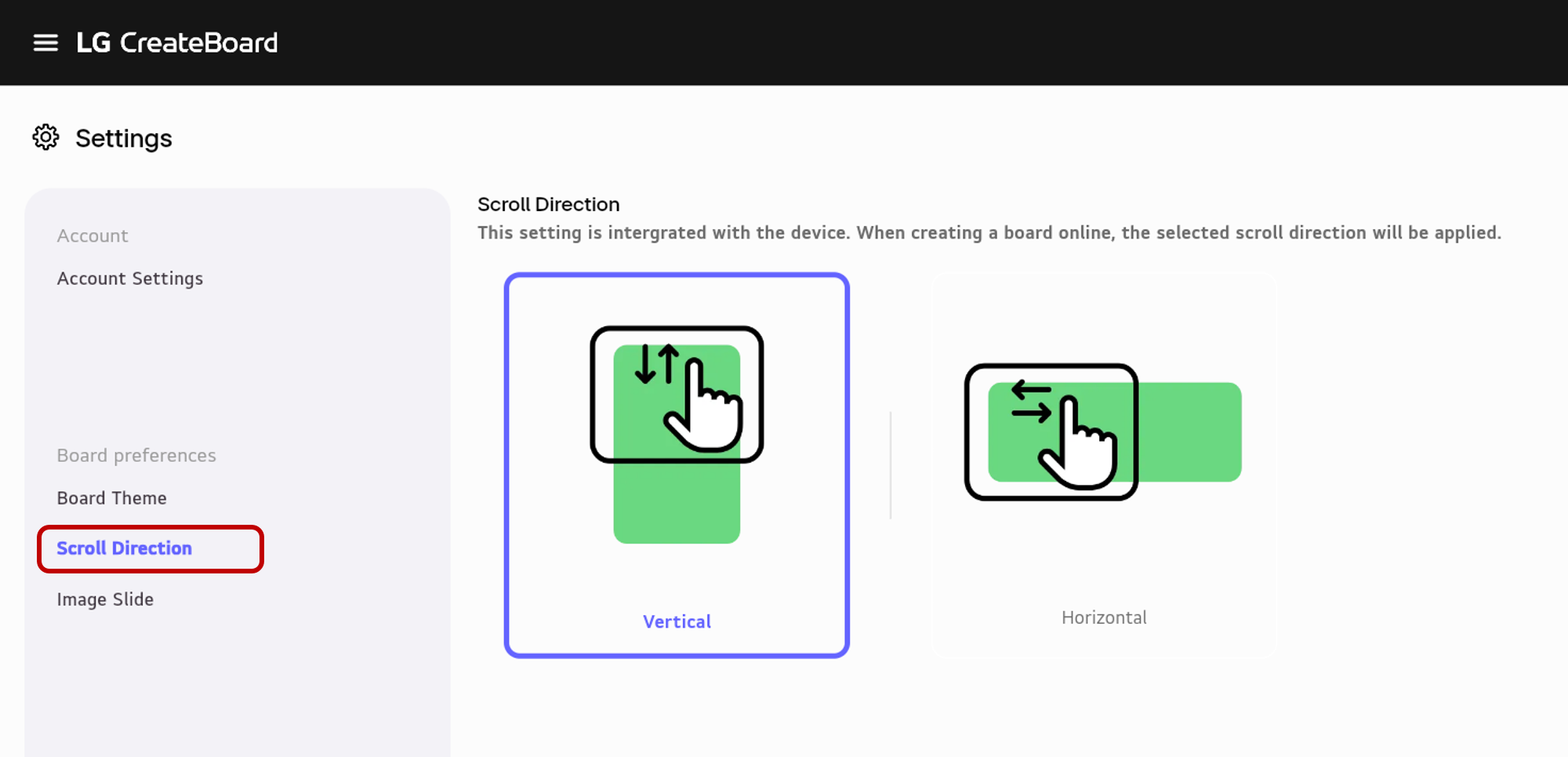
Vertical
Select Scroll Direction and set it to Vertical.
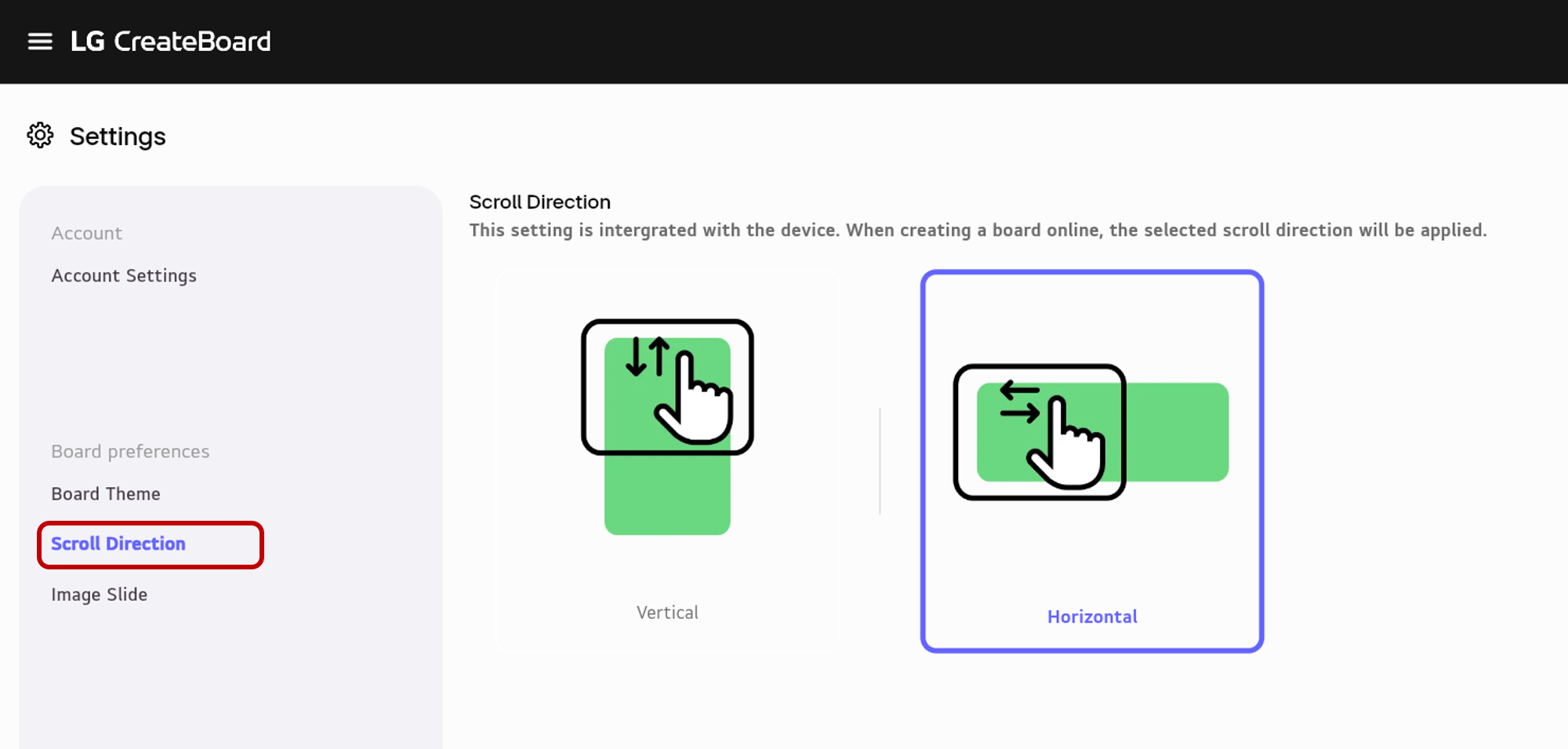
Horizontal
Select Scroll Direction and set it to Horizontal.