Select
How to execute
If the Tool bar already displays the Select button, you can simply tap it to execute. Otherwise, tap the More button to display the entire menu and then choose Select.
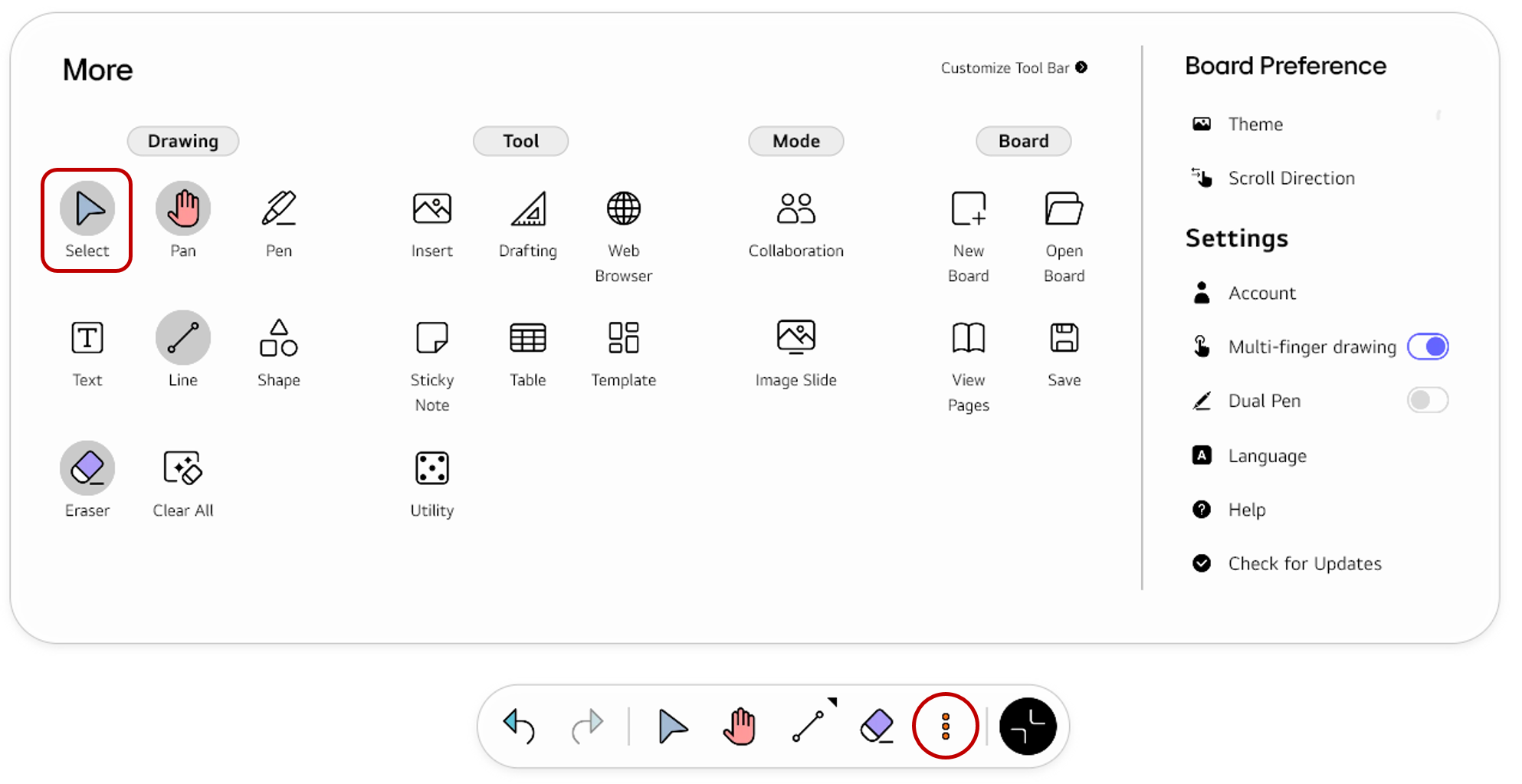
If you frequently use this item, refer toCustomize Tool bar to pin it to the Tool bar for easy access.
Usage & tips
ℹ️
To move, modify, or delete a drawn object, you must be in the
Select mode.
In the Select mode,
- You can drag an object to move it to the desired position.
- When tapping an object, the object’s Options menu appears.
- In the Options menu, you can modify the object’s properties, such as changing color, adjusting arrangement, adding a link, and more, or you can delete it.
Select multiple objects
When you drag an area, you can select all the objects within that area at once. You can drag multiple objects together to move them or delete them all at once.
Switch quickly between the Select/Pen modes
You can quickly switch between Select/Pen modes using the 3 Finger Long Tap gesture.

🚫
The content of this document may differ from the actual operation of LG CreateBoard Lab and is subject to change without notice.