Drafting
How to execute
If the Tool bar already displays the Drafting button, you can simply tap it to execute. Otherwise, tap the More button to display the entire menu and then choose Drafting.
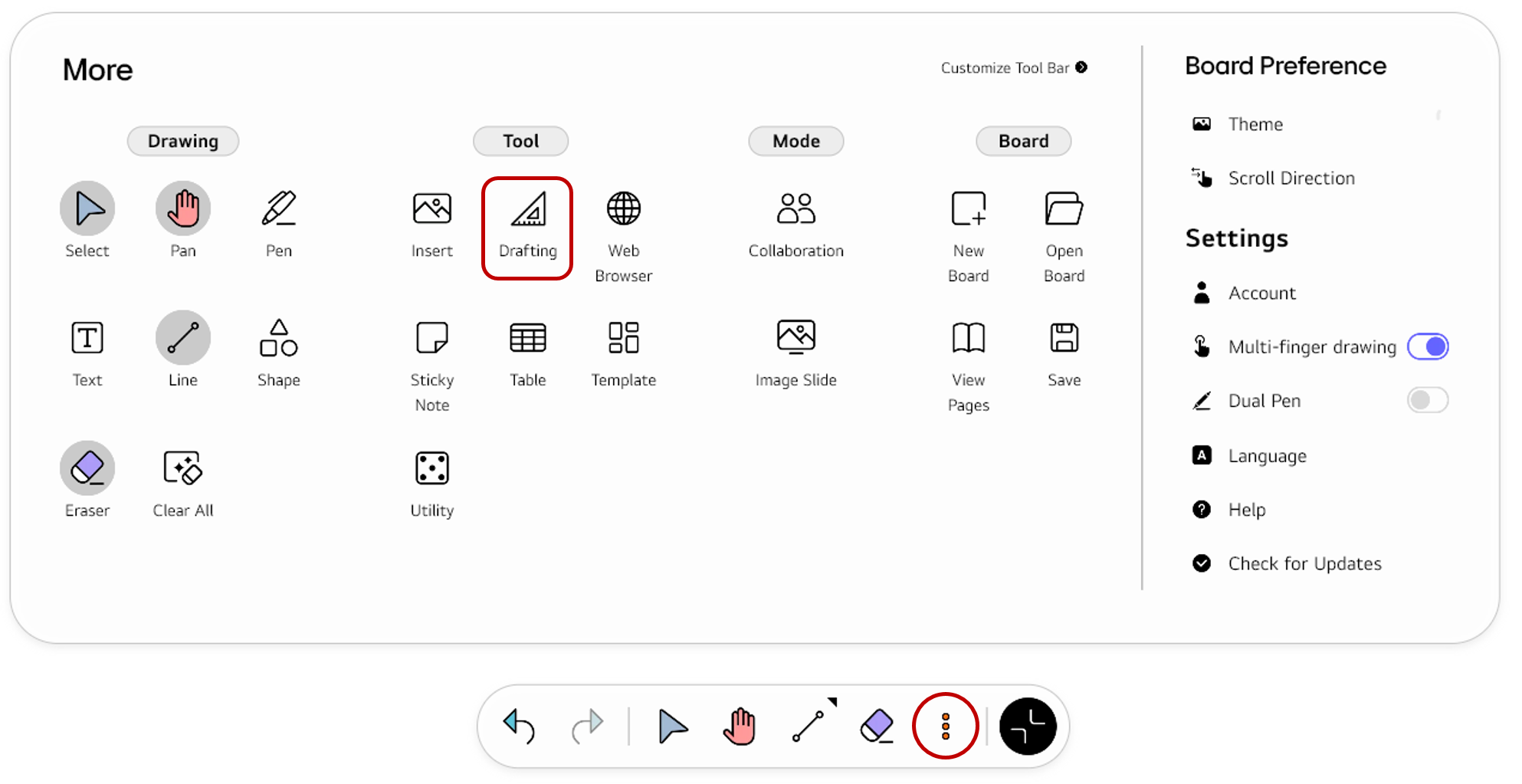
If you frequently use this item, refer to Customize Tool bar to pin it to the Tool bar for easy access.
Usage & tips
Ruler
Places a ruler on the board that you can use to draw a straight line and measure its length.
-
Select
Ruler.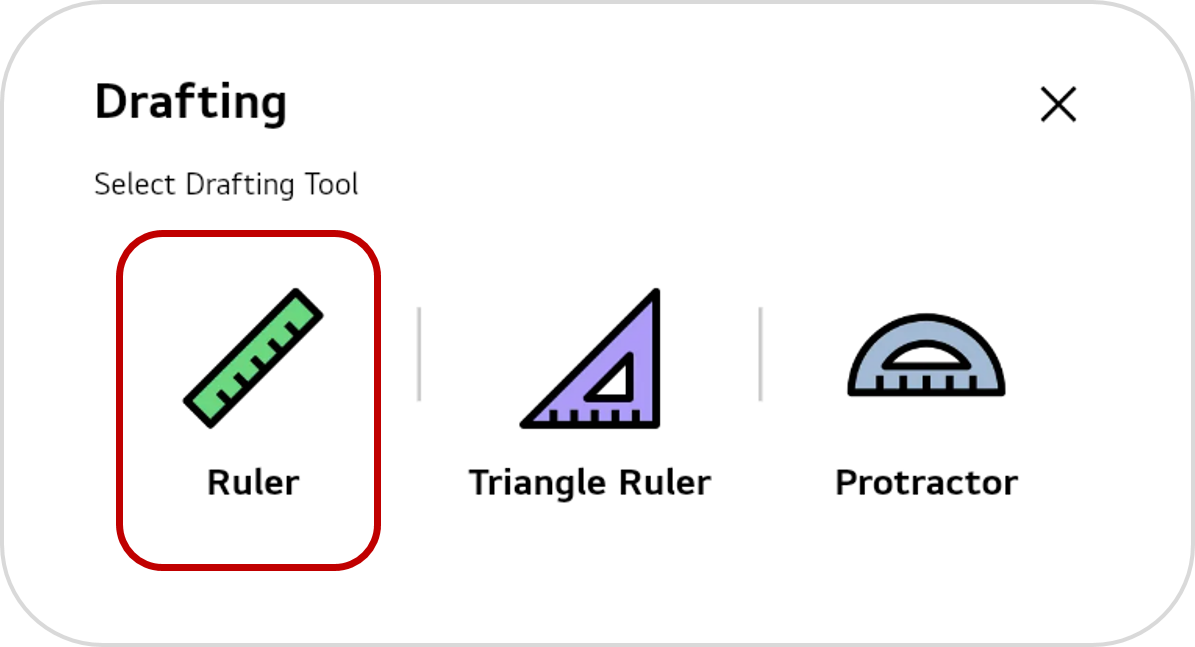
-
A ruler is inserted onto the board. If you draw a line along the ruler, you can measure the length of the line.
Triangle ruler
Places a triangle ruler on the board that you can use to draw straight lines that form a triangle and measure their lengths.
-
Select
Triangle Ruler.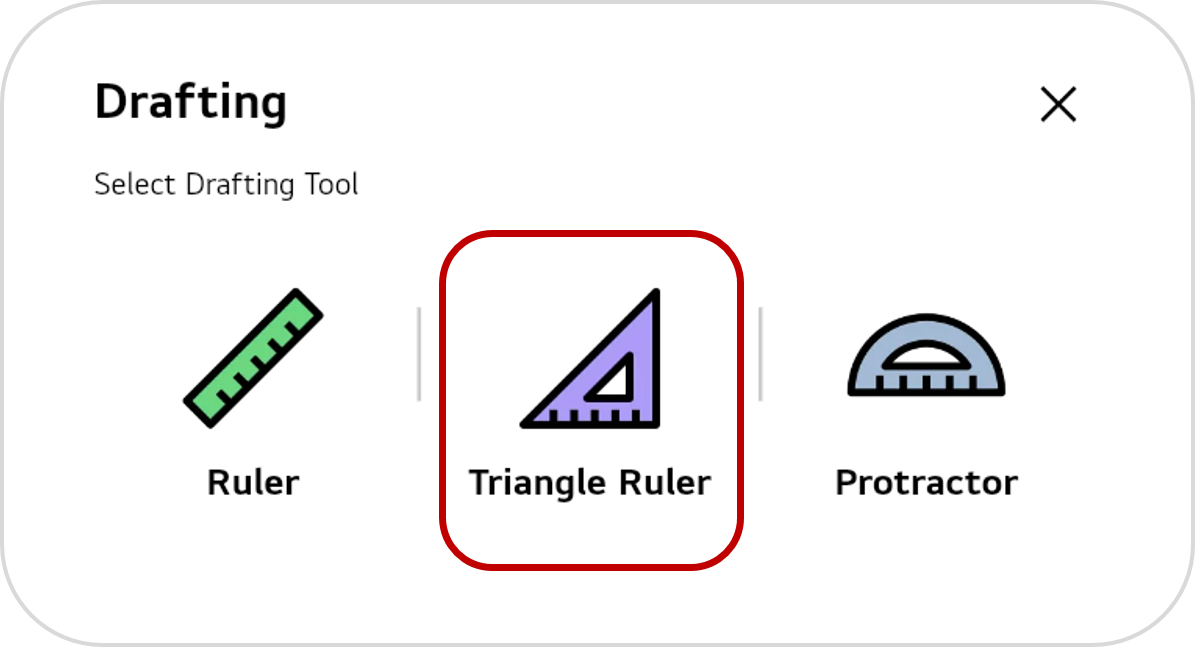
-
A triangle ruler is inserted onto the board. If you draw a line along the triangle ruler, you can measure the length of the line.
Protractor
Places a protractor on the board that you can use to measure angles.
-
Select
Protractor.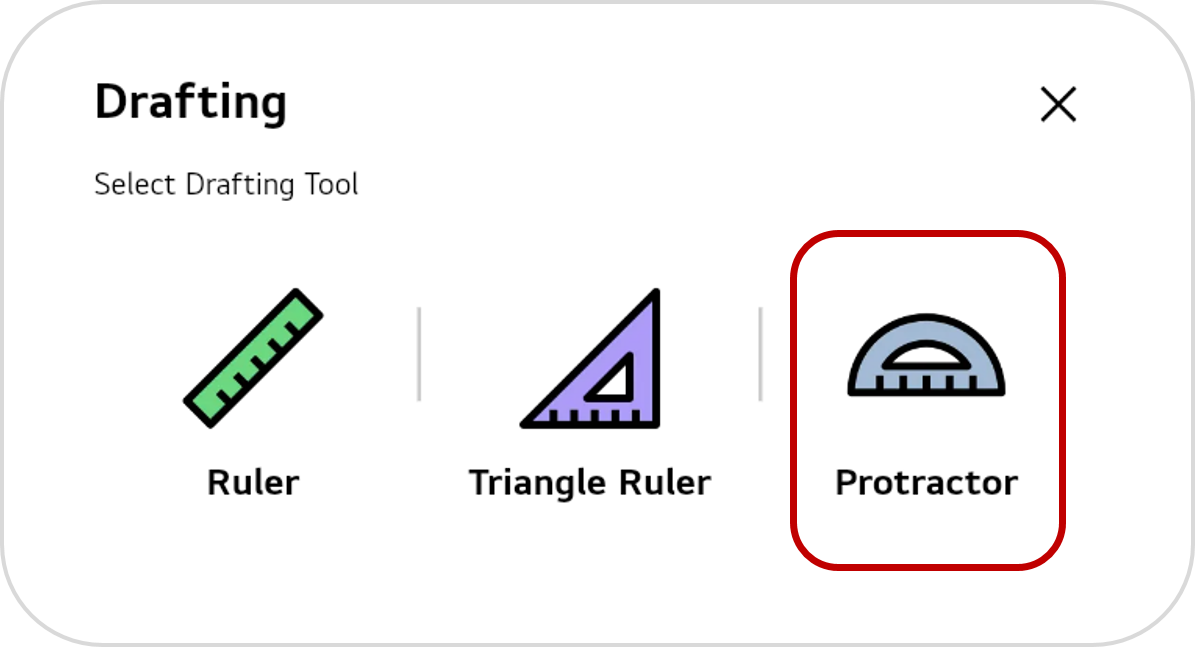
-
A protractor is inserted onto the board. You can measure the included angle between two lines.
Change the measurement unit
For the Ruler and Triangle Ruler, you can choose a measurement units between cm and inch.