Insert
Usage & tips
The Insert mode allows you to insert images, videos, audio files, and saved objects onto the board.
How to use
Choose Insert in the Tool bar.
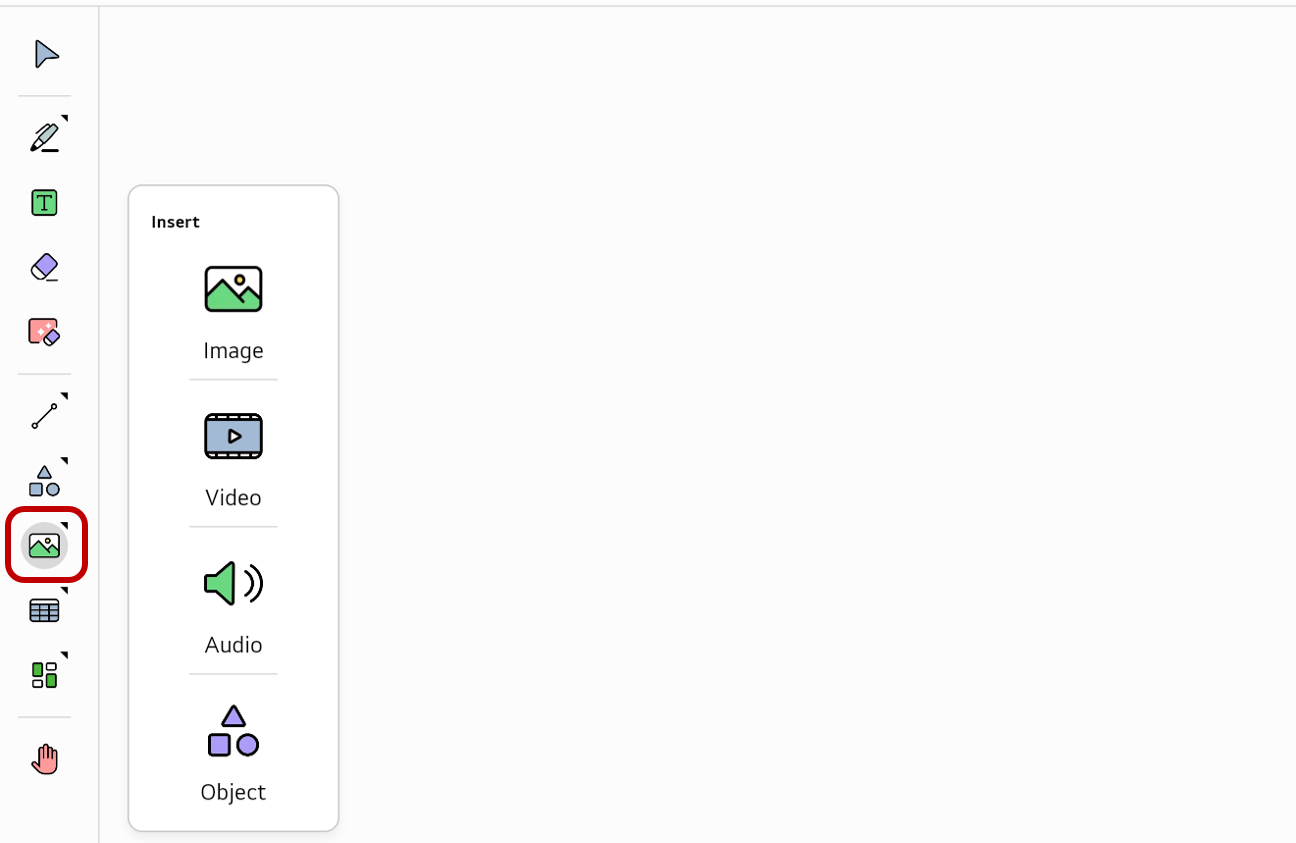
Insert image, video, and audio files
You can select the desired image, video, or audio file from local storage and then insert it into the board.
-
When you tap on
Insertin theTool bar, a menu will appear that allows you to select the type of the file to insert.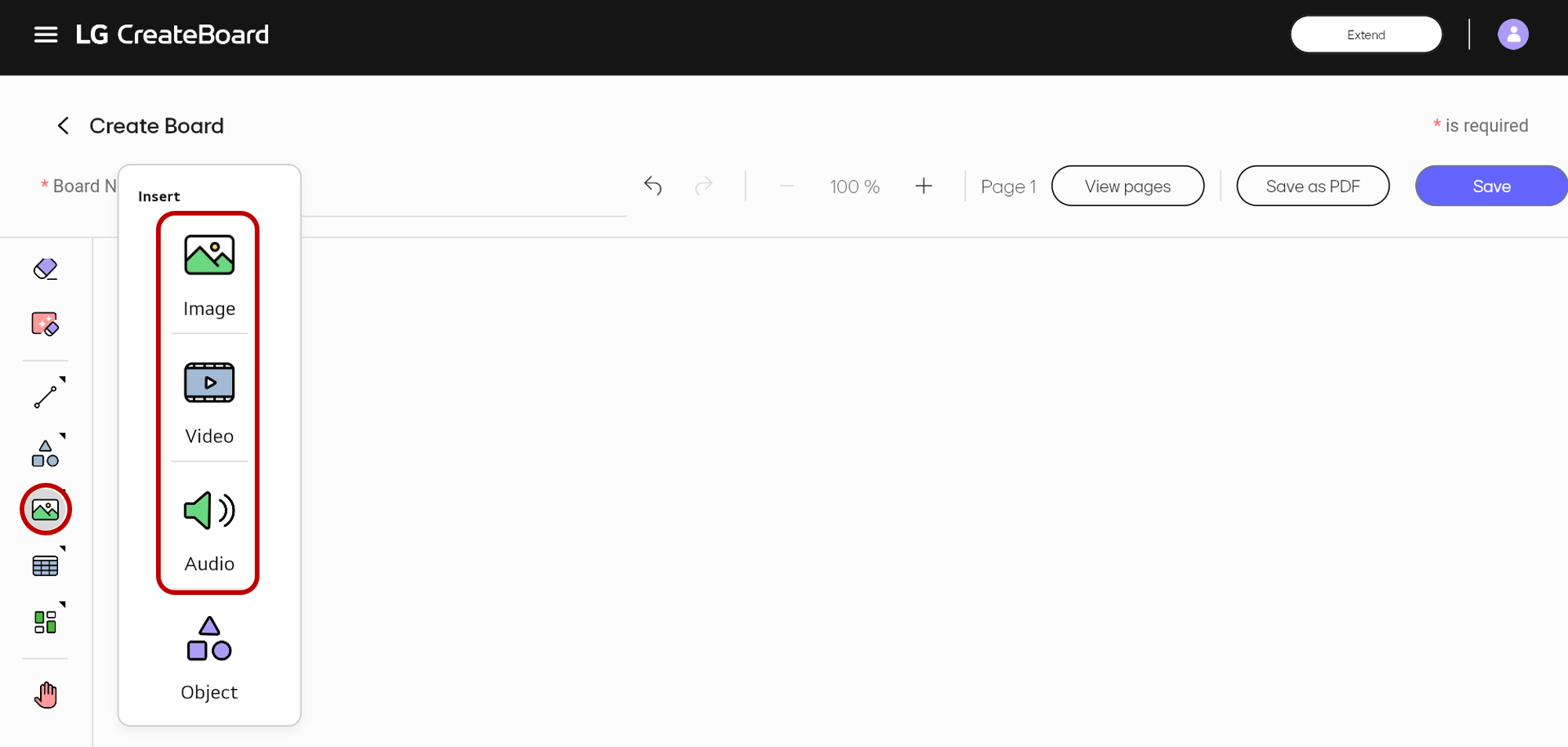
-
Choose the desired type such as image, video, or audio. This will open the file explorer, where you can select a file from your local storage to insert.
-
Select the file you want to insert.
Insert an object from the cloud
You can load an object stored in your cloud storage and then insert it onto the board.
-
Tap
Insertin theTool barand then selectObject.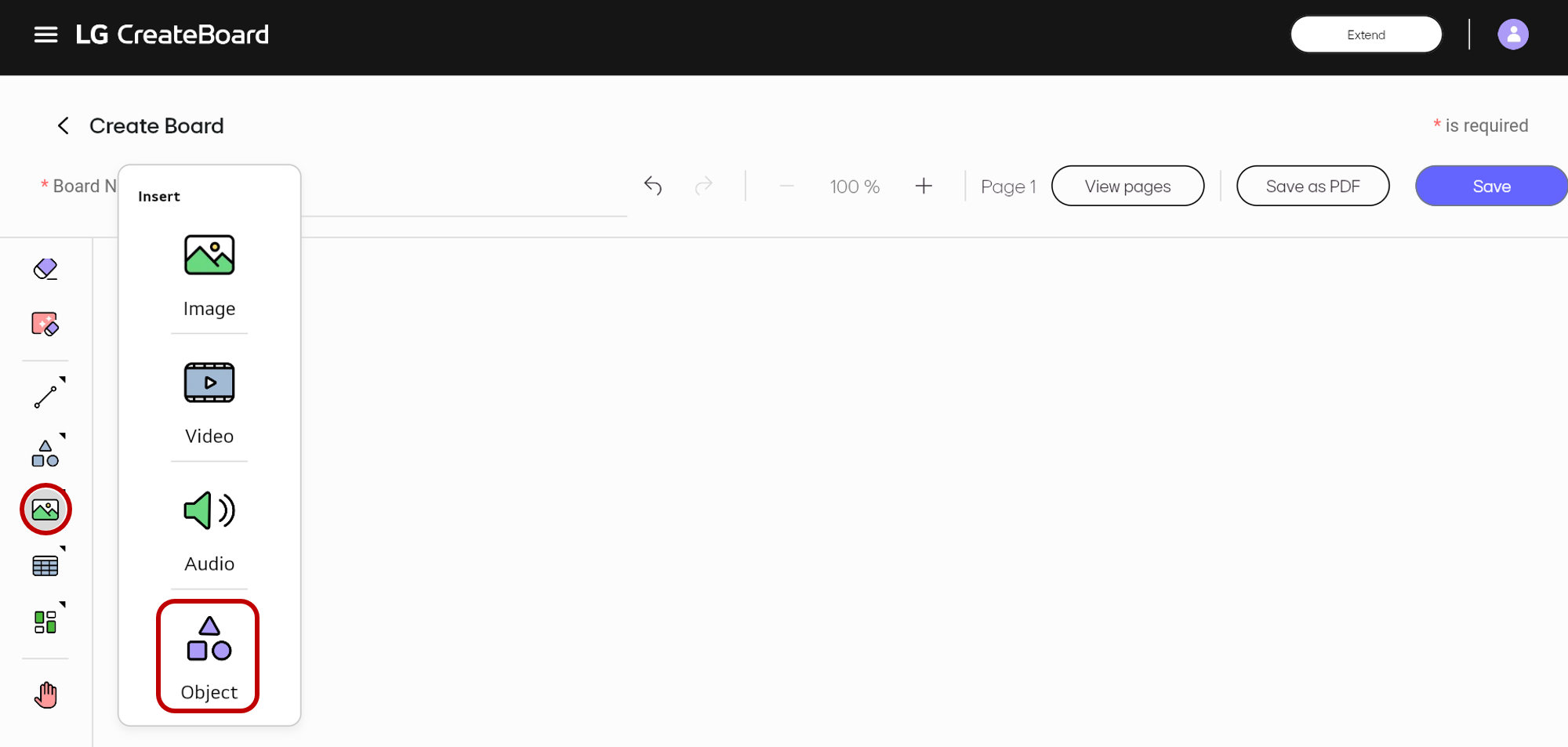
-
The file explorer for your cloud storage will open.
-
Select the file you want to insert.