Tool Bar
Tool bar
The Tool bar is a menu that gathers various tools available for use on the board, similar to a palette, and it is displayed at the bottom or side of the board. Users can customize the toolbar for quick access to frequently used features, and they can tap the More button to expand the full list of tools. Additionally, users can minimize the toolbar to make more efficient use of board space, and in its minimized state, move it to any desired position along the board’s edge.

Expand the Tool bar
Tap the More button to expand the Tool bar and explore what we offer. All features are accessible from the Tool bar.
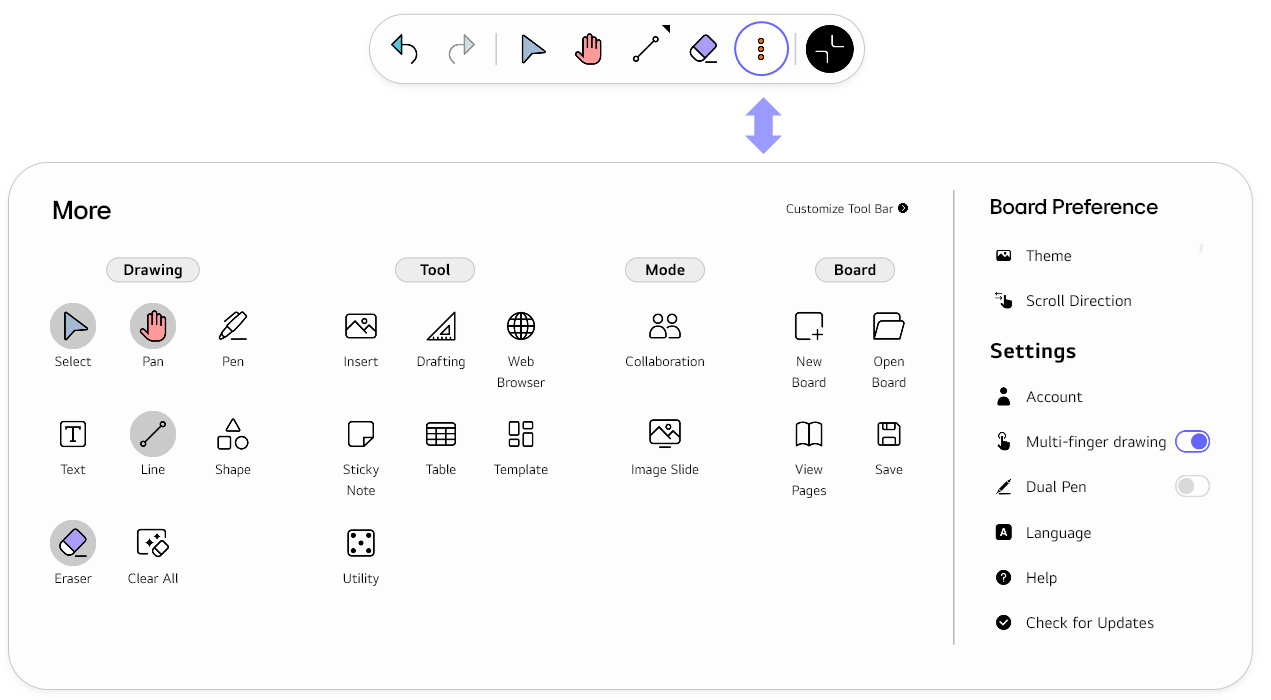
Customize the Tool bar
Tools can be added to or removed from the Tool bar as follows.
-
Tab the
Morebutton on theTool bar.
-
Tab the
Customize Tool bar.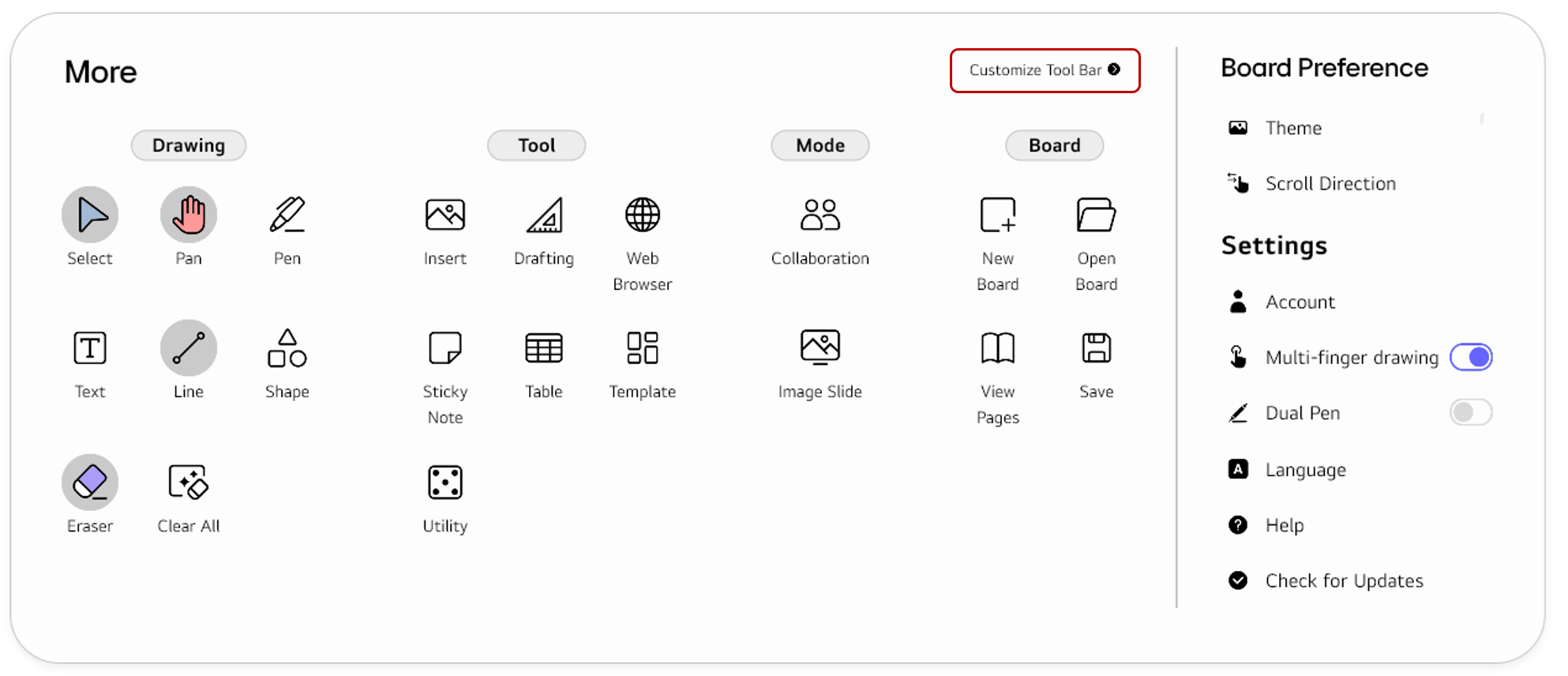
-
Find the tools you want to add to the
Tool barand select them. You can also rearrange the order of the tools on theTool barby dragging and dropping them.
- Tap
Done.
Collapse the Tool bar
You can collapse the Tool bar as follows. In the collapsed state, drag it along the edge of the board and place it where you want so that you can efficiently utilize the space of the board.