Save and Share
Learn how to save and share board content.
You can save and share board content through a variety of options. Load an existing board file to continue working on it or save it as a file for easy management. In addition to local storage, you can save your board to cloud storage, allowing you to continue editing the board anytime, anywhere, and easily share it with others. You can also use a QR code to provide other users with direct access to the current board.
Board File Format
You can choose to save the board content in either .pdf or .lab (board file) format.
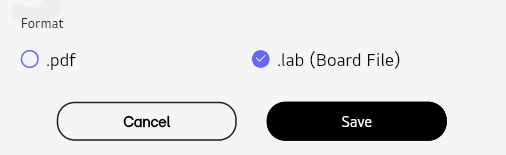
.lab file format is used by LG CreateBoard Lab to save board files.
Web app
Save to cloud storage
To save your board content to the cloud storage provided by LG CreateBoard Lab, select the Save at the top left. When saving to this storage, you cannot choose the file format, and it will be saved as a .lab file.
Save to my device
To save your board content to the local storage of your current device, select Share at the top left and then choose This Device.
Save to Google drive
To save your board content to Google drive, select Share at the top left, then choose Google Drive.
Save to Google classroom
To save your board content to Google classroom, select Share at the top left, then choose Google Classroom.
Share the board via QR code
You can instantly share the current board with another device or user using a QR code.
-
Select
Shareat the top left, then chooseQR Code Share. -
Select the page to share. Multiple selections are allowed.
-
A QR code will be generated.
Share the generated QR code. When the QR code is scanned and the recognized URL is opened in a browser, it provides access to the board.
Device app
Save to local storage
To save into local storage, follow these steps.
-
Select
Local Storage. -
For Local Storage, you can choose to save the file in either
.pdfor.lab(board file) format. Choose the desired format and then selectSave.
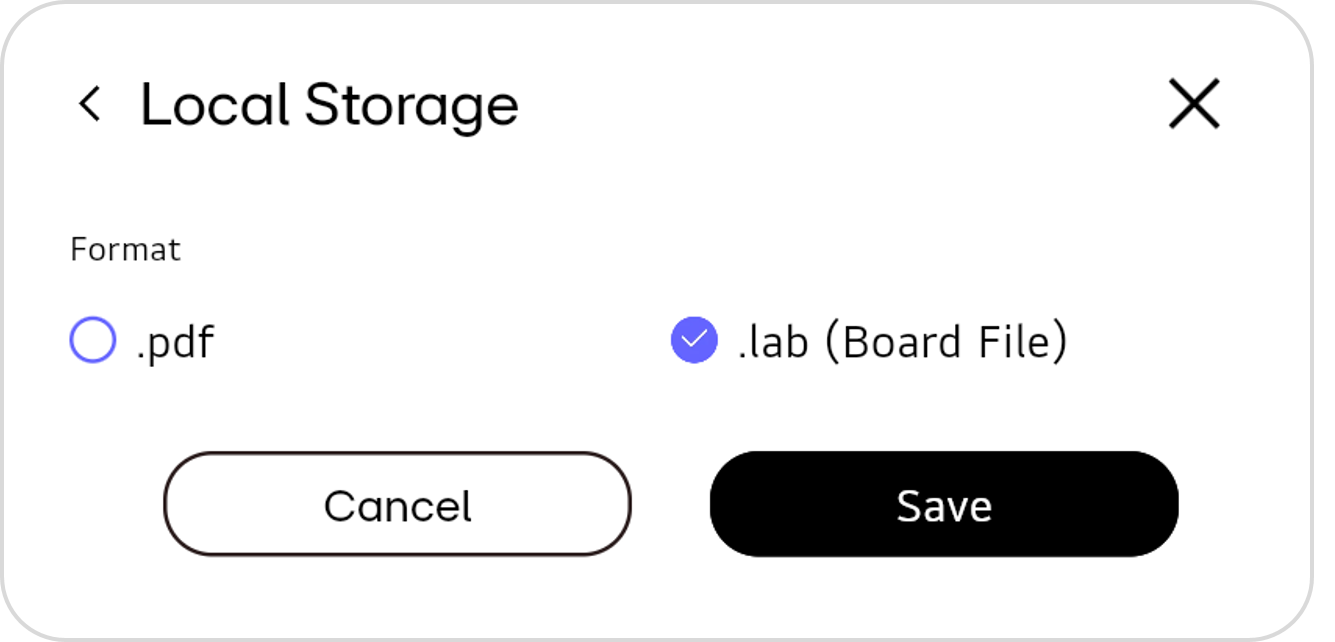
- When the file explorer opens, save the file with the desired name in the desired path.
.lab file format is used by LG CreateBoard Lab to save board files.
Save to cloud storage
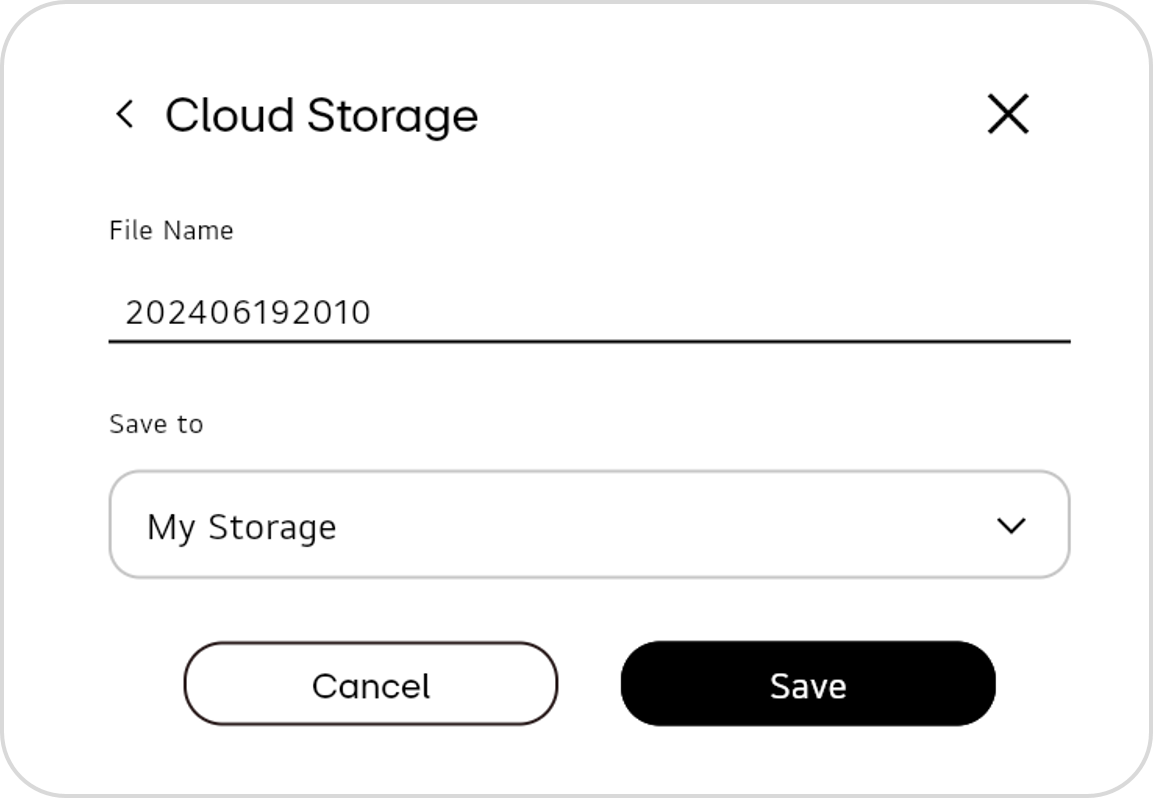
To save into cloud storage, follow these steps.
-
Select
Cloud Storage. -
Edit the file name. If you do not edit it, the default file name will be set to the current year, date, and time, such as 202406192010.
-
Choose the path where the file will be saved and then select
Save.