Device App
Open the app
Download and install the LG CreateBoard Lab app on each platform.
(#TBD. 플랫폼별 다운로드 링크 추가)
Sign in
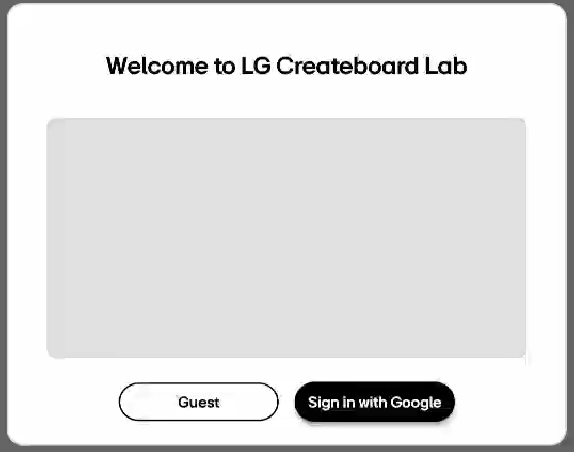
When you first launch LG CreateBoard Lab on a device, a popup menu will appear that allows you to choose either Guest or Sign in. You can use a limited set of the features in the guest mode without signing in but you can access all the features by signing in.
Start as a guest
Select Guest in the pop-up window that appears as follows when you first run the app.
(#TBD 최종앱 스크린샷업데이트)
Sign in
Select Sign in with LG Account in the pop-up window that appears as follows when you first run the app.
(#TBD 최종앱 스크린샷업데이트)
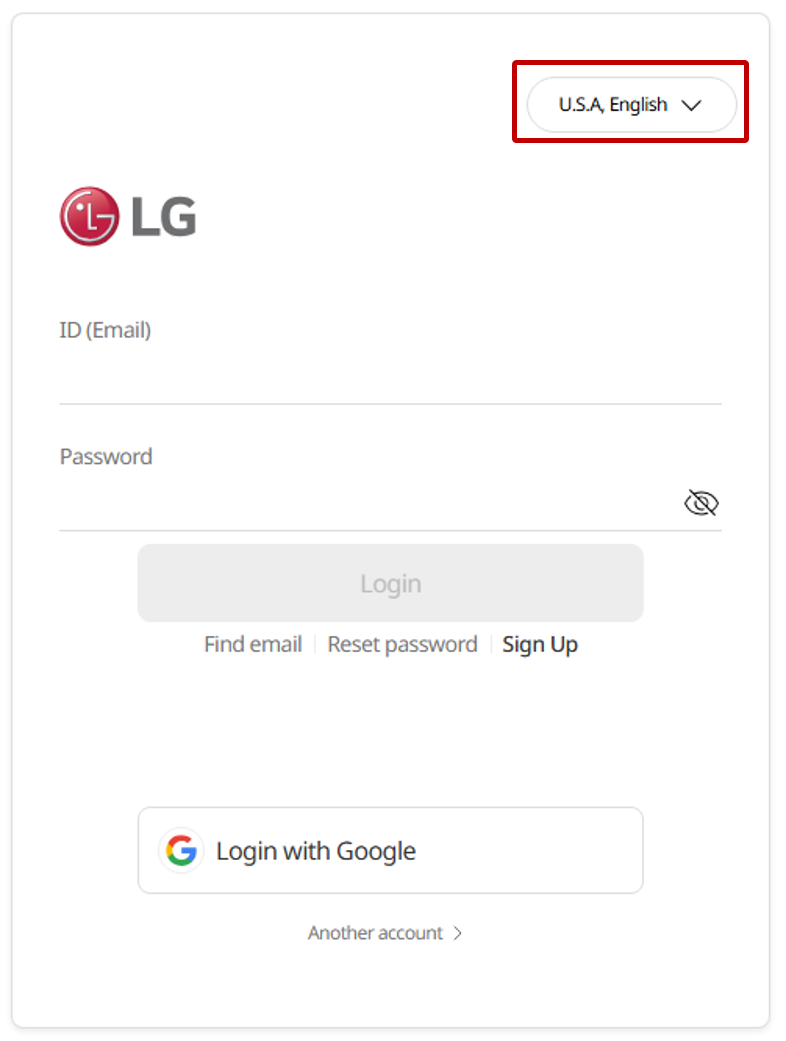
When signing in with LG Account, ensure that the region setting marked by the red box in the figure below is set to the region you’re signed up for.
Sign in benefits
-
Customized options: You can save your custom settings that can be used on any board within LG CreateBoard Lab. You can also customize the Image Slide.
-
Reusable objects: You can save frequently used objects and reuse them at any time.
-
Collaboration with others: You can use the Collaboration feature that enables you to create a class in the cloud, share boards with multiple users, and carry out interactive classes or meetings.
Start with a new board
When you launch the app, a new board will automatically open.
(#TBD. 파이널버전앱 보드 첫화면 스크린샷 추가)
Now, go to the pages below to explore the app’s basic menu structure and learn more about how to use the board in detail.